A click-to-WhatsApp ad is the shortest path from an ad to a sale that Meta sells: the person sees your ad on Facebook or Instagram, taps once, and is talking to you on WhatsApp. No landing page, no form, no app to install. For a business in Egypt or the Gulf, where the customer was going to ask on WhatsApp anyway, it is usually the best-performing ad format there is — and the one most often run blind, because the ad knows that a chat started and nothing after that.
This guide covers the whole path: creating the ad, what the conversation costs, the first minute after the tap, and the part most guides skip — getting real leads and sales back into Ads Manager so the ad optimises for buyers instead of for people who merely opened a chat.
In short
- A click-to-WhatsApp (CTWA) ad opens a WhatsApp chat with your business. You create it in Ads Manager with the Engagement objective and WhatsApp as the conversion location, from the Facebook Page linked to your number.
- The chat it opens is free for 72 hours, templates included; afterwards Meta's normal message prices apply (Egypt: about $0.0036 per service message after 1,000 free a month).
- The ad knows only that a chat started. To see leads and sales in Ads Manager, your platform must report them through the Conversions API to a dataset linked to your WhatsApp Business Account, with the click ID Meta attached to the chat.
- Answer within seconds. The reply time is the single biggest difference between a CTWA campaign that pays and one that burns budget.
What a click-to-WhatsApp ad is, and what it is not
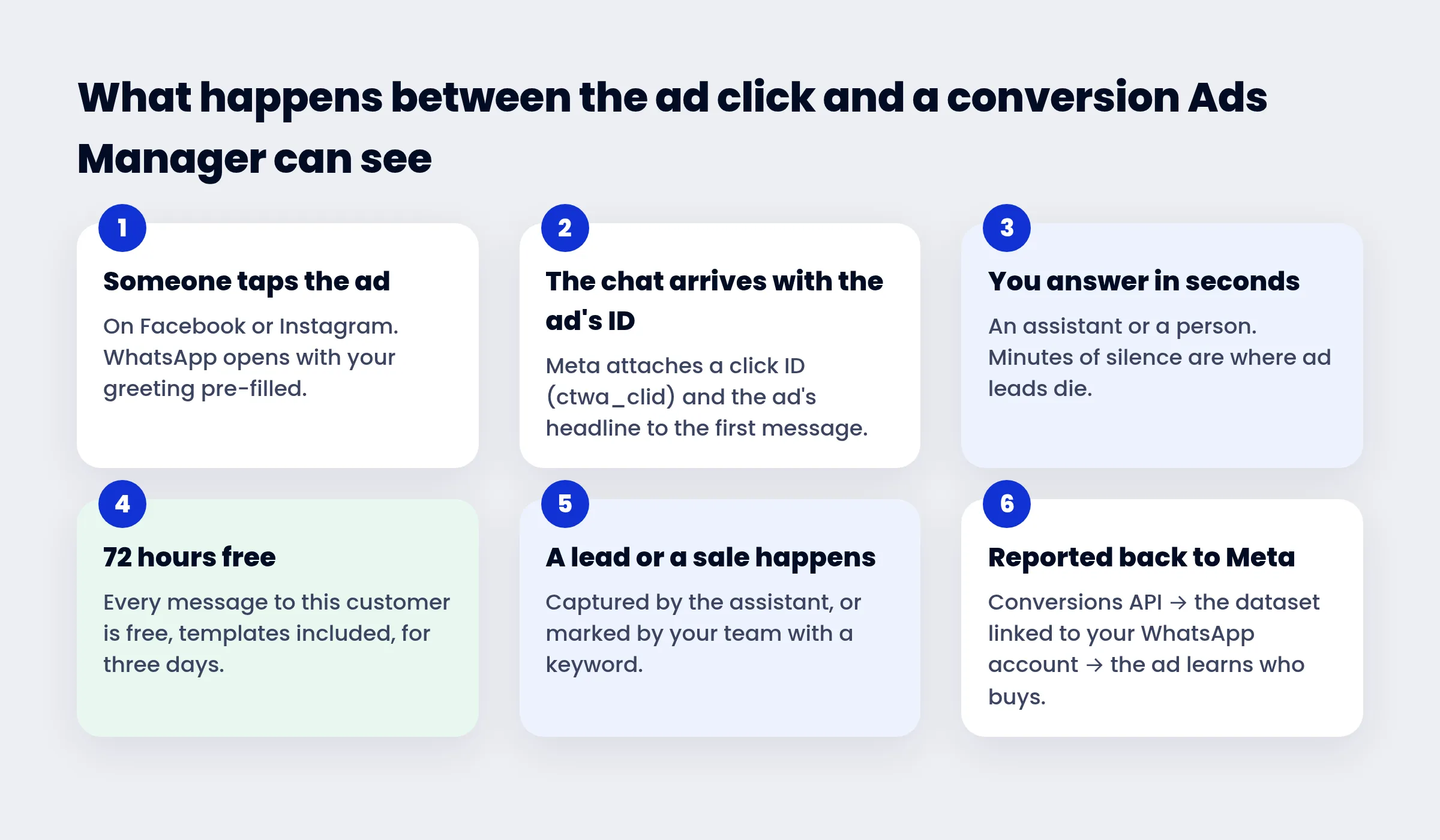
A CTWA ad is an ordinary Facebook or Instagram ad — image, video, carousel — whose button says Send message or Chat on WhatsApp. Tapping it opens WhatsApp with your business number and, if you set one, a pre-filled greeting. The person sends that first message, and from then on it is a WhatsApp conversation like any other.
Two things it is not: it is not a WhatsApp broadcast (you do not message people; they message you, which is why no template or opt-in is needed to start), and it is not a lead form — Meta does not hand you a name and a phone number; it hands you a chat. The chat is the lead, and what happens inside it decides whether the ad was worth it.
What you need before you create the first one
- A Meta Business Portfolio (Business Manager) that holds your Facebook Page, your ad account and your WhatsApp Business Account — all three in the same portfolio.
- A WhatsApp number on the Business Platform (API), or at least the WhatsApp Business app. The API matters for two reasons: an assistant can answer the chat at any hour, and conversions can be reported back to Meta — the app alone cannot do either. If you connect through a platform like ExceliaBOT, the number joins the API in a few minutes from your phone and keeps working in the app as well.
- A way to answer within a minute. Decide this before you spend a pound on ads. An AI assistant, a person on shift with notifications on, or both — but not "we will check WhatsApp in the evening".
- The Page that owns the number. The Page you advertise from must be the one linked to your WhatsApp Business Account in Business settings. This single detail decides later whether conversions can be credited to the ad.
Creating the ad in Ads Manager, step by step
Ads Manager changes its labels now and then; these are the 2026 names.
- Campaign: press Create and choose the Engagement objective. (Leads and Sales can also send people to WhatsApp, and matter once you optimise for conversions — see the tracking section below.)
- Ad set — conversion location: choose Messaging apps, then WhatsApp, and pick your WhatsApp number from the list. If the number is not listed, it is not linked to the Page you selected — fix that in Business settings before going on.
- Audience, budget, placements: start with Advantage+ placements or Facebook and Instagram feeds; set a daily budget you can watch for a week.
- Ad: an image or short video that states the offer in the first line, a primary text that asks a question the customer wants answered ("Want today's prices? Message us"), and the call to action Send message / Chat on WhatsApp.
- Message template (the greeting): Ads Manager lets you pre-fill the message the person sends and show a greeting with quick-reply questions. Write the greeting so that the first message tells you what they want — "Which branch?", "Which product?" — so the conversation starts with intent instead of "Hi".
- Publish, then add the messaging columns to your report: Messaging conversations started, Cost per messaging conversation started and, once tracking is set up, the conversion you report.
What the conversation costs
The ad itself is billed like any Meta ad — per impression or per click, at whatever your auction price is. The chat it opens has its own, separate pricing, paid to Meta from your WhatsApp Business account:
| The first 72 hours after the customer's first message | Free, every message, templates included (the free entry point window) |
| After 72 hours, a free-form reply inside the 24-hour window | A service message: 1,000 free per number each calendar month, then about $0.0036 in Egypt |
| After the 24-hour window closes | Only an approved template can reach the customer: utility about $0.0036, marketing about $0.0644 in Egypt |
Prices are Meta's published rates for Egypt before 14% VAT and change by country. The practical reading: a CTWA conversation is nearly free as long as you answer promptly. The expensive message is the marketing template you need when you let the window close — eighteen times the price of a reply inside it. We explained the October 2026 pricing change in detail here.
The first minute decides the campaign
Meta charges you for the chat the moment it starts. What the chat is worth depends on what happens next, and the numbers are unforgiving: a lead answered within a minute converts several times more often than one answered after an hour, and a chat that waits until the next morning is usually a chat with someone who already bought elsewhere.
An assistant that answers every ad chat in seconds, in the customer's language, with the actual prices and the actual availability, is not a luxury for CTWA — it is the thing that makes the ad spend sensible. On ExceliaBOT the chat arrives with an ad badge and the ad's headline, the assistant answers at once, a chip shows how much of the free 72 hours remains, and your team can take over any thread with one tap.
Why Ads Manager shows zero conversions, and the fix
Here is the part most businesses discover after the first month: Ads Manager reports conversations started, and that is all it knows. Whether the person booked, ordered or vanished is invisible to Meta — so the ad optimises for people who start chats, which is not the same as people who buy.
The fix is Meta's Conversions API for business messaging: when a lead or a sale happens inside the chat, your platform sends an event to Meta that says "this conversation, which came from this ad click, converted". Three details make or break it:
- The click ID. Meta attaches a
ctwa_clidto the first message of every chat that started from an ad. The conversion event must carry it; without it the event is counted but never credited to the ad. - The right dataset. Events must land in a dataset linked to your WhatsApp Business Account — not your website pixel. That link is created through Meta's API, not through a button; a website pixel pasted in good faith receives the events and attributes nothing. Platforms that handle CTWA properly create this dataset for you inside your Meta Business account.
- The right Page. The ad must run from the Page linked to that WhatsApp account, or Meta refuses the attribution with a message about the click ID "not generated by the Page associated with the WhatsApp Business Account".
Step by step: connecting the conversions
- Open the dataset in Events Manager. On ExceliaBOT, open Goal → Meta Pixel: step 1 shows the dataset we created from your connected number, with a button that opens it in Events Manager. On another platform, look for the dataset named after your WhatsApp Business Account.
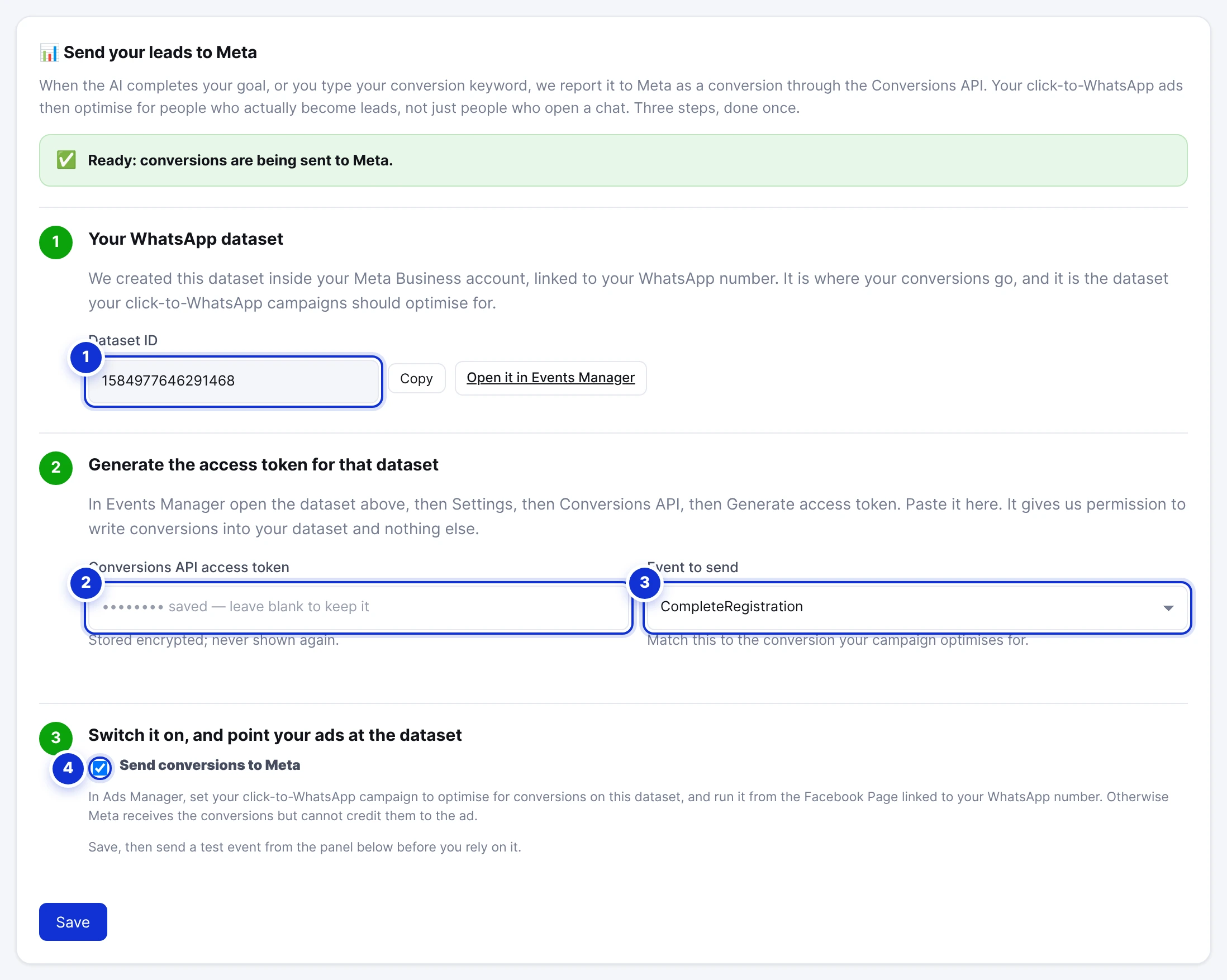
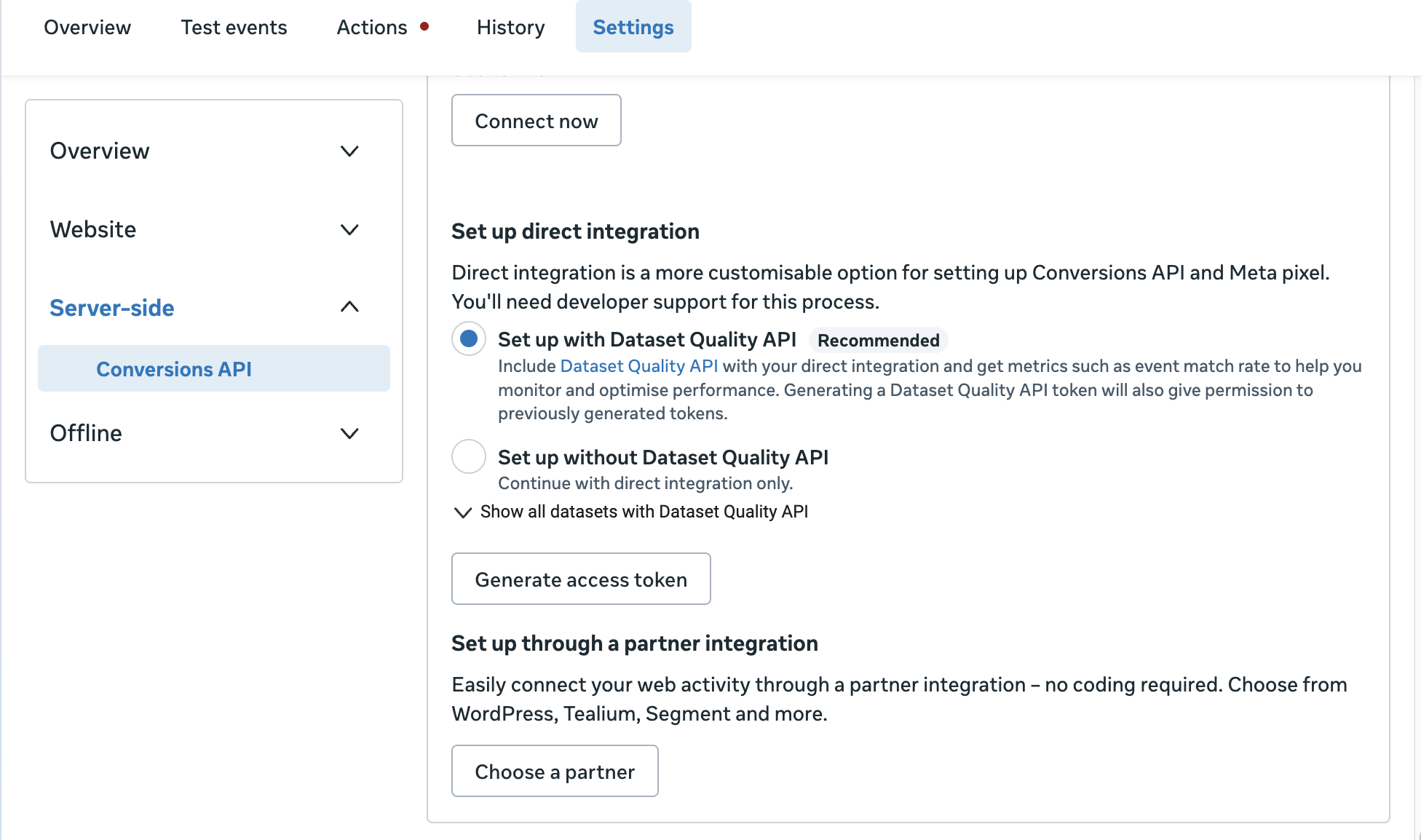
- Generate the access token. In Events Manager, with that dataset selected, open Settings, scroll to Conversions API, and under Set up direct integration press Generate access token. Keep the recommended option (Set up with Dataset Quality API) — it changes nothing for you and gives Meta's match-rate metrics. The token is shown once; copy it.
- Paste the token into your platform and choose the event that matches what your campaign will optimise for — Lead for enquiries and bookings, Purchase for sales. On ExceliaBOT that is step 2 of the same tab.
- Send a test event. In Events Manager open the Test events tab, copy the test code, paste it into the platform's test box and send. The event should appear in Events Manager within seconds. If it does not, nothing you do later will work — fix this first.
- Switch it on. Step 3 on ExceliaBOT: Send conversions to Meta. From now on every completed goal, and every keyword your team types, becomes an event with the click ID and the dataset Meta expects.
- Tell the campaign to use it. In Ads Manager, a campaign with the Leads or Sales objective and WhatsApp as the conversion location can optimise for a conversion event from that dataset — pick the dataset and the event you chose above. Give it a week and a few dozen conversions; Meta's optimisation needs data before it changes who sees the ad.
Best practices that actually move the numbers
- Ask the qualifying question in the greeting. "Which city are you in?" or "Which package interests you?" turns a "Hi" into a conversation the assistant can finish.
- Use the free 72 hours. Send the catalogue, the photos, the price list, the follow-up — everything is free in that window, templates included. After it closes, every follow-up costs a marketing template.
- One complete answer per reply. Three short bubbles count as three messages once the free window ends, and read as hesitation to the customer anyway.
- Mark conversions the human closes. Sales that end on a phone call or in the shop never reach Meta unless someone reports them. A conversion keyword typed in the chat does it in two seconds.
- Read the right number. Conversations started is the cost of the chat; leads from ads and cost per lead are the campaign. On ExceliaBOT the Pixel tab shows what share of your leads carried an ad click ID in the last 30 days.
- Exclude the converted. Once a customer bought, stop showing them the ad: build a custom audience from your converters (the events you now send make this possible) and exclude it.
Common mistakes
- Running the ad from a Page that is not the one linked to the WhatsApp number — conversions are received and never credited.
- Pasting the website pixel ID as the conversion dataset — same result.
- Letting an unanswered chat sit for hours, then paying for a marketing template to revive it.
- Measuring the campaign by chats started and calling it a success.
- Sending customers who tapped the ad into a bot that cannot answer the question they asked in the greeting.
What ExceliaBOT does with a click-to-WhatsApp ad
The chat arrives tagged with the ad; the assistant answers at once in Arabic or English, with the catalogue if you have one; the free window is shown on the thread; a completed goal or a keyword from your team becomes a Conversions API event with the click ID, sent to the dataset we created inside your Meta Business account and linked to your number; and the Pixel tab reports how many of your leads came from ads and what Meta said about each event. The setup is the three steps above, once. Create a free account and run the first campaign on your own number.
Sources: Meta Business Help Center on creating ads that click to WhatsApp; Meta for Developers — Conversions API for business messaging and the WhatsApp Business Platform pricing; Meta's rates for Egypt as of October 2026 and subject to change.