
Connecting WhatsApp, Messenger and Instagram
Link your WhatsApp Business number in one click, keep using the WhatsApp Business app on your phone, and add your Facebook Page and Instagram account.
Nothing in the account works until a channel is connected: no replies, no campaigns, no inbox. The Connections page is where that happens, and it is designed to be finished in five minutes from a browser — no tokens, IDs or developer steps.
#Before you start
- A Facebook account that manages the business. Meta’s window asks you to log in with it. If the business has no Business Portfolio yet, the window creates one on the way.
- The number you want to connect. A number that already runs on the WhatsApp Business app connects directly and keeps working from your phone (this is Meta’s *Coexistence*). A number on the regular WhatsApp app must first be moved to the WhatsApp Business app, or use a new number. The number must be able to receive an SMS or a call for verification.
- A normal browser — Chrome, Safari, Edge. Opened from inside WhatsApp or Facebook, Meta shows “this app appears to be unavailable”; that message is theirs, and a real browser fixes it.
#Connect WhatsApp in one click

- 1Connect WhatsApp opens Meta’s official window.
- Open Connections and press Connect WhatsApp. Meta’s window opens on top of the dashboard.
- Log in with the Facebook account that manages the business, and choose (or create) the Business Portfolio.
- Choose the WhatsApp Business account, or let Meta create one.
- Pick the number. With Coexistence you scan a QR code from the WhatsApp Business app on your phone; otherwise you type a new number and receive a code by SMS or call.
- Finish. Meta closes the window and the Connections page shows the result — green when both sending and receiving are verified.
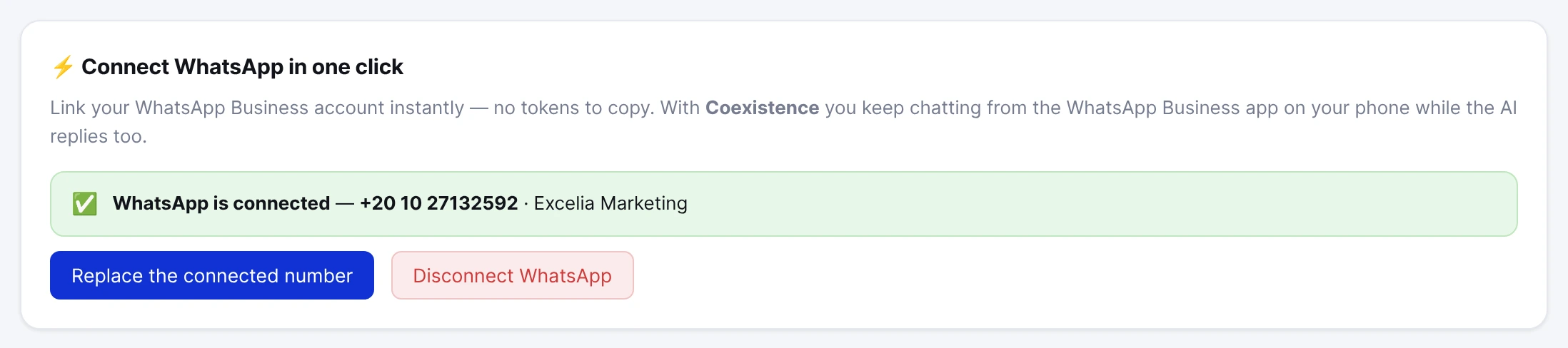
“Connected” on this page always reflects Meta’s answer, not ours: every time you open Connections we ask Meta whether the number can send and receive. A number that can send but not receive leaves the assistant silent, so the page says so and lists what to fix.
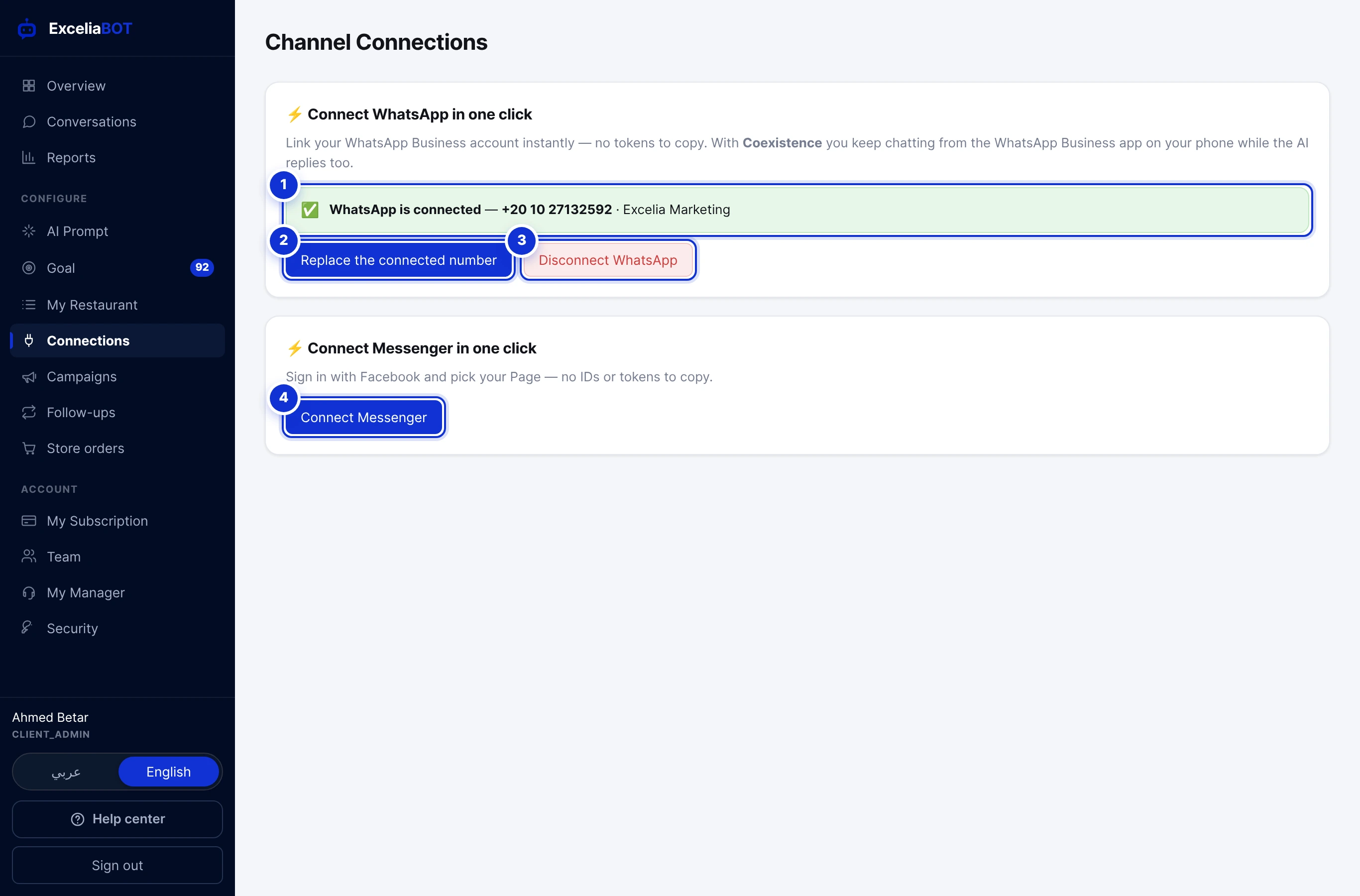
- 1The live status: the number, and both directions verified with Meta.
- 2Replace the connected number — your account uses one number at a time, and this one overwrites it.
- 3Disconnect WhatsApp — the assistant stops replying on this channel; conversations and settings are kept.
- 4Connect Messenger, and Instagram with it.
With Coexistence, messages keep arriving in the WhatsApp Business app on your phone as before. When you answer a customer from the phone yourself, the assistant pauses on that thread for six hours so you are not talking over each other — see the inbox guide.
#Messenger and Instagram

- Press Connect Messenger and log in with Facebook.
- If your account manages several Pages, choose the one the assistant should answer on.
- Done — the Page is connected. If that Page has an Instagram professional account linked to it, Instagram is connected at the same time and the confirmation says so.
Messenger and Instagram conversations land in the same inbox as WhatsApp, with a chip that names the channel.
#What Meta allows a new number
Two things about a WhatsApp Business number are decided by Meta, not by your plan:
- Messaging limit — how many *different* customers you may message first (campaigns, follow-ups, order messages) in 24 hours. A new number starts at 250, and Meta raises it to 1,000, 10,000 and beyond as you send to more people and your quality stays green. Replies to customers who wrote to you are never limited.
- Quality rating — green, yellow or red, based on how customers react. Blocks and reports lower it; a low rating shrinks your messaging limit. Giving customers a clear way out (the STOP keyword) is the best protection.
Both numbers are shown on the Campaigns → Send Campaign tab.
#If something goes wrong
| What you see | What it means | What to do |
|---|---|---|
| “This app appears to be unavailable” | The dashboard was opened inside WhatsApp’s or Facebook’s built-in browser. | Open bot.exceliamarketing.com/app in Chrome or Safari and try again. |
| The number is rejected in Meta’s window | It is registered on the regular WhatsApp app. | Install the WhatsApp Business app and register the same number in it — the app offers to move the number and its chats — then connect again. Or use another number. |
| “This number can’t receive messages” | Meta accepted the number for sending but is not delivering incoming messages to us. | Press Replace the connected number and run the connection again; if it persists, write to us — it is usually fixed within the hour. |
| Messages arrive on the phone but the assistant does not answer | The chatbot is switched off, has no instructions, or the thread is paused. | Check AI Prompt (the switch at the top and the instructions box), then the thread’s status chip in Conversations. |
Can I connect two numbers?
Does connecting cost anything?
Will my customers notice anything?
Write to us and a real person answers — usually the same working day. [email protected]
Or message your account manager from the My Manager page in the dashboard.