
Templates: the messages Meta lets you send first
A campaign, a follow-up or an order message is always an approved template. How to build one that Meta approves, what each part is for, why a template gets rejected or reclassified, and how variables work.
#Why templates exist
On WhatsApp a business may write to a customer *first* — or after 24 hours of silence — only with a message Meta has approved in advance. That message is a template: fixed text with optional placeholders ({{1}}, {{2}}…) that are filled per customer when it is sent. Templates are what campaigns, automatic follow-ups and store-order messages send. Replies inside a live conversation do not need one.
#Building a template
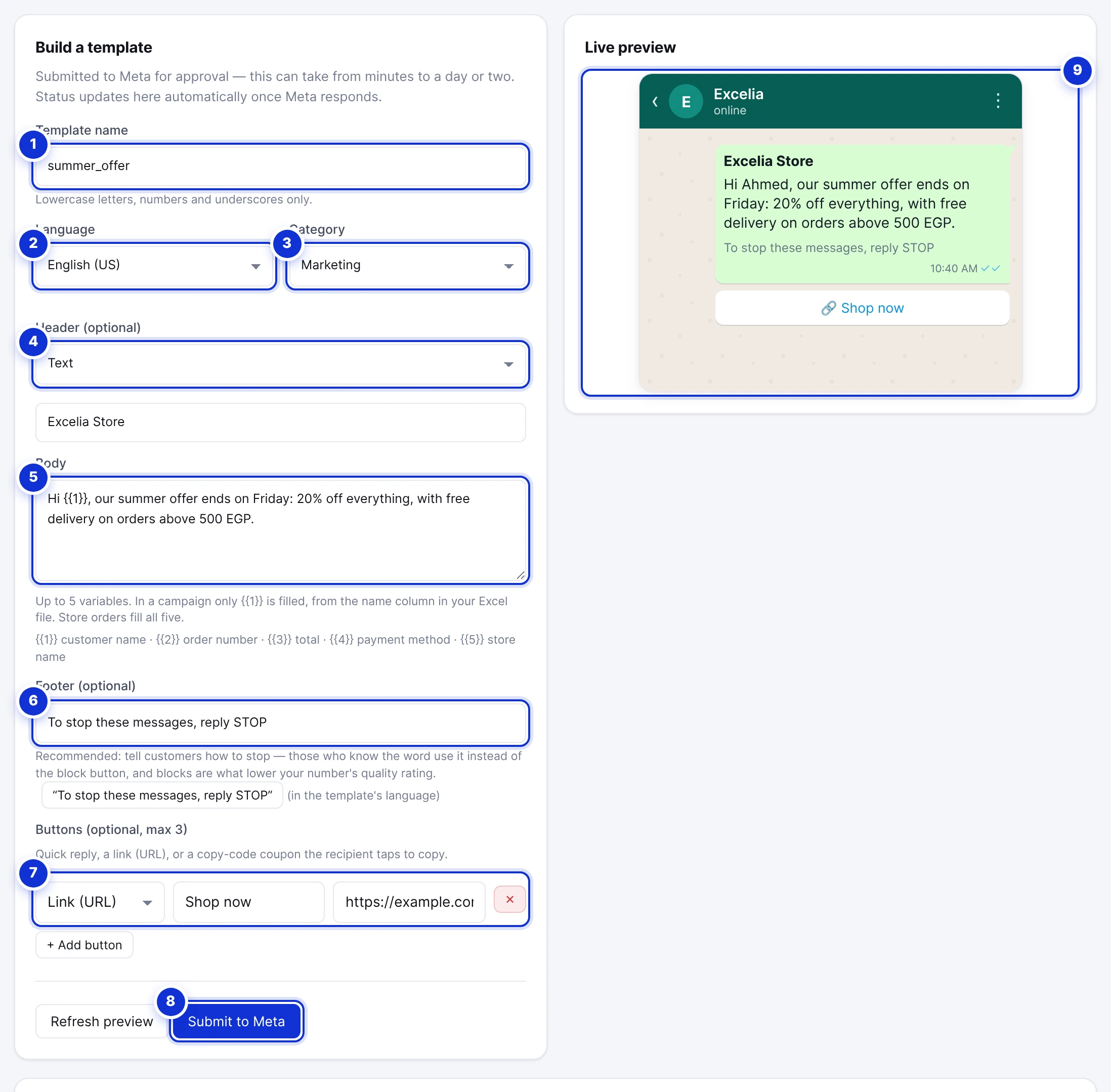
- 1Name: lowercase letters, numbers and underscores only —
summer_offer, not “Summer Offer”. Customers never see it. - 2Language. Meta approves text in the language you declare; an Arabic body under “English” is a rejection.
- 3Category: Marketing for offers and news, Utility for messages about an order, booking or account the customer already has. Utility is cheaper and delivered more reliably.
- 4Header: none, a line of text (60 characters), or an image. The same image goes to everyone.
- 5Body: the message. Up to five variables.
- 6Footer: a short grey line under the message — the right place for the STOP instruction.
- 7Buttons: up to three — a quick reply, a link, or a coupon code the customer taps to copy.
- 8Submit to Meta.
- 9The preview updates as you type — exactly what the customer will see.
- Open Campaigns → Templates and fill in the name, language and category.
- Write the body. Put
{{1}}where the customer’s name should go; add{{2}}… only if you will fill them from a spreadsheet or from store orders (see variables). - Add a footer — press the ready-made “To stop these messages, reply STOP” button to insert it in the template’s language — and up to three buttons.
- Check the preview, then press Submit to Meta. The template appears in the list below as pending.
- Wait. Approval takes from a few minutes to a day or two; the status updates here on its own, and you receive an email when it is approved or rejected.

- 1The ready-made STOP line.
End every marketing template with the STOP line. A customer who can say “stop” and be heard has no reason to block or report your number — and blocks are what lower a number’s quality rating. See the STOP keyword.
#Variables
| Placeholder | Filled with |
|---|---|
{{1}} | In a campaign sent to a saved audience: the customer’s name from the list. With a spreadsheet: whichever column you map to it. |
{{2}} … {{5}} | In a campaign: columns of your spreadsheet (mail merge). In store orders: order number, total, payment method and store name, in that order. |
Meta requires an example value for every variable; the builder adds those for you. A template whose body is *only* variables, or whose variables sit at the very start and end with no text around them, is rejected by Meta — write real sentences around them.
#Buttons
| Type | What it does | Notes |
|---|---|---|
| Quick reply | The customer taps it and its text is sent back as their message — “Yes, I’m interested”. | Great for measuring response; the reply lands in your inbox like any message. |
| Link (URL) | Opens a web page — your store, a booking page, a location. | Label up to 25 characters; the link must start with https://. |
| Copy code | A coupon code the customer copies with one tap. | Up to 15 characters, e.g. SUMMER20. |
#Statuses, rejections and reclassification
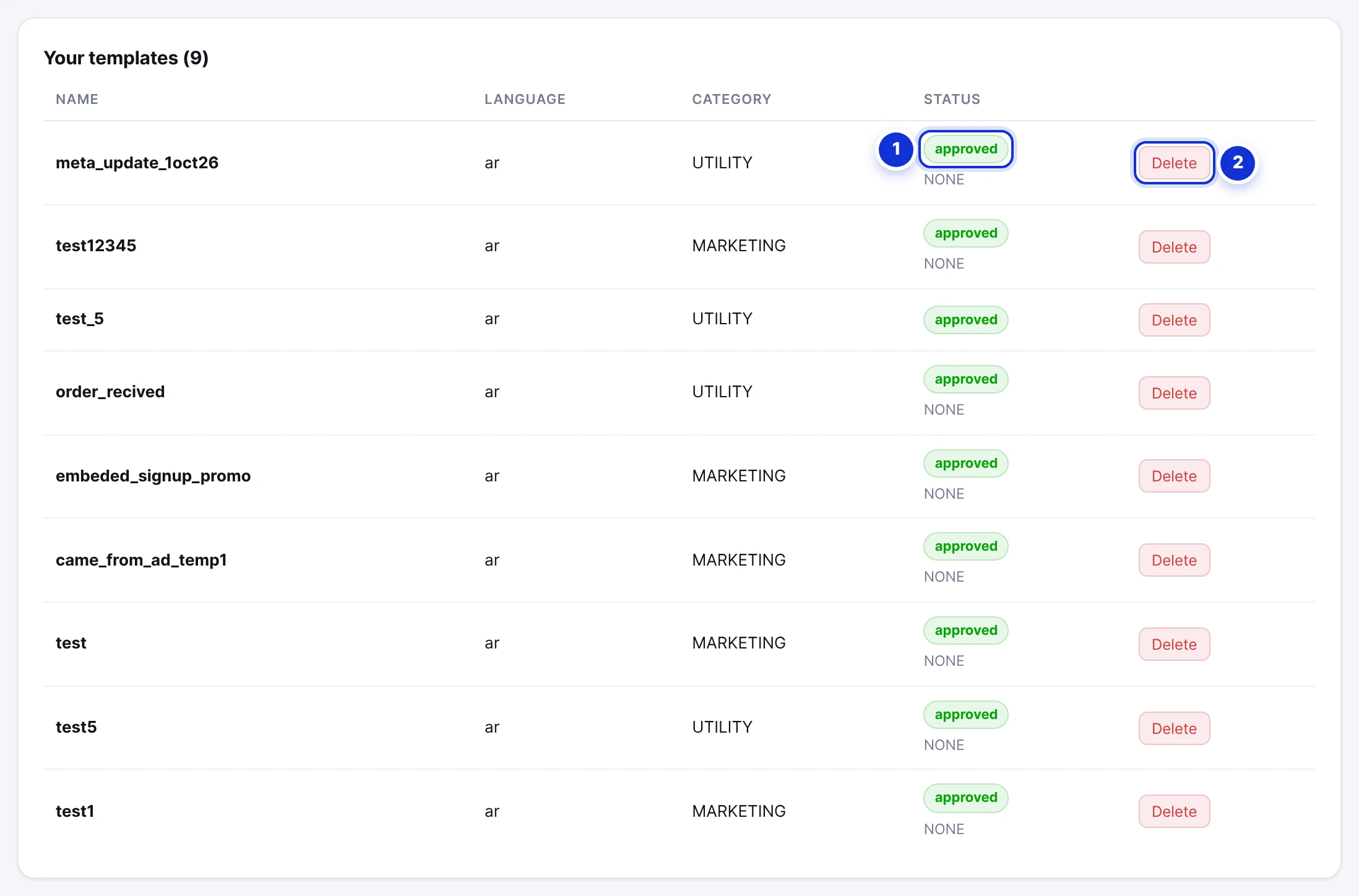
- 1approved, pending or rejected — Meta’s verdict, updated automatically.
- 2Delete removes the template from Meta and from your account.
| Status | Meaning |
|---|---|
| pending | Submitted; Meta is reviewing it. Usually minutes, sometimes a day or two. |
| approved | Usable in campaigns, follow-ups and store orders. |
| rejected | Meta refused it; the reason is shown under the status. Fix the text and submit it again under a new name. |
Common reasons for a rejection
- Language mismatch — the body is not in the declared language.
- Variables with no text around them, or placeholders not numbered in order (
{{1}},{{3}}). - Content Meta does not allow in a template: threats, adult content, misleading claims, requests for sensitive data such as card numbers.
- Marketing wording under the Utility category — Meta moves such templates to Marketing or rejects them.
- Broken formatting: a link that is not a link, an emoji-only body, more than 1,024 characters.
Meta sometimes approves a template but changes its category — a Utility template becomes Marketing. The list tells you when that happened. It matters because Marketing costs more per message and can be held back from customers who already receive many promotions.
#What a template costs
Meta bills your WhatsApp Business account — not ExceliaBOT — for every template that is delivered. The rate depends on the category and the customer’s country; your current rates are in WhatsApp Manager. Templates sent inside the 72-hour window of an ad conversation are free. Rejected or undelivered messages are not charged.
Can I edit an approved template?
Can I use an emoji or bold text?
How many templates can I have?
The template was approved but the send failed.
Write to us and a real person answers — usually the same working day. [email protected]
Or message your account manager from the My Manager page in the dashboard.