
Connect your Salla store: the ExceliaBOT app
Install the ExceliaBOT app from the Salla App Store and link it to your account from one email: every order step reaches your customer on WhatsApp, a confirmation or a cancellation from WhatsApp changes the order in Salla, left carts get a reminder with their own link, the assistant knows your products, the website chat appears on your store by itself — and the plan is chosen and billed inside Salla.
#What the app does
The app connects your Salla store to ExceliaBOT without any webhook to paste. Once it is linked, your store tells us about every order and every change of its status, and we send the customer the message you chose for that step, with their name and order details filled in.
- Order messages at each step, from templates Meta approved — set up on the Store orders page like any other store.
- Confirm or cancel from WhatsApp: a template with quick-reply buttons lets the customer confirm the order or cancel it. A confirmation moves the order to *In progress* in Salla with a note; a cancellation cancels it and returns the items to stock. An order already on its way is only noted for you.
- Left carts: a customer who filled a cart and left gets a reminder with Salla’s own link back to their checkout, from an audience or a follow-up flow.
- Products for the assistant: the assistant reads the products on sale in your store, recommends them and sends a card with the picture, price and link.
- Website chat on your store: the same assistant answers visitors of your store — nothing to paste, the app adds it.
- Plans and billing on Salla: you choose the plan on our page in the Salla App Store and Salla bills you; nothing is paid anywhere else.
#Installing and linking
- Install ExceliaBOT on your store from the Salla App Store. Salla shows the permissions the app asks for — orders, customers, carts, products and webhooks — and you approve them.
- We email the store’s owner (the address on your Salla account) a letter titled *Connect your store to ExceliaBOT*. Open it and press Connect the store to my account. The link is valid for 24 hours.
- Sign in with the owner’s email and password — or, if you have no account yet, press Create a free account: a one-minute form, then confirm your email from the link we send.
- A dialog names the account the store will be linked to. Press Connect the store.
- You land on Store orders → Setup with the Salla tile connected. Choose a template for each step under Order messages, and you are done.
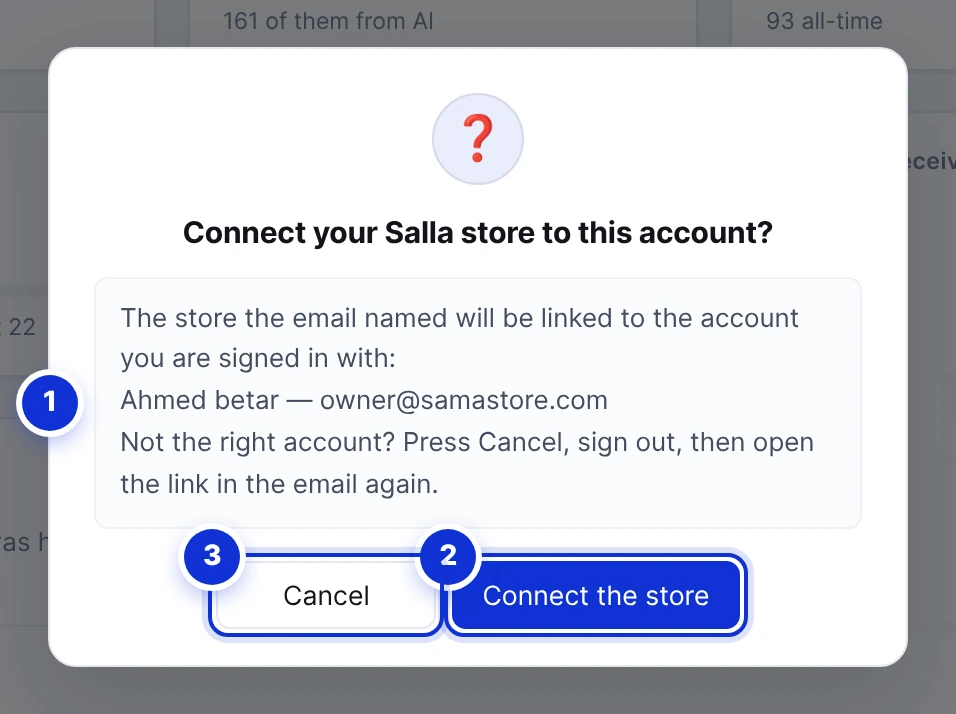
- 1The account the store will be linked to.
- 2Connect the store.
- 3Cancel — for another account, sign out and open the link in the email again.
One store per account. An account that already has a store linked cannot take a second one, and a store linked to another account is refused. Disconnect first from Store orders → Setup. If the email did not arrive, uninstall the app from your Salla dashboard and install it again — a new letter is sent.
#What you see in ExceliaBOT
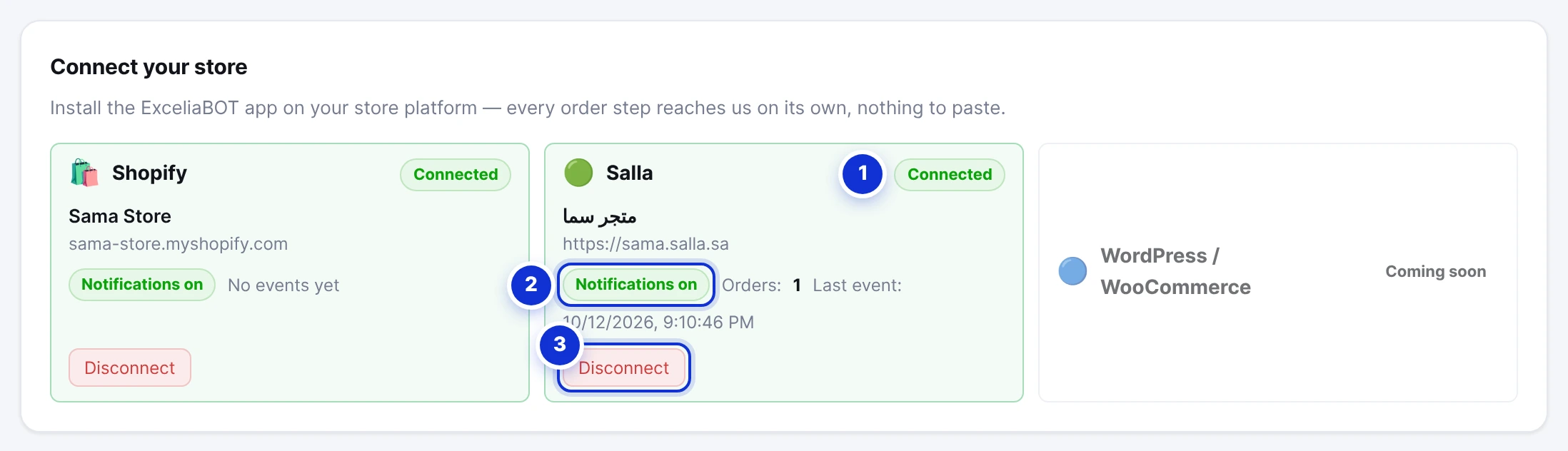
- 1Salla is connected — the store and its address.
- 2Order notifications switched on, and the orders received since the link.
- 3Disconnect — the store forgets the account; a reinstall asks the owner again.
From here everything works as on the Store orders page: choose a template for each step under Order messages, follow every event under History, and build lists of customers who left a cart or placed an order under Audiences.
Order messages and the buttons
Salla’s statuses are read as the steps your cards know: a new order is *received*; *in progress* is *preparing*; *delivering* and *shipped* are *out for delivery*; then *delivered*, *cancelled*, *returned* and *refunded*. Each is a card on the Order messages tab. If the template you attach to a step has quick-reply buttons, the card lets you say what each button does — confirm or cancel. When the customer taps one, the order in Salla moves to *In progress* with the note “the customer confirmed on WhatsApp”, or is cancelled with its items returned to stock. An order that is already delivering or delivered is only recorded as a cancel request, for you to handle in Salla.
Left carts
A cart the customer filled and left is recorded with their phone number, the items, the total and Salla’s own link back to the checkout. Under Audiences the rule *Left a checkout without buying* builds a list you can send a campaign to — use the template button type Checkout link, and each customer receives their own link. Under Follow-ups, a flow whose entry is *Customers who left a checkout in your store* sends the reminder by itself. A cart is marked recovered when an order arrives from the same number.
Products for the assistant
Tick Use products from the connected store on the Setup tab and the assistant reads the products on sale in your store — name, price (and the sale price when there is one), picture, link and category. It recommends what fits the customer’s question, sends a card with the picture and the link, and says when something is out of stock. The catalogue follows your store: every product you add, change or remove in Salla updates it within moments, and it is re-read every night.
Website chat on your store

- 1No code to paste — the app adds the chat to your store by itself; the card says when it is live.
The ExceliaBOT app carries the website chat to your Salla store: visitors see the same assistant that answers your WhatsApp, with the colour, welcome and fields you set on the Website chat page. The switch at the top of that page hides the chat everywhere at once, and brings it back.
#Your plan and billing
The plan is chosen on our page in the Salla App Store and billed by Salla, in riyals, with Salla’s invoice. Your allowances — AI replies, campaign messages, seats — follow that plan and reset with each monthly charge. My Subscription in ExceliaBOT shows the plan you chose and says it is billed through Salla; to change or cancel it, open the ExceliaBOT app in your Salla dashboard.
| Plan on Salla | A month includes |
|---|---|
| Starter | 500 AI replies, 500 campaign messages, one seat |
| Basic | 1,000 AI replies, 1,000 campaign messages, one seat |
| Growth | 3,000 AI replies, 3,000 campaign messages, two seats |
| Pro | 10,000 AI replies, 10,000 campaign messages, four seats |
| Business | 20,000 AI replies, 20,000 campaign messages, six seats |
A free trial, when Salla offers one on the listing, gives you the plan’s allowances until its last day. When a subscription ends — cancelled, expired or the app uninstalled — the account moves to the Free plan; nothing is deleted, and your conversations, templates and history stay.
Uninstalling the app from your Salla dashboard ends the subscription on Salla’s side. Your plan runs to the end of the period you paid for, then the account moves to the Free plan. Reinstalling sends a new linking email.
#What the app can see and do
- Read orders, customers, carts and products — to send the messages, remind about left carts and know your catalogue.
- Update an order’s status — only to move it to *In progress* or cancel it when the customer asks from WhatsApp, with a note saying so.
- Register webhooks — so your store’s events reach us.
- Nothing is written to your products, your theme or your customers.
I installed the app but no email arrived.
The email says the link has expired.
Do I still need the webhook on the Setup tab?
Can I link two stores to one account?
The customer pressed Cancel, but the order was not cancelled.
The chat does not show on my store.
Write to us and a real person answers — usually the same working day. [email protected]
Or message your account manager from the My Manager page in the dashboard.