
Store orders: a WhatsApp message for every step of an order
Connect your online store — the ExceliaBOT app for Shopify, or one link for any other platform — and your customer hears from you on WhatsApp when the order is received, prepared, out for delivery and delivered.
#What it does
Your store tells us about each order and each change of its status; we send the customer the message you chose for that step, with their name and order details filled in. Fewer “where is my order?” calls, fewer refused deliveries — and nobody on your team typing a message.
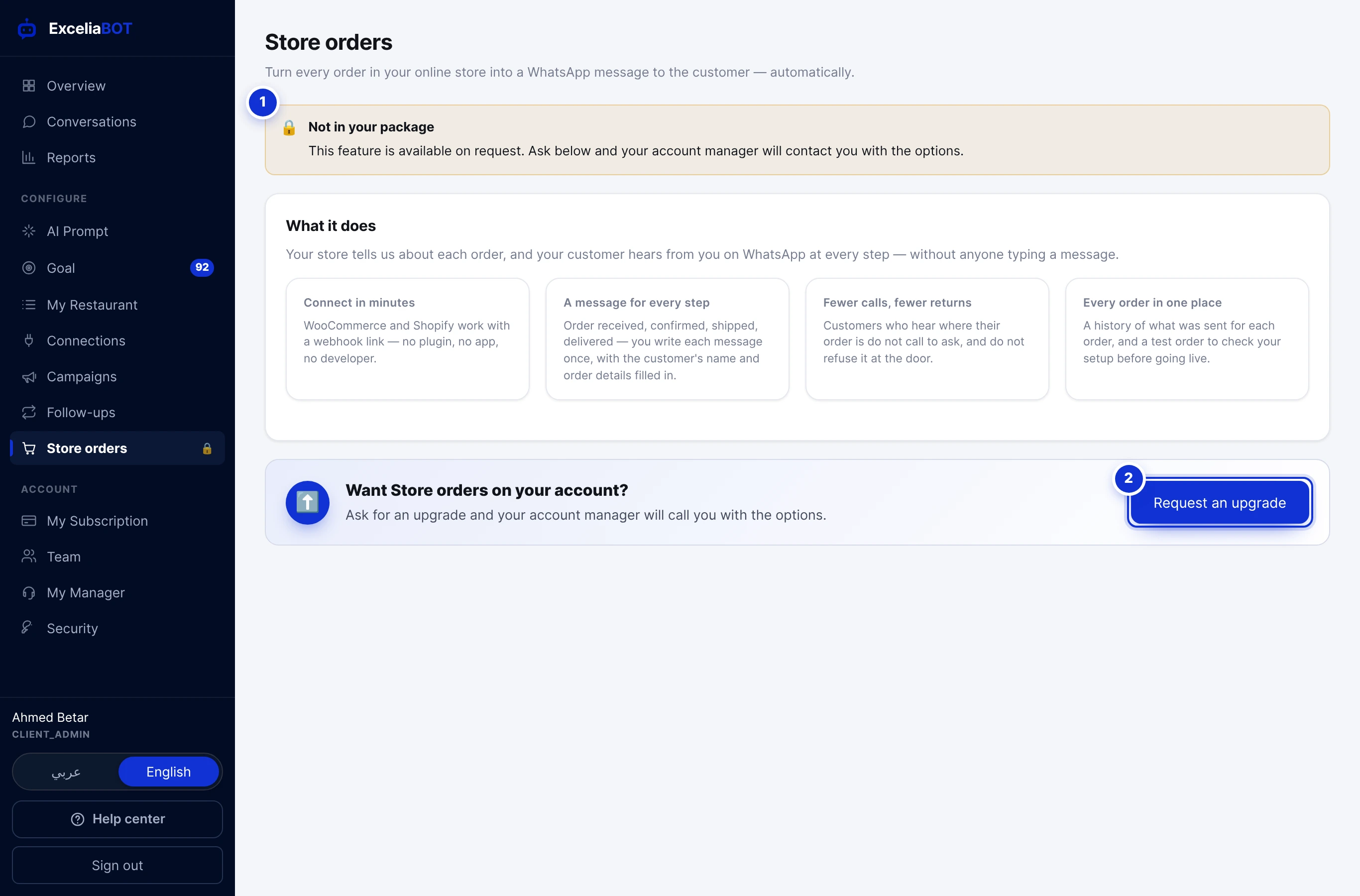
- 1Not in your package.
- 2Request an upgrade — your account manager contacts you with the options.
Store orders is available on request. If your account does not have it yet, the page explains the feature and Request an upgrade sends the request to your account manager.
#Connecting your shop
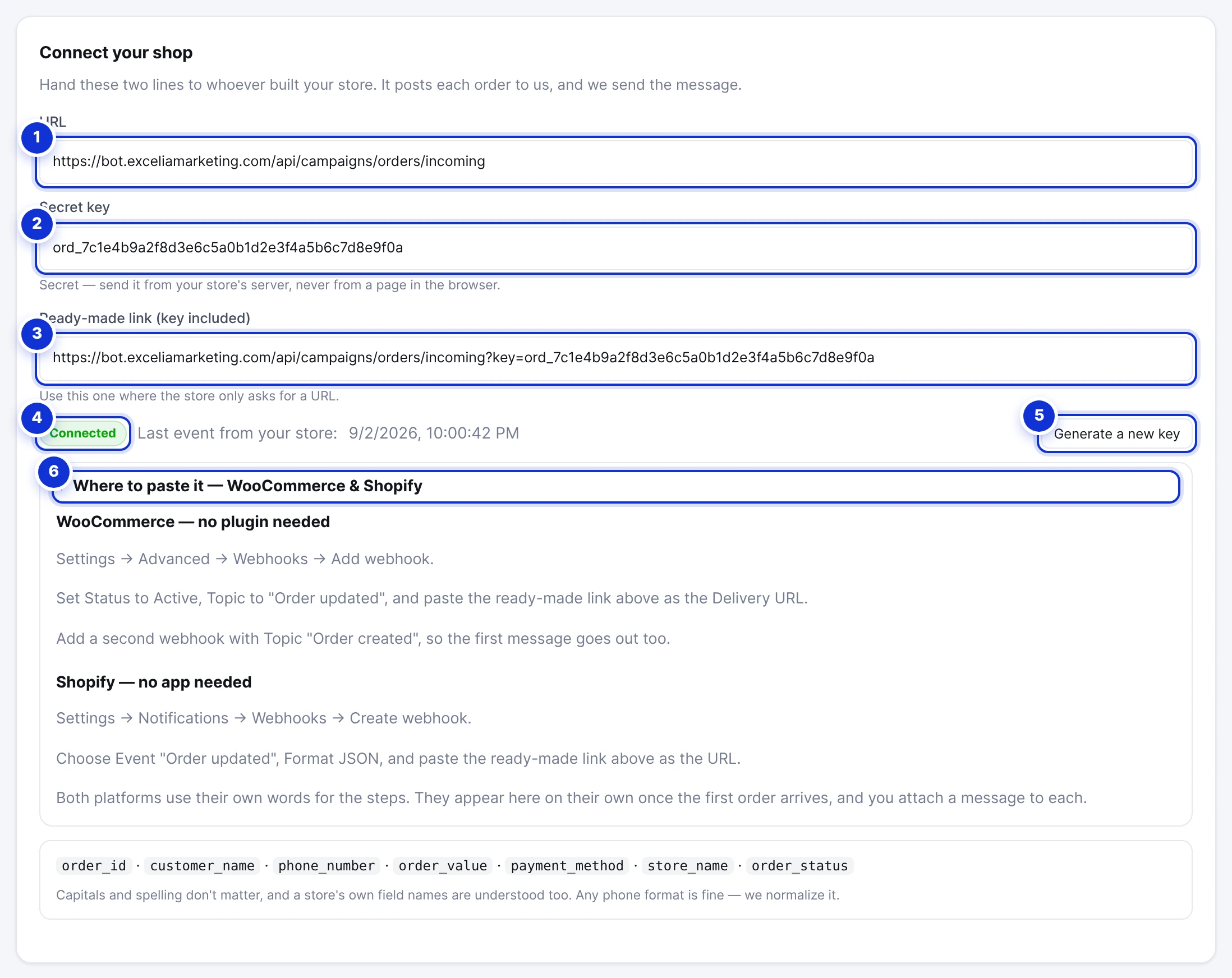
- 1The URL your store sends orders to.
- 2Your secret key. Keep it on your store’s server; never put it in a page visitors can see.
- 3The ready-made link with the key included — for platforms that only ask for a URL.
- 4Connected, with the time of the last event — or Waiting until the first order arrives.
- 5Generate a new key. Every link already pasted into a store stops working until it is replaced.
- 6Where to paste it, step by step, for WooCommerce and Shopify.
WooCommerce — no plugin needed
- In WordPress open WooCommerce → Settings → Advanced → Webhooks → Add webhook.
- Set Status to Active, Topic to *Order updated*, and paste the ready-made link as the Delivery URL. Save.
- Add a second webhook with Topic *Order created*, so the first message goes out too.
Shopify — install the ExceliaBOT app
For a Shopify store there is nothing to paste: install the ExceliaBOT app from the Shopify App Store and link it to your account, and every order step, left checkouts and your products reach us on their own. The whole flow is in Connect your Shopify store.
Any other platform
Post each order to the URL as JSON, with the key either in the link (?key=…) or in an X-Order-Key header. The fields we read are order_id, customer_name, phone_number, order_value, payment_method, store_name and order_status. Capitals and spelling do not matter, a store’s own field names are understood, and any phone format is fine — we normalise it. Hand the two lines on the Setup tab to whoever built your store; that is all they need.
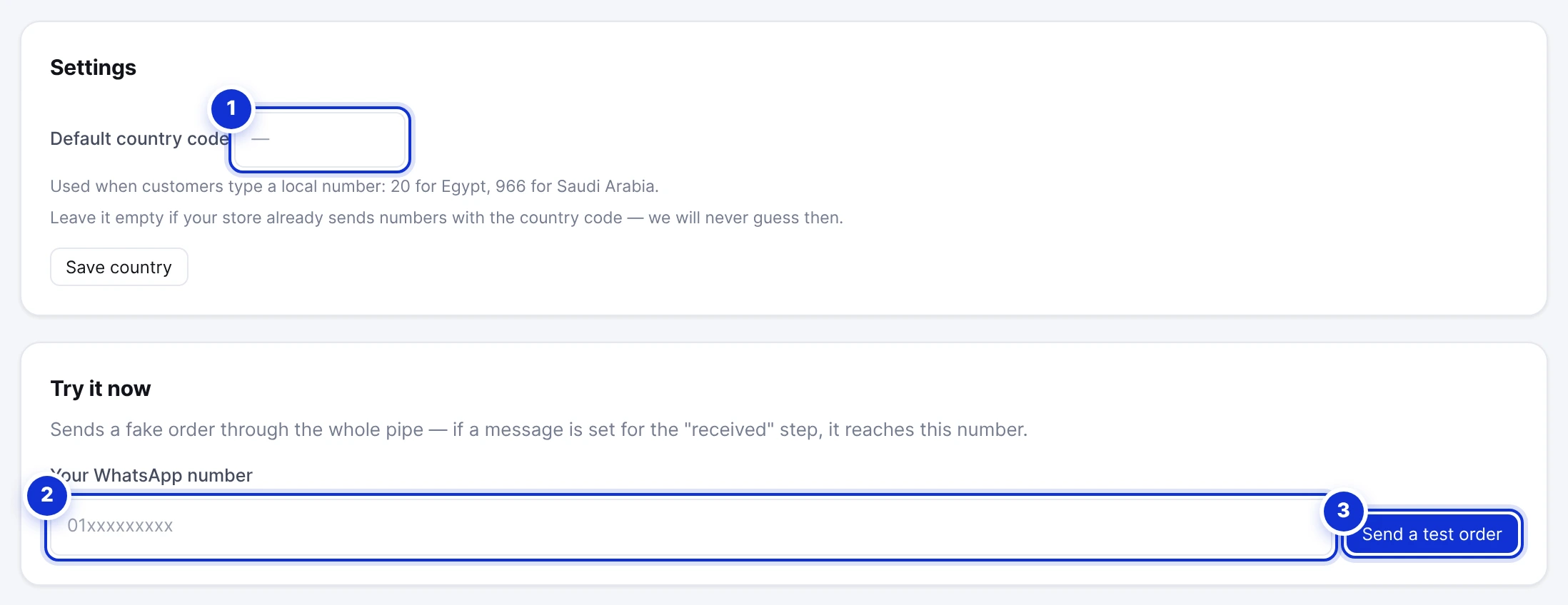
- 1Default country code — used when a store sends a local number such as 010…; 20 for Egypt, 966 for Saudi Arabia. Leave it empty if your store already sends numbers with the country code.
- 2Your own WhatsApp number for a test.
- 3Send a test order — a fake order runs through the whole pipe.
Before going live, set a message for the “Order received” step, put your own number in Try it now and press Send a test order. If the message reaches your phone, the pipe works end to end.
#Choosing the message for each step
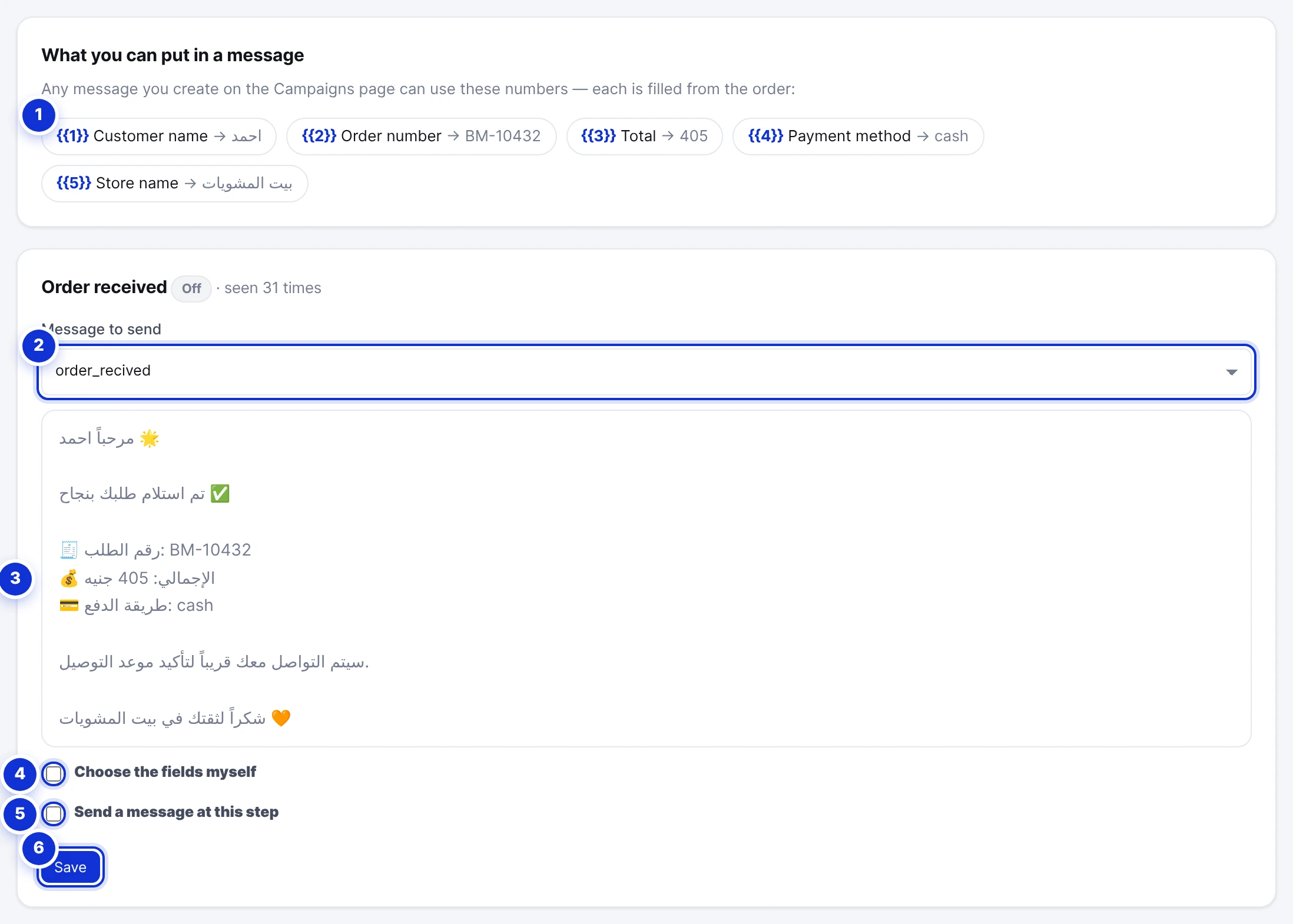
- 1The five values any message can use, with what they held in your last order.
- 2The message to send at this step — an approved template from the Campaigns page.
- 3A preview with the real values of your last order.
- 4Choose the fields myself — map each variable to a field of your store’s order, with a fallback if it is missing.
- 5Send a message at this step — the switch for this step.
- 6Save.
Every order message is a template you build on the Campaigns page and Meta approves — use the Utility category for these, since they concern an order the customer placed. The template’s variables are filled from the order in a fixed order:
| Variable | Filled with |
|---|---|
{{1}} | Customer name |
{{2}} | Order number |
{{3}} | Total |
{{4}} | Payment method |
{{5}} | Store name |
One card per step. The four every shop starts with are Order received, Preparing, Out for delivery and Delivered; your store’s own statuses appear as extra cards the first time an order carries them, and you attach a message to each. A step with no message, or with its switch off, sends nothing.
If your store names things differently — a total under another field, a note you want in the message — tick Choose the fields myself: one picker per variable lists every field the last order carried, with a sample value, and a fallback text for orders where the field is empty.
#What was sent
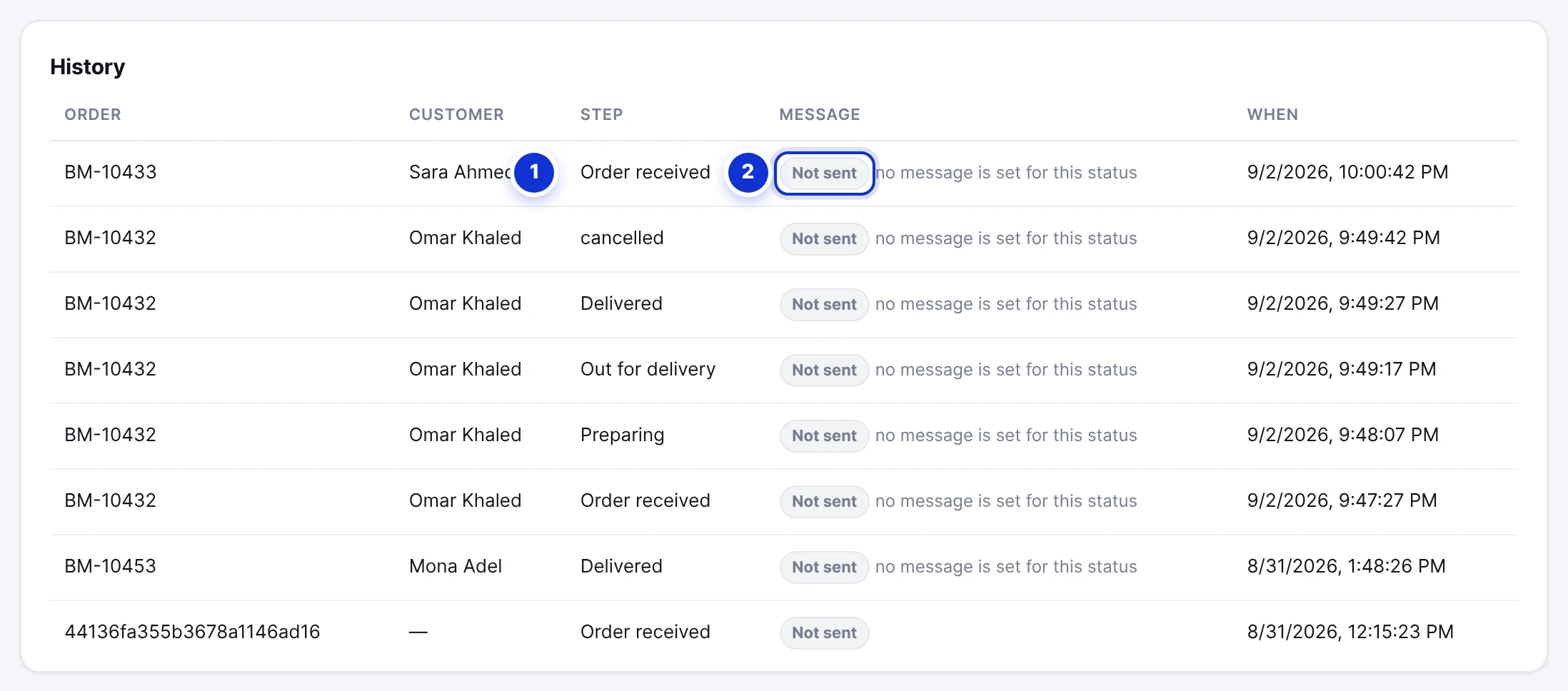
- 1The step the store reported.
- 2Sent, Failed (with a Resend button) or Not sent with the reason — usually that no message is set for that step.
Every event from your store is listed with the order, the customer, the step and the outcome. A failed send shows Meta’s reason and a Resend button; *Not sent* with “no message is set for this status” means the step simply has no template chosen yet.
#Cost and limits
- Order messages are templates: Meta bills each delivered one to your WhatsApp Business account at the Utility rate for the customer’s country.
- They count against the same monthly campaign quota as campaigns and follow-ups.
- Meta’s messaging limit (unique customers per 24 hours) applies to them as well.
Does the customer need to have written to us first?
My store sends the phone without a country code.
The test order says “no message is set”.
Can I stop messages for one step?
Write to us and a real person answers — usually the same working day. [email protected]
Or message your account manager from the My Manager page in the dashboard.