
Connect your Easy Orders store
Connect your Easy Orders store from the Store orders page in one click: every new order and every change of its status reaches us on its own, your customer gets the message you chose at each step on WhatsApp, a confirmation or a cancellation from WhatsApp changes the order in Easy Orders, and the assistant can read your products.
#What the connection does
Easy Orders has no app store, so you connect from ExceliaBOT: one button, then you approve ExceliaBOT on a page of Easy Orders. From then on your store tells us about every new order and every change of its status, and we send the customer the message you chose for that step, with their name and order details filled in. There is no webhook to paste.
- Order messages at each step, from templates Meta approved — set up on the Order messages tab like any other store.
- Confirm or cancel from WhatsApp: a template with quick-reply buttons lets the customer confirm the order or cancel it. A confirmation makes a new order confirmed in Easy Orders and a cancellation makes it canceled — nobody on your team changes it by hand.
- Products for the assistant: the assistant reads your store’s products, recommends them and sends a card with the picture, price and link.
#Connecting the store
- In ExceliaBOT open Store orders, tab Setup. In the Connect your store panel, press Connect Easy Orders on the Easy Orders tile.
- The Easy Orders page opens. Sign in there if it asks, with the account of the store you want to connect.
- The page shows ExceliaBOT and what it asks for: reading orders, updating an order’s status and reading products. Approve it.
- Easy Orders brings you back to the Setup tab, and the tile says Connected.
- Open the Order messages tab, choose a template for each step and switch it on. Nothing is sent to customers before that.
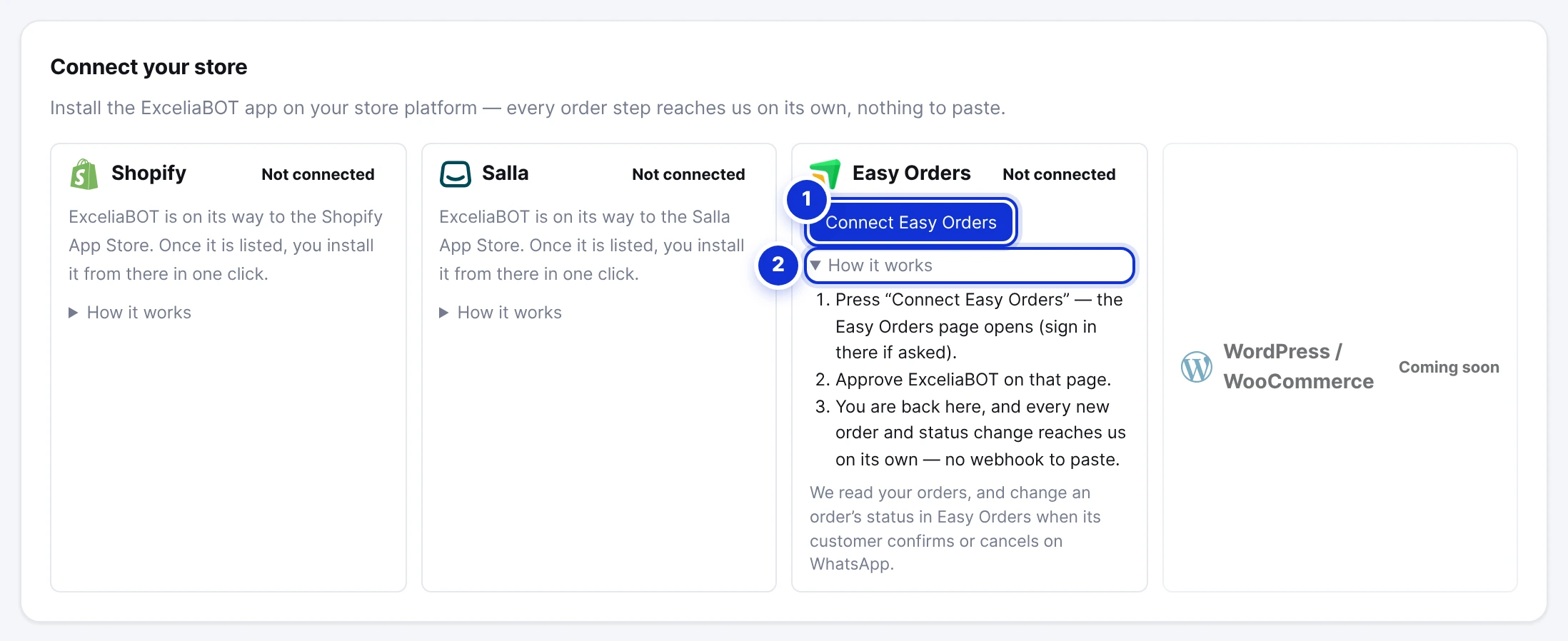
- 1Connect Easy Orders — opens the Easy Orders approval page.
- 2How it works — the same steps, in short.
Easy Orders connects the store that is open in your Easy Orders account at that moment. If you manage more than one store, switch to the right one in Easy Orders before you press Connect Easy Orders — otherwise the orders of another store reach this account.
One Easy Orders store per ExceliaBOT account, and a store already connected to another account is refused. If the tile still says Waiting for approval after you approved, press Check again.
#What you see in ExceliaBOT
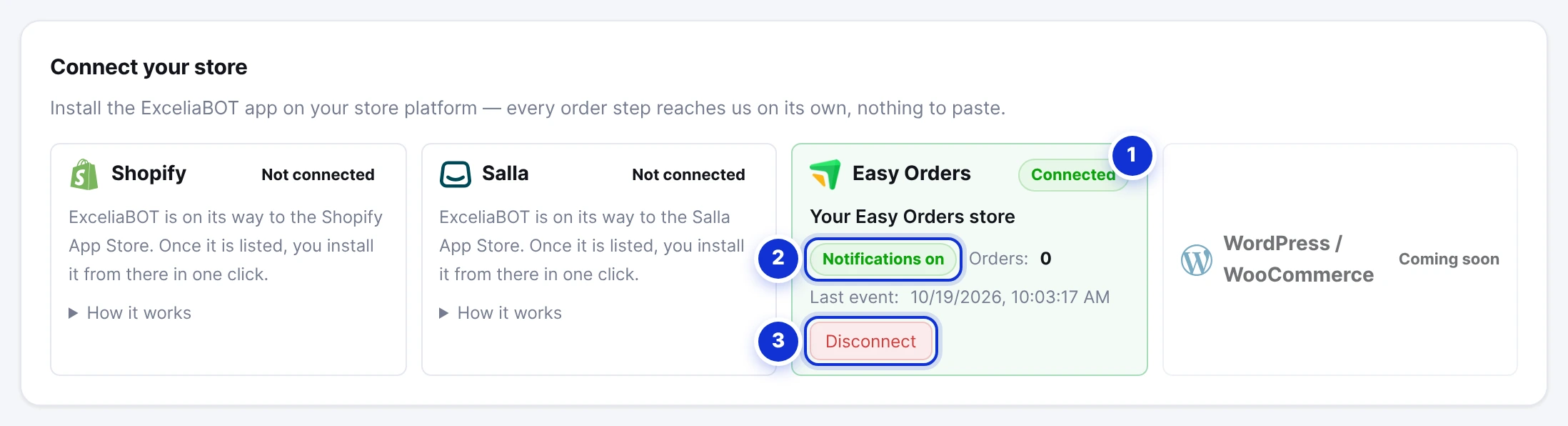
- 1Connected.
- 2Order notifications on, the orders received since connecting and the time of the last event.
- 3Disconnect — we forget the store’s key and stop reading its orders.
From here everything works as on the Store orders page: choose a template for each step under Order messages, and follow every event under History, with what happened to its message.
Easy Orders statuses and your steps
The statuses of Easy Orders are read as the steps your message cards know. Several statuses can mean one step for the customer; the message of that step goes once.
| Status in Easy Orders | Step on the Order messages tab |
|---|---|
| New order (pending) | Order received |
| Confirmed, processing, or waiting for pickup | Preparing |
| In delivery | Out for delivery |
| Delivered | Delivered |
| Canceled | Cancelled |
| Refunded | Refunded |
Any other status — returning from delivery, pending payment, paid, payment failed, and the refund requests — appears as its own card the first time an order carries it, and you can attach a message to it too.
The Confirm and Cancel buttons
Give the Order received step a template with quick-reply buttons, for example Confirm the order and Cancel the order. On its card, set the first button to confirm and the second to cancel, and save. When the customer taps one:
- Confirm makes a new order confirmed in Easy Orders, and the customer reads “Your order … is confirmed. Thank you!”. The new status then reaches us like any other, so the Preparing message follows if you set one.
- Cancel makes the order canceled in Easy Orders, and the customer reads that it has been cancelled.
- An order that is already in delivery, delivered or on its way back is not changed: the cancellation is recorded for you, and the customer reads that the store team will get back to them. The same goes for an order paid online, unless the switch for paid orders on the Setup tab is on.
Products for the assistant
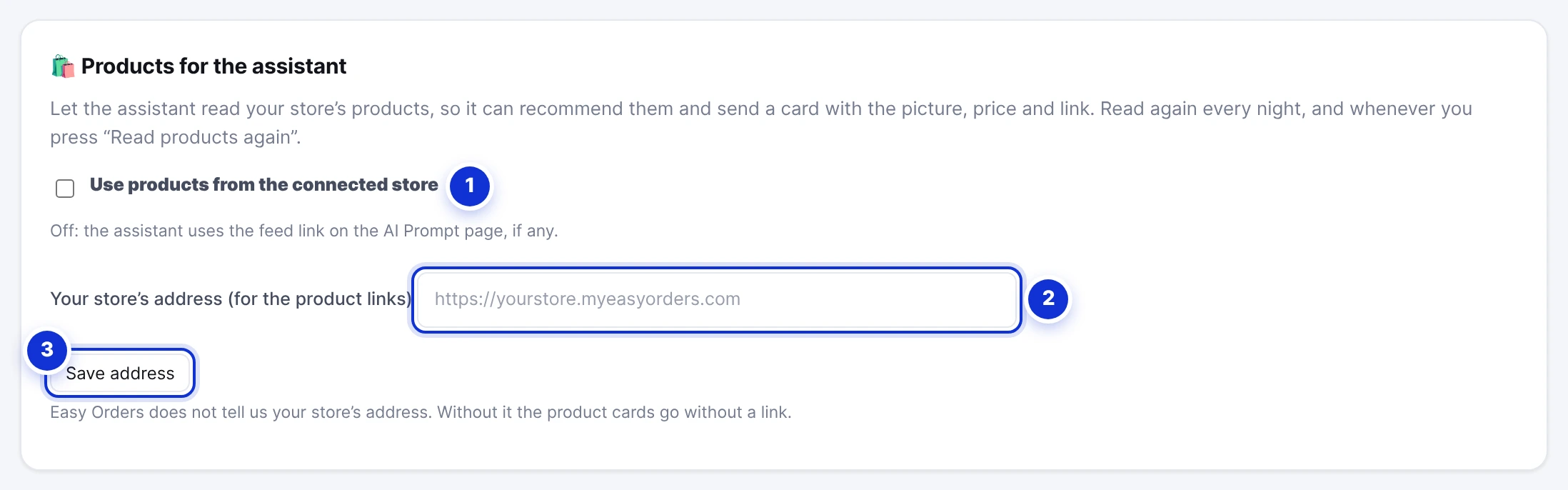
- 1Use products from the connected store — the assistant reads your products.
- 2Your store’s address — for the links on the product cards.
- 3Save address.
Tick Use products from the connected store and the assistant reads your store’s products: name, price (and the sale price when there is one), picture, category and stock. Hidden products are left out. Easy Orders does not tell us your store’s address, so type it once — for example https://yourstore.myeasyorders.com — and press Save address. Without it the product cards go without a link.
Easy Orders does not tell us when a product changes, so the products are read again every night. After you add or change products, press Read products again to have them at once.
#Testing it
- Make sure the Order received step has a template and its switch is on.
- Place a new order on your store with your own WhatsApp number.
- The message arrives within seconds. Tap Confirm: the order becomes confirmed in Easy Orders.
Test with a new order. An order placed before you connected is unknown to us: when its status changes, Easy Orders sends only the new status, without the customer’s number, so no message goes for it.
#If you used the webhook before
A store that sent its orders to the webhook lines on the Setup tab can keep them while you test. Once the connection works, delete that webhook in Easy Orders (Public API → Webhooks), so the same update does not arrive twice. Cards the old webhook created with the store’s own words, such as in_delivery, are not needed any more: switch them off.
#Disconnecting
Disconnect on the tile forgets the store’s key at once: no more orders are read and no status is changed. The assistant goes back to the products feed on the AI Prompt page, if you have one. ExceliaBOT stays in your Easy Orders apps until you remove it there; connecting again later opens the same approval page.
#What ExceliaBOT can see and do
- Read orders — to send the messages and keep the history.
- Update an order’s status — only to confirm or cancel it when the customer asks on WhatsApp.
- Read products — for the assistant.
- Nothing is written to your products, your store’s design or your customers.
I approved, but the tile still says Waiting for approval.
A test order sent nothing.
My store sends local numbers, like 010….
Can I connect two Easy Orders stores to one account?
The customer pressed Cancel, but the order was not cancelled.
Does it cost anything extra?
Write to us and a real person answers — usually the same working day. [email protected]
Or message your account manager from the My Manager page in the dashboard.