
Website chat: the assistant on your website
One line of code puts a chat bubble on your website. Visitors leave their details and talk to the same assistant that answers your WhatsApp; the thread lands in your inbox with no 24-hour window. How to add it, what to set, where the chats land, and what the numbers mean.
#What it is
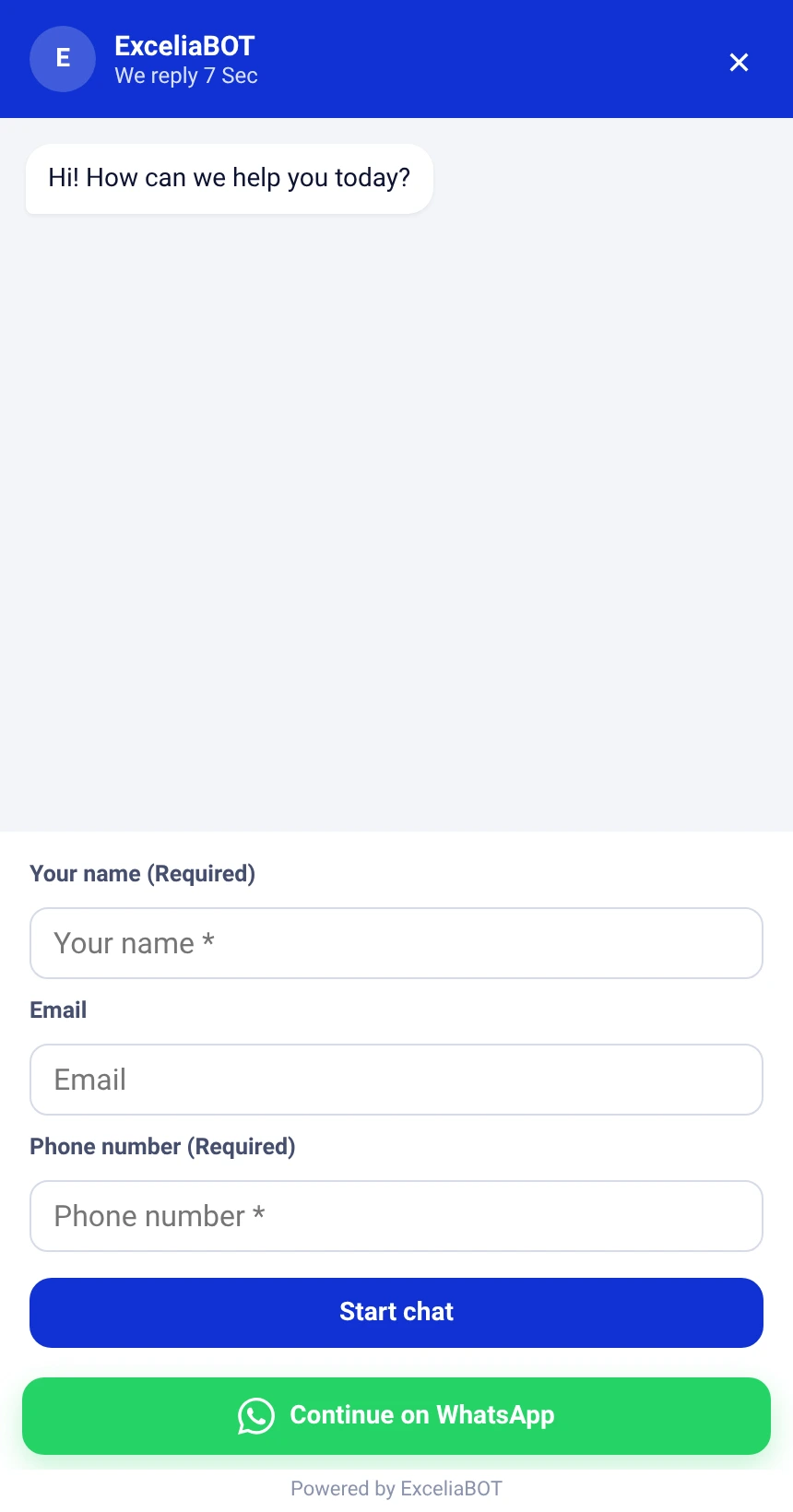
A small chat bubble in the corner of your own website. A visitor opens it, leaves a name — and an email or a phone number if you ask — and talks to the same assistant that answers your WhatsApp: the same instructions, the same catalogue, the same inbox for your team. It works on any website: WordPress, Shopify, Wix, Squarespace, or a site your developer built.
- The conversation lands in Conversations like any other channel, marked «Website», with the visitor’s details on top.
- There is no 24-hour window: your team can reply whenever it likes.
- A greeting bubble beside the icon invites visitors to click — you write its text, or switch it off.
- A «Continue on WhatsApp» button can move the conversation to your number.
#Adding it to your website
Open Website chat in the sidebar. Your code is at the top of the page — one line, with a Copy button. Paste it once, before the closing body tag of every page:
| Where your site lives | Where the line goes |
|---|---|
| WordPress | Your theme’s footer file, or any “header and footer code” plugin — the footer slot. |
| Shopify | Online Store → Themes → Edit code → theme.liquid, just before the closing body tag. A one-click install from our Shopify app is on its way. |
| Wix, Squarespace, Webflow | The site’s custom-code setting, in the “end of body” slot. |
| A site your developer built | Send them the line; it goes before the closing body tag of the shared layout. |

- 1Your line of code — it names your account, nothing else.
- 2Copy it.
Reload your site: the bubble is in the corner. Within a minute the page shows Installed on your domain with the time it was last seen.
Try it yourself first: open your site, ask a question as a visitor, and watch the thread appear in Conversations. That is exactly what your customers will go through.
#Look and texts
Everything below is set on the Website chat page and reaches your site within ten minutes — the code never needs touching again.
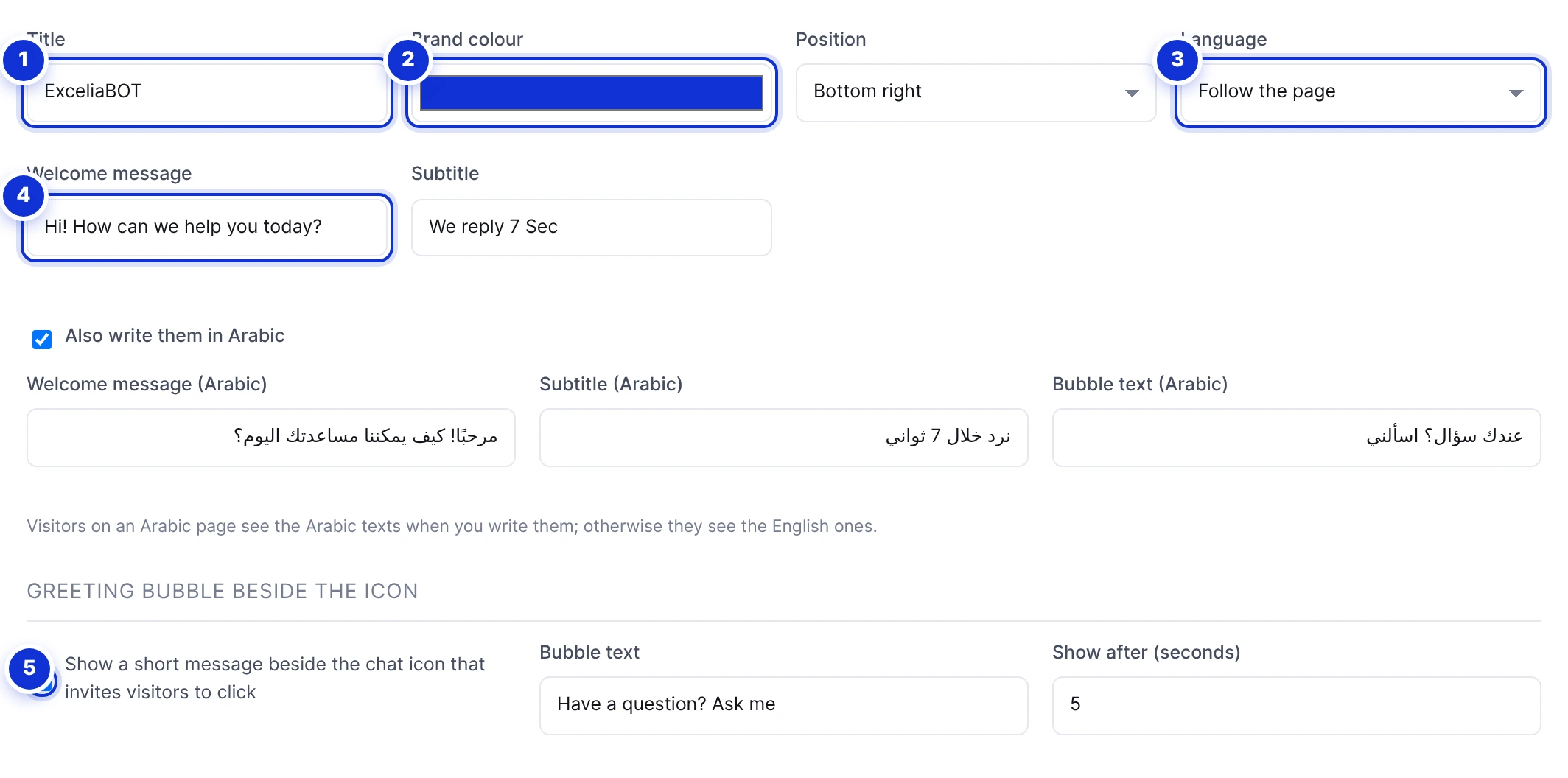
- 1Title — leave it empty to show your business name.
- 2Brand colour, and the corner the bubble sits in.
- 3Language: follow the page, or always Arabic or English.
- 4The welcome message, and the subtitle under the title.
- 5The greeting bubble beside the icon: its text and after how many seconds it appears.
Write the Arabic editions too when your visitors read Arabic: tick Also write them in Arabic and fill the three boxes. A visitor on an Arabic page sees them; everyone else sees the English ones.
The greeting bubble
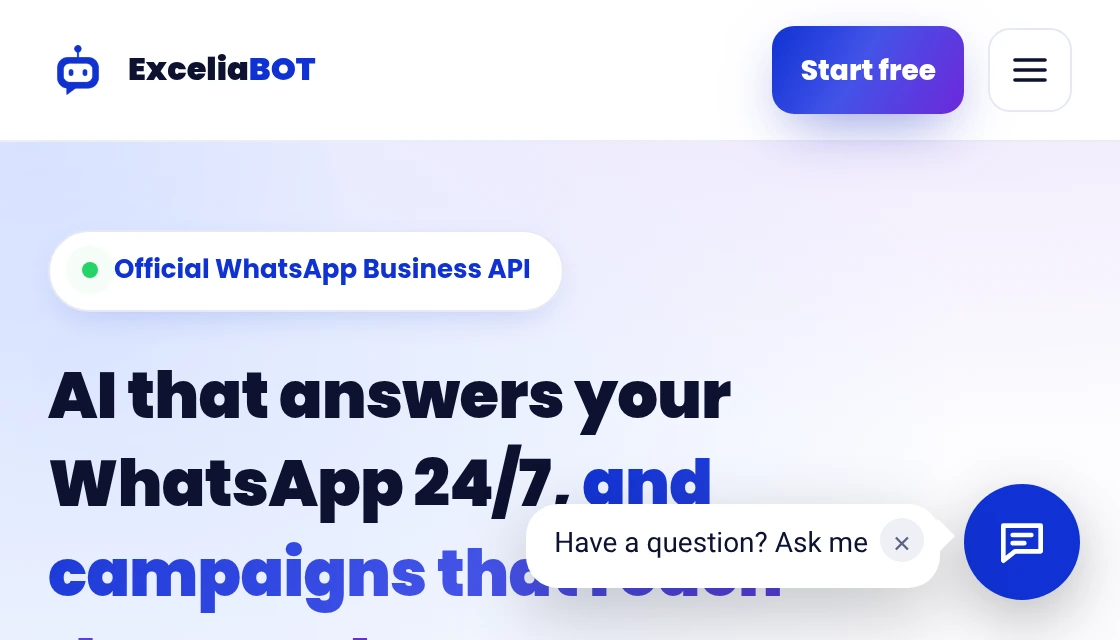
A short line beside the icon — «Have a question? Ask me» unless you change it — that invites a click. It shows once a day per visitor, after the delay you set, never while the chat is open, and on phones it hides by itself after a few seconds. The page counts how many visitors opened the chat from it.
#Before the chat starts
The name is always asked. Email and phone are up to you, each with a Required tick. What the visitor fills in is kept on the thread, so your team knows whom they are talking to.
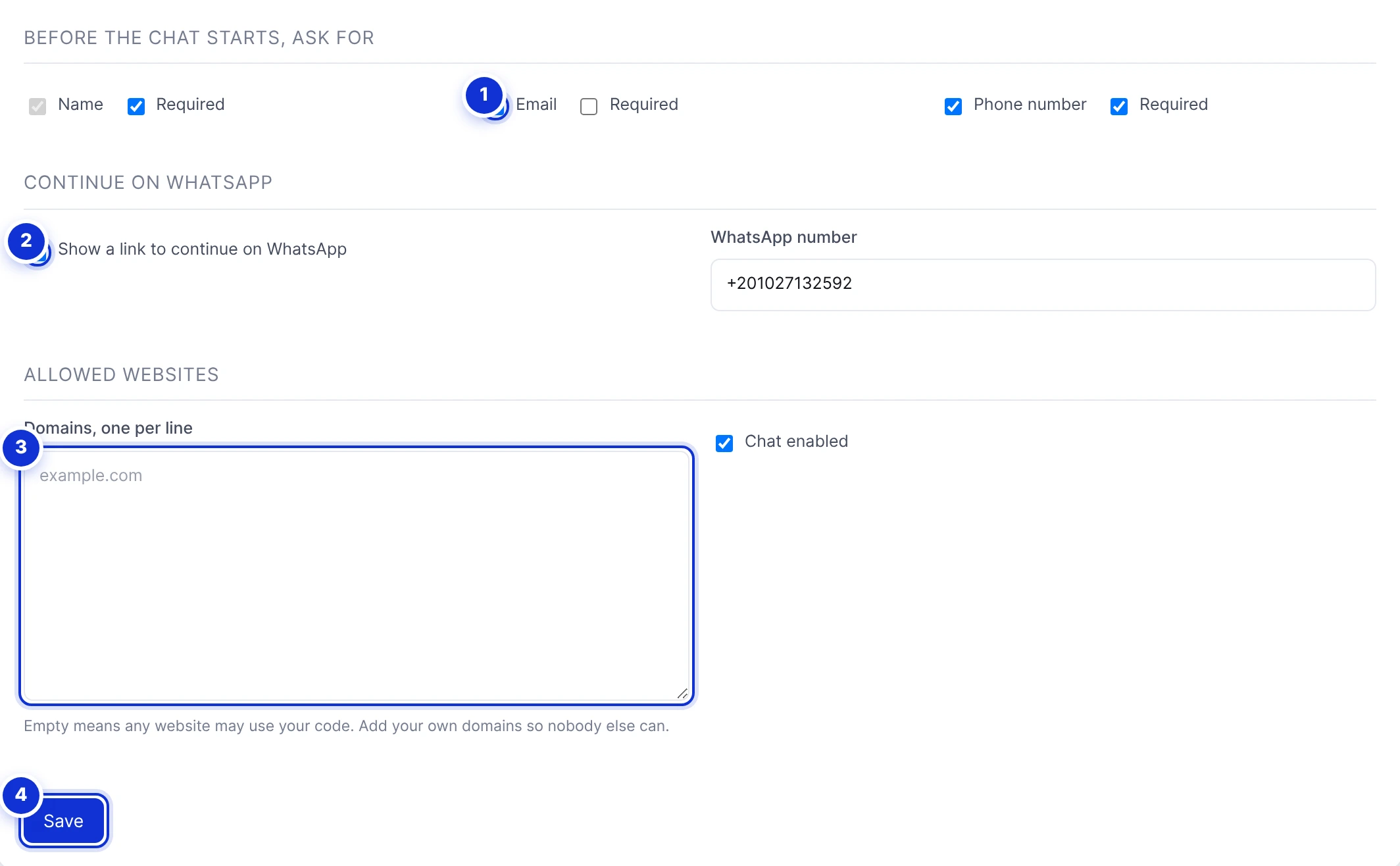
- 1Which details to ask for, and which are required.
- 2The «Continue on WhatsApp» button and the number it opens.
- 3Allowed websites: your own domains, one per line.
- 4Save.
Add your own domains under Allowed websites. With the list empty, your code would work on any site that copies it.
#Where the chats land
In Conversations, filter by Website. The thread’s header shows the visitor’s name, their email or phone, and the page they were on. The assistant answers when it is switched on; your team can take over and reply at any time — there is no 24-hour window on this channel.

- 1The visitor’s details, and the page they wrote from.
The visitor sees your replies while the chat is open on your site, and finds the thread again when they come back on the same browser. If they have left and gave a phone or an email, reach them there.
#The numbers
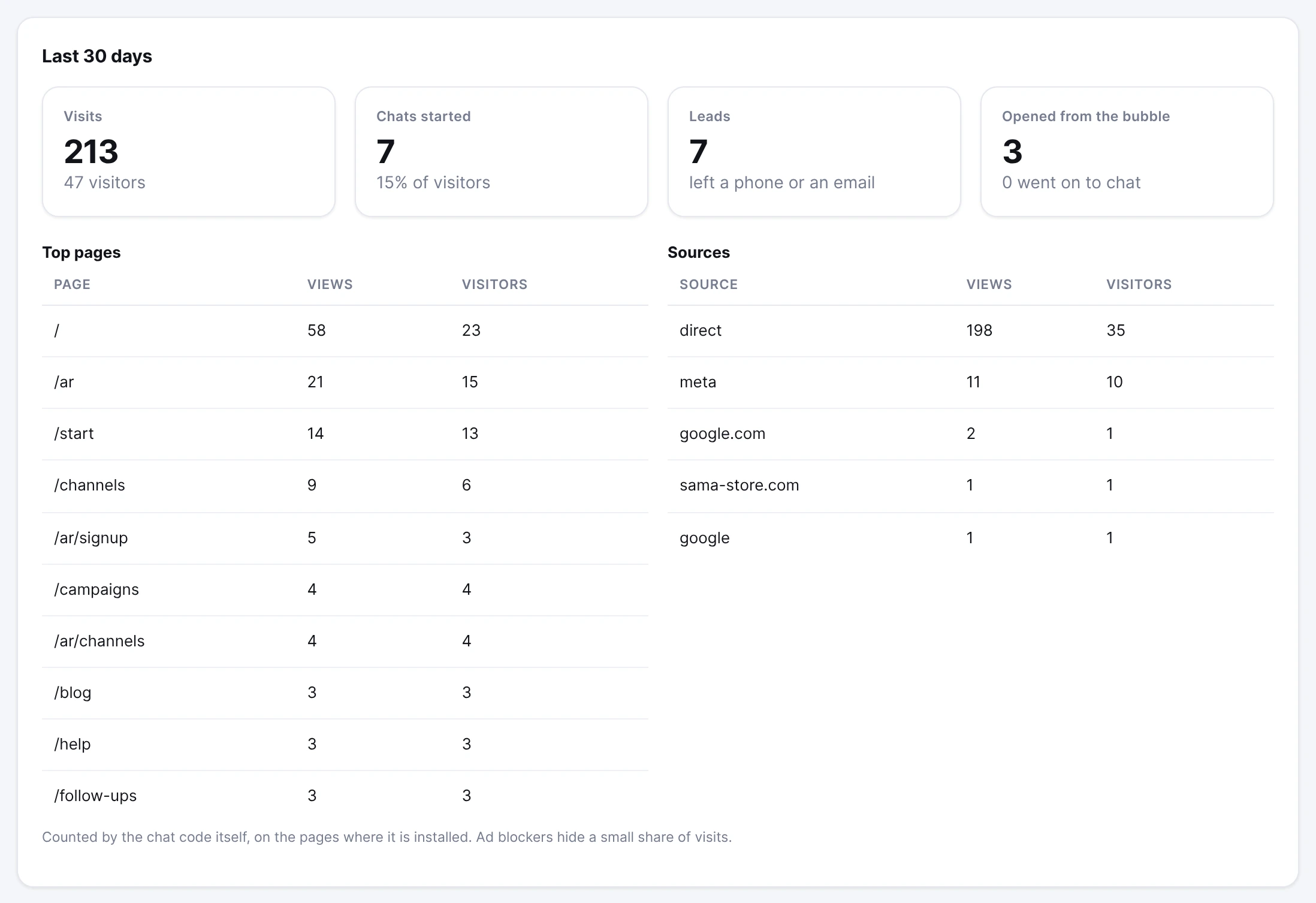
The page shows the last 30 days: visits and visitors, chats started, leads (visitors who left a phone or an email), how many opened the chat from the greeting bubble, plus your top pages and where visitors came from. They are counted by the chat code itself, on the pages where it is installed; ad blockers hide a small share.
#What it counts against
An assistant reply on the website is an AI reply, like one on WhatsApp — it comes out of the same monthly number. A website visitor is a conversation like any other. Meta charges nothing for this channel.
Does it slow my website down?
Can I put it on more than one website?
What happens when the assistant is paused or off?
Does the chat remember a visitor?
Can the chat be installed on Shopify with one click?
Can I remove the «Powered by ExceliaBOT» line?
Write to us and a real person answers — usually the same working day. [email protected]
Or message your account manager from the My Manager page in the dashboard.