
The inbox: conversations and replies
Every WhatsApp, Messenger and Instagram chat in one list — how to find a customer, read what the assistant said, reply yourself with text or pictures, and pause the AI on a single thread.
#The conversation list
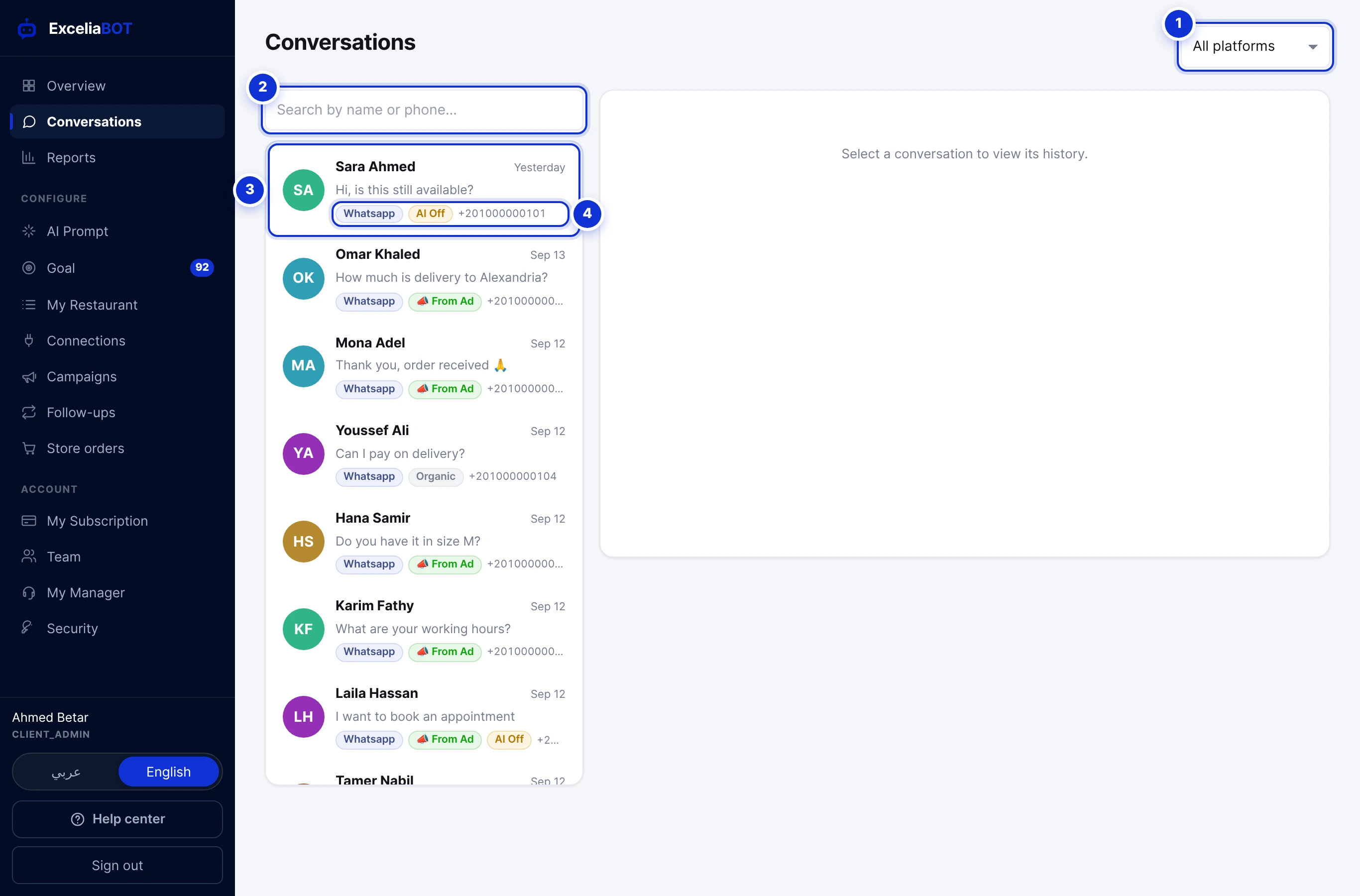
- 1Platform filter — all channels, or WhatsApp, Messenger or Instagram only.
- 2Search by the customer’s name or phone number.
- 3A conversation: initials, name (or number when no name is known), time of the last message and its first line.
- 4Chips: the channel, where the customer came from, and any special state — see below.
The list is sorted by the latest message and updates on its own: a new thread jumps to the top and a thread that just received a message is highlighted until you open it. Twenty conversations load at a time; scroll down for more.
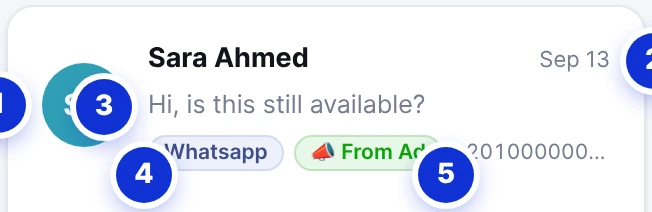
- 1Initials, coloured per customer so a name is recognisable at a glance.
- 2When the last message arrived.
- 3The first line of the last message.
- 4The channel — WhatsApp, Messenger or Instagram.
- 5Where the customer came from: From ad links to the click-to-chat ad that started the chat; Organic means they wrote to you directly. Older conversations, from before we recorded this, carry no label.
| Chip | Meaning |
|---|---|
| From ad | The customer tapped a click-to-WhatsApp ad. The chip links to the ad when Meta told us which one. |
| Organic | The customer messaged you directly — no ad involved. |
| AI off | The assistant is paused on this thread; a person is handling it. |
| Opted out | The customer sent STOP. Campaigns and follow-ups skip this number until they send START. Their questions are still answered. |
| +20 … | On WhatsApp, the customer’s number. Tapping it opens the chat in your own WhatsApp. |
#Reading a conversation
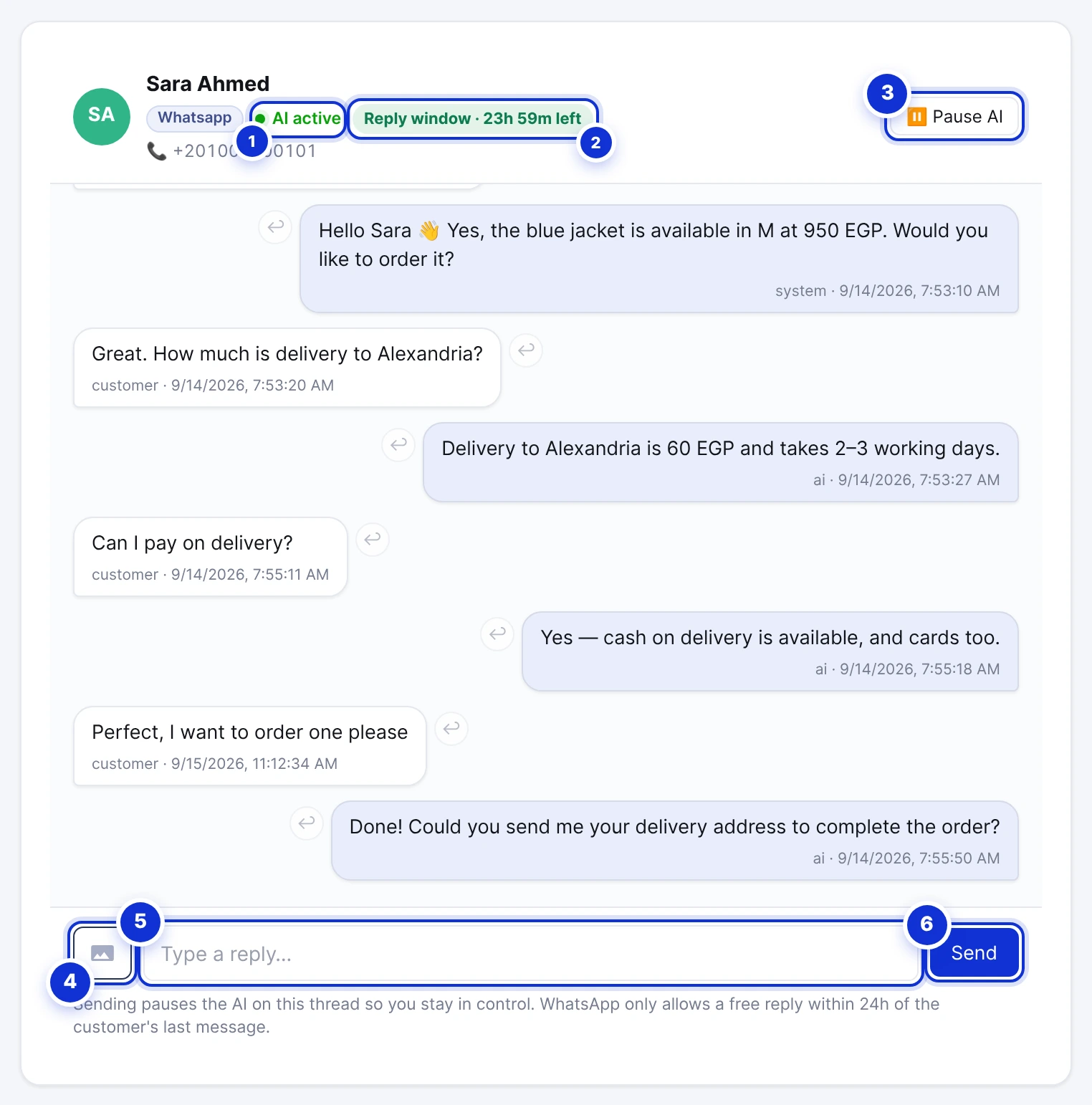
- 1Status: AI active, Human takeover (a person is replying) or AI paused — you replied from your phone.
- 2The reply window: how long you can still answer freely. See the 24-hour window.
- 3Pause AI / Resume AI for this thread only.
- 4Send a picture.
- 5The reply box. Enter sends; Shift+Enter starts a new line.
- 6Send.
The thread opens on the last 100 messages; scroll up and earlier ones load. Pictures open full-size when tapped, files download when tapped, and a message the customer deleted or edited is shown as such. A campaign message you sent appears in the thread too, so the assistant and your team can see what a customer is answering.
Files and pictures are fetched from WhatsApp when you open them and stay available for about a week; the WhatsApp Business app on your phone keeps its own copy.
#Replying yourself
- Open the thread and type in the reply box. Enter sends, Shift+Enter adds a line, and a reply can be up to 4,000 characters.
- To answer a specific message, hover it and press the small reply arrow: the message is quoted above your reply, WhatsApp-style. Press ✕ on the quote to cancel.
- To send pictures, press the picture button and choose up to six JPEG or PNG files under 5 MB each. Whatever you typed becomes their caption.
- Press Send. Your message appears in the thread with agent under it.

- 1The quoted message.
- 2Cancel the quote.
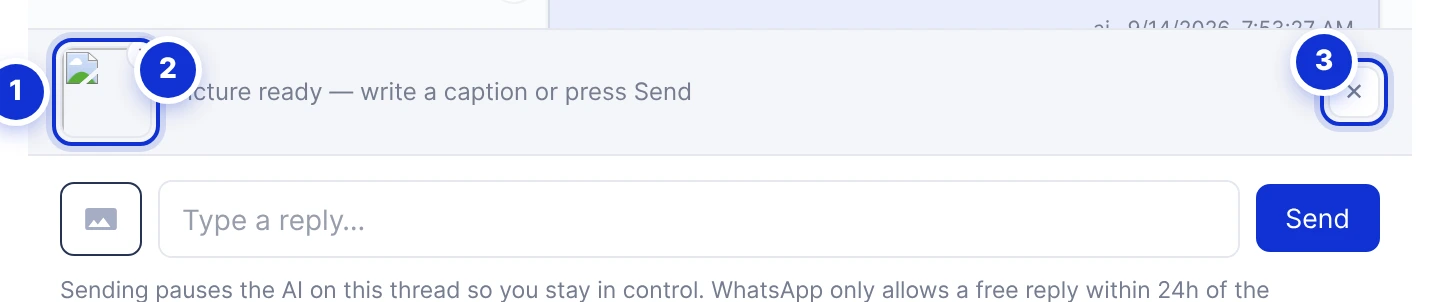
- 1A staged picture — press ✕ on it to drop just that one.
- 2What happens next.
- 3Remove all the pictures.
Sending a reply yourself pauses the assistant on that thread and the status changes to Human takeover, so you and the AI never answer the same customer at once. When you are done, press Resume AI and it takes the thread back. Other conversations are not affected.
#Pausing and resuming the AI
- Pause AI stops the assistant on this thread only. Messages still arrive and you reply by hand.
- Resume AI hands the thread back; the assistant answers the next message.
- To stop the assistant everywhere, use the switch at the top of the AI Prompt page instead.
#When you reply from your phone

- 1The assistant paused itself for six hours.
- 2Resume AI hands the thread back sooner.
With a Coexistence connection you can still answer customers from the WhatsApp Business app. When you do, the assistant notices your message and pauses on that thread for six hours, counted from your latest phone reply. The dashboard shows *AI paused — you replied from your phone*. Press Resume AI to hand it back earlier; otherwise the pause ends on its own.
#Marking a conversion from the inbox
If you report conversions to your Meta pixel (Goal → Meta Pixel), you can mark a deal you closed yourself: type your conversion keyword — #converted, for example — alone in the reply box and press Send. Nothing is delivered to the customer; we record the conversion and tell Meta. Typed from the phone app, the word *does* reach the customer, so use the dashboard for this.
#Who can reply
The account owner and every staff agent from the Team page can read and reply to conversations and pause the AI. Agents cannot change settings, instructions or billing. Each reply shows who sent it, so the team can see at a glance which customers a colleague is handling.
A customer says they wrote to us but I see nothing.
Why does the assistant not answer a thread?
Can I delete a conversation?
Can I send a voice note or a document?
Write to us and a real person answers — usually the same working day. [email protected]
Or message your account manager from the My Manager page in the dashboard.