
The advanced assistant: persona, skills and your files
Instead of one long page of instructions, build your assistant from parts: who it is, what it does in each situation, the files it answers from and the pictures it sends. Everything is a draft you try first; your customers see it only when you press «Save and switch on».
#What it is
The AI Prompt page teaches your assistant with one block of text. The advanced assistant breaks that job into parts you fill in, each in its own place:
| Part | What it holds |
|---|---|
| Persona | The assistant’s name, the language it speaks, its style, the welcome message, its buttons and the numbers of your departments. |
| Skills | What it does in each situation, written as «when the customer… → the assistant…»: answer from a folder of files, take a booking, hand over to your team, tell the opening hours, work out an instalment, and more. |
| Knowledge | Your own files — price lists, policies, catalogues, FAQs — in folders. The assistant answers from them and does not invent. |
| Pictures | A menu, a price list, a map: pictures it sends when a customer’s message fits. |
Two things stay true the whole time. Everything you change is a draft: your customers keep getting the replies they get today until you press Save and switch on. And your AI Prompt instructions stay saved: one button brings them back.
#Where to find it
Open Advanced assistant in the sidebar, or press the button in the blue panel at the top of the AI Prompt page.

The first time
- Pick your kind of business: store, restaurant, clinic, real estate, education, services, company or other.
- The page lists what your account already has — a product catalogue, Store orders, a menu, the Goal page, Website chat — and builds skills that read from them.
- Press Set up my assistant. A first version is ready in seconds, as a draft, with a persona, a set of skills and folders for your files.
From then on the page opens on its four tabs, with the test chat beside them.
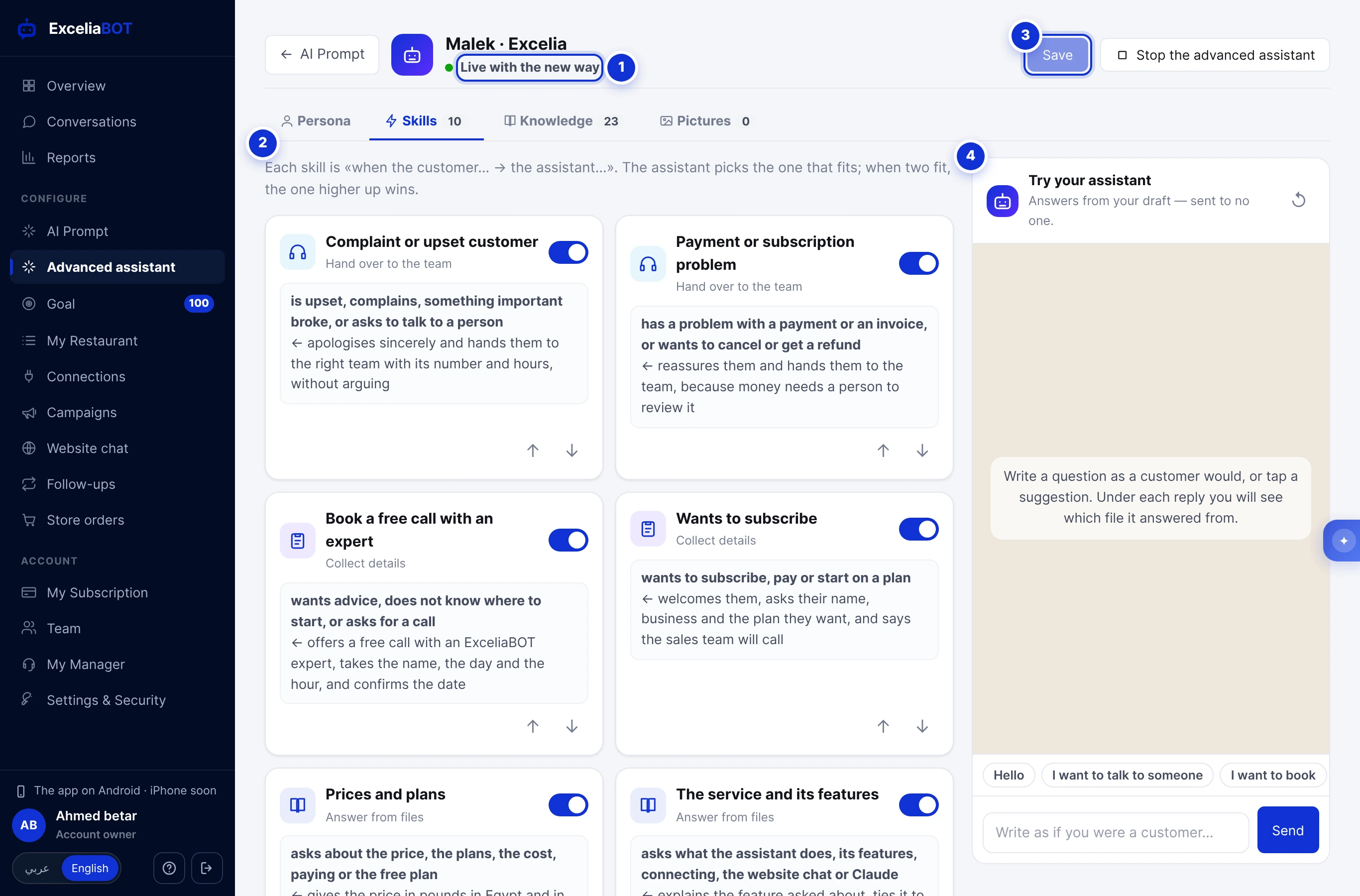
- 1The state: a draft, or live with your customers.
- 2The four tabs: Persona, Skills, Knowledge and Pictures.
- 3Save and switch on — or Save, once it is live.
- 4The test chat: write as a customer and read the answer from your draft.
#Persona: who your assistant is
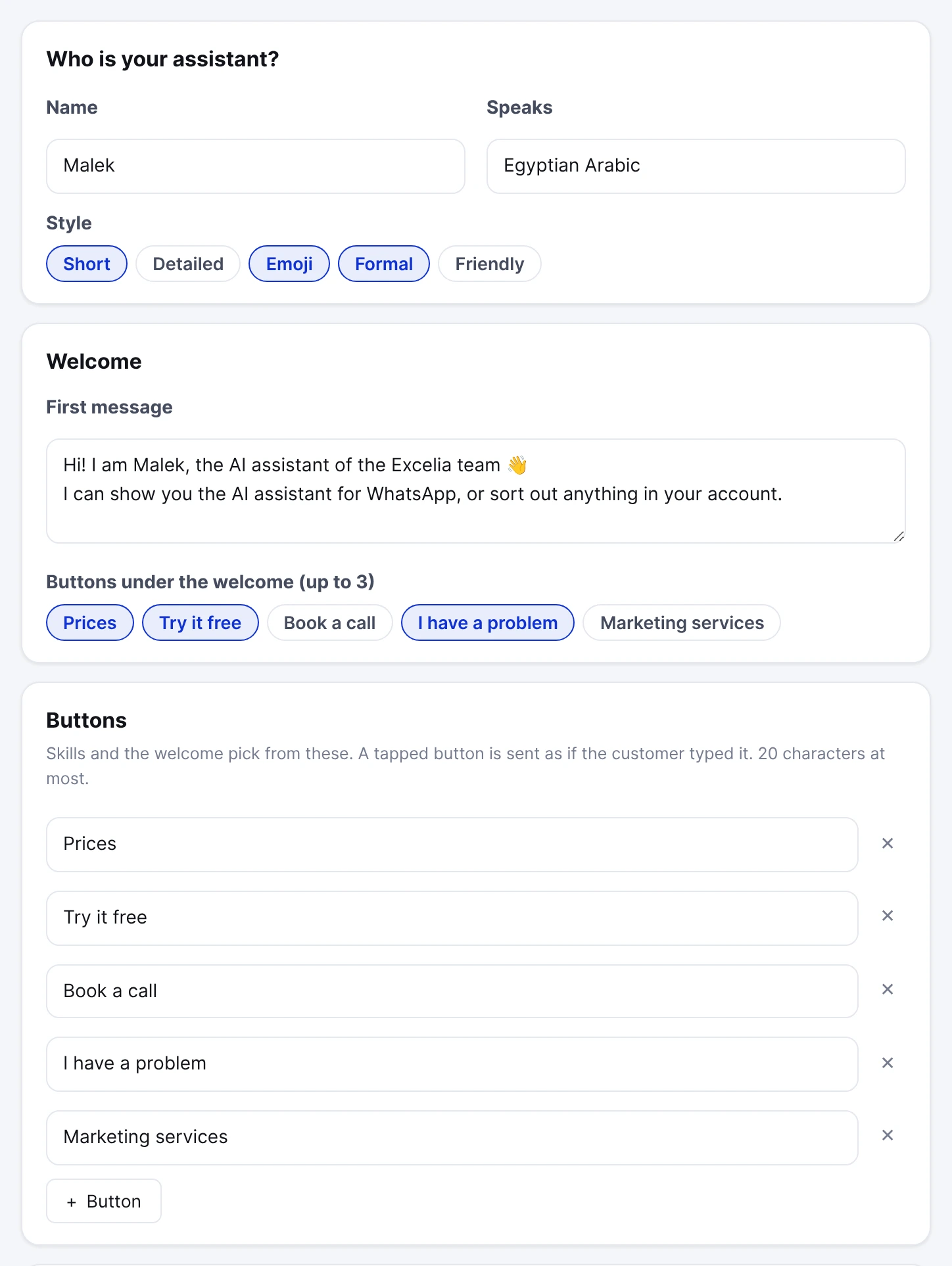
Everything on this tab saves itself into the draft as you type — «Saved to the draft» flashes beside the title.
- Name and Speaks: Egyptian Arabic, light Modern Standard Arabic, English, or the customer’s own language.
- Style: up to three of short, detailed, emoji, formal, friendly.
- Welcome: the first message, with up to three buttons under it (WhatsApp’s limit).
- Buttons: up to ten short answers of 20 characters that skills and the welcome can offer. A tapped button arrives as if the customer had typed it.
- Hand-over contacts: each department’s phone and hours, given when the assistant hands a customer over.
- Advanced: extra instructions: anything the boxes above do not cover, in your own words.
#Skills: what it does
Each skill is one situation: When the customer… (in your words) and The assistant… (what it should do). The assistant picks the skill that fits the message; when two fit, the one higher in the list wins — move them with the arrows. The switch on each card turns a skill off without deleting it.
New skill opens the gallery. Pick a type, then fill in the two lines — there is no prompt to write.
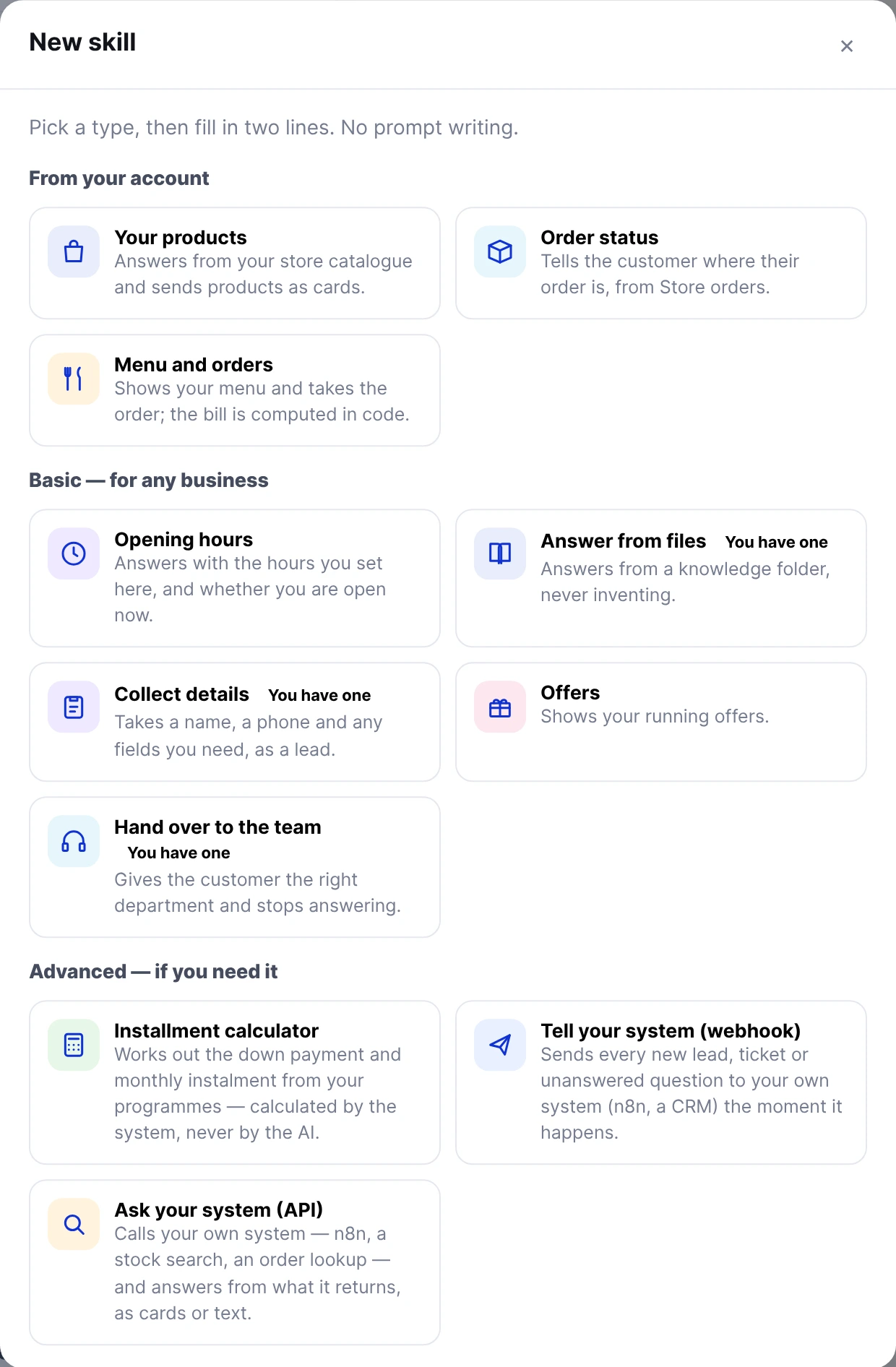
| Skill | What it does |
|---|---|
| Your products | Answers from your store catalogue and sends products as cards. |
| Order status | Tells a customer where their order is, from Store orders — only to the phone the order was placed with. |
| Menu and orders | Shows your menu and takes the order; the bill is worked out by the system. |
| Opening hours | A week of hours, two periods a day at most, and whether you are open right now in your account’s time zone (Settings → Account). |
| Answer from files | Answers from one folder of your Knowledge tab. |
| Collect details | Takes the fields you list — a name, a date, a service — and saves them as a lead on the Goal page. |
| Offers | Tells the offers you are running. |
| Hand over to the team | Takes a short ticket, gives the right department’s number and steps aside. |
| Installment calculator | Down payment and monthly instalment from your own programmes. The figures come from the system, never from the AI. |
| Ask your system (API) | Calls your own system — a stock search, an order lookup, an n8n flow — and answers from what it returns. |
| Tell your system (webhook) | Sends every new lead, ticket or unanswered question to your own system the moment it happens. |
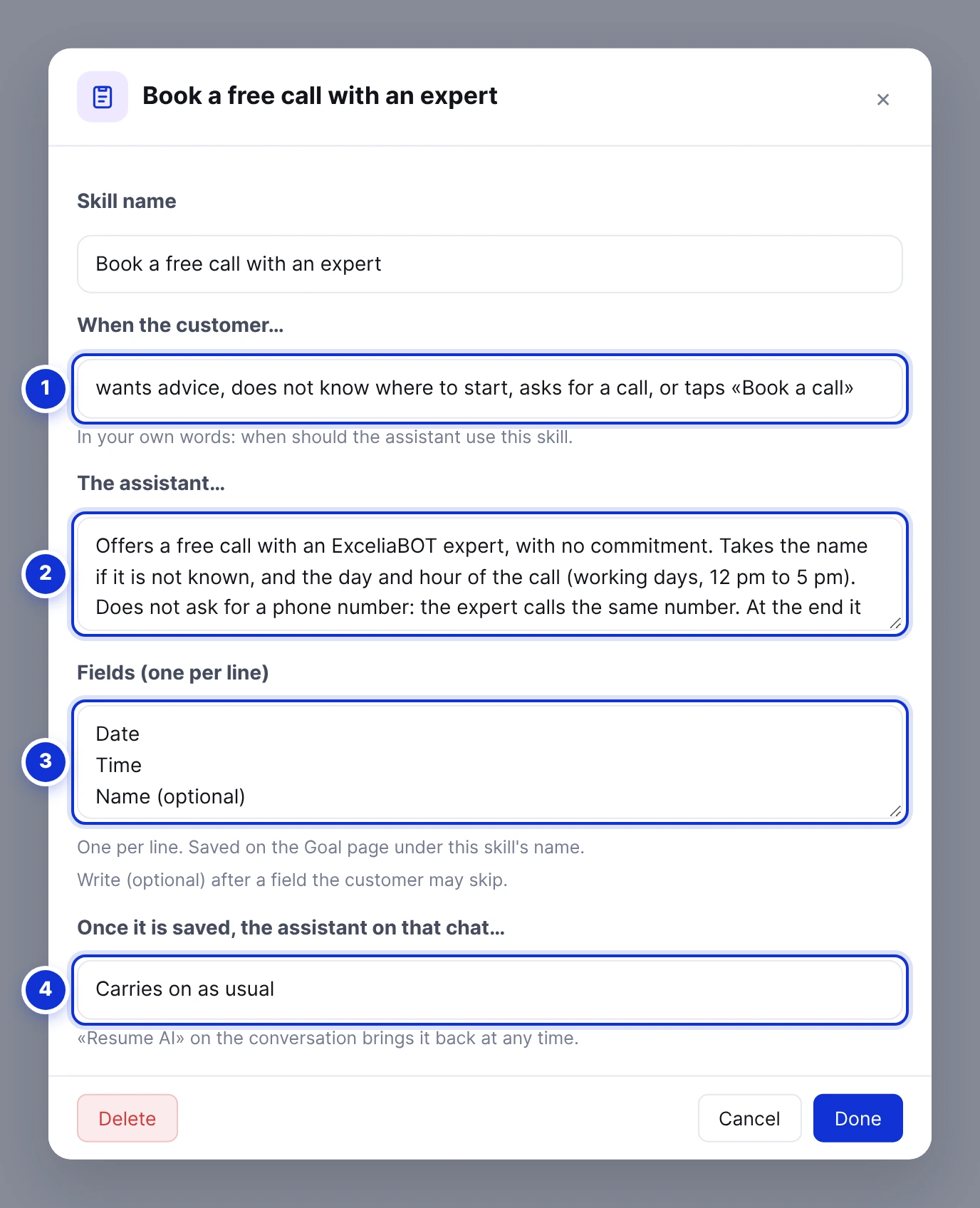
- 1When the customer… — in your own words.
- 2The assistant… — what it should do.
- 3The fields it gathers, one per line.
- 4What the assistant does on that chat once the entry is saved.
Skills that record
A Collect details skill and a Hand over to the team skill both save what they gather on the Goal page, under the skill’s name, each in its own tab. The assistant asks only for what is still missing and confirms once everything is in. Write (optional) after a field the customer may skip.
Under Once it is saved, the assistant on that chat… choose what happens next: keep answering, or pause for 1, 6 or 24 hours, or until your team resumes it. A hand-over pauses for 6 hours unless you change it; the conversation’s header then says the chat was handed to your team, and Resume AI brings the assistant back at any time.
Skills that talk to your own system
Ask your system takes an https address, the inputs the customer gives (an order number, a model) and, if your system needs one, a secret header — typed once and never shown again. Test the call tries the saved settings. Tell your system signs every message it sends, so your system can check it came from us; Send a test event shows what your system answered. Both need someone who knows your system; every other skill does not.
#Knowledge: your files
Make a folder for each subject — prices, services, support — and drop your files into it.
- PDF, Word, Excel, CSV, plain text and data files (JSON), up to 10 MB each.
- Add a web page: the assistant reads a page of your website by its link.
- Import a ZIP: a whole set of files at once. If the ZIP holds an assistant built elsewhere, the page suggests a persona and skills from it; untick what you do not want before anything is added.
- A file uploaded again with the same name becomes a new version of it.
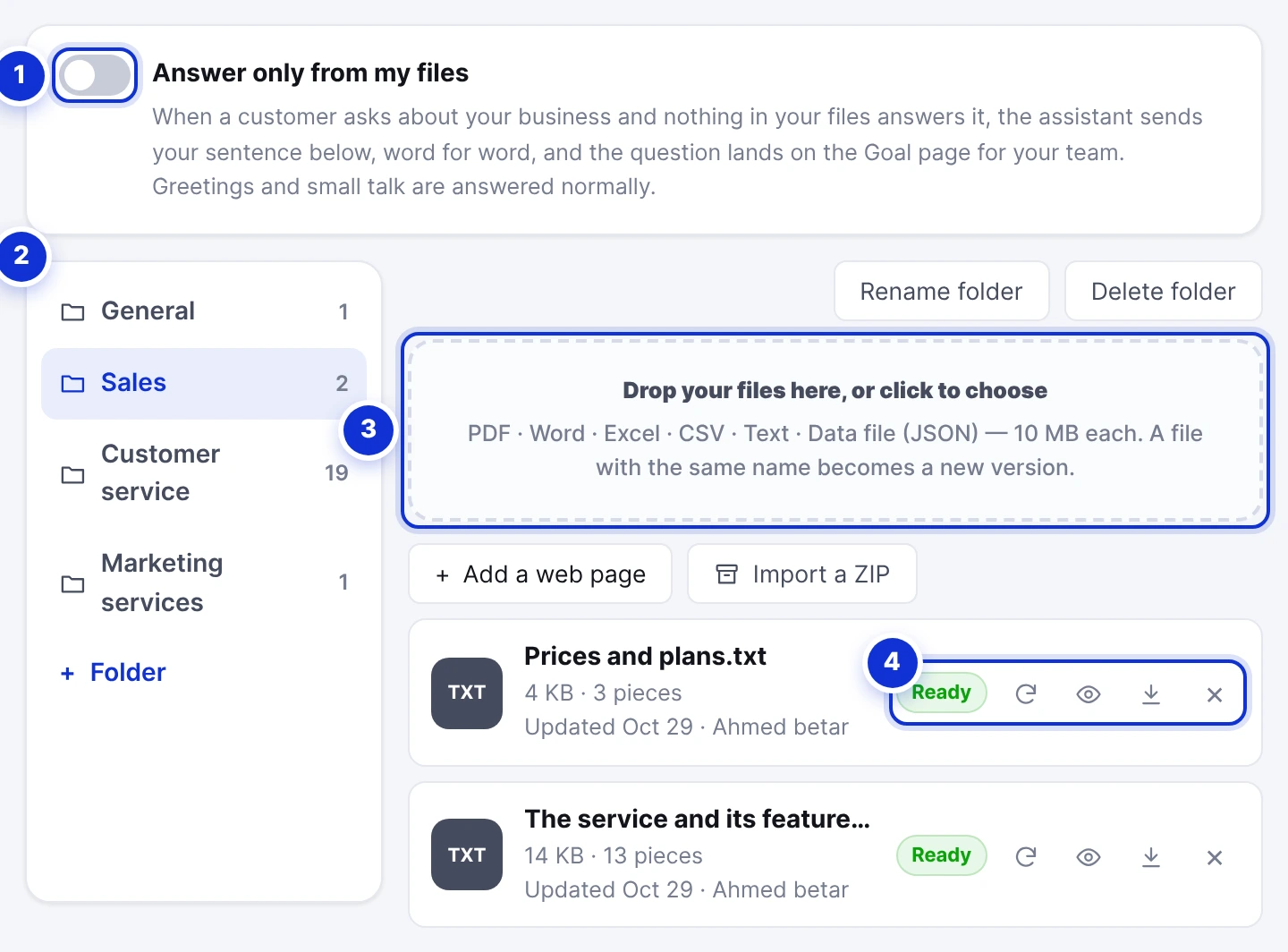
- 1Answer only from my files.
- 2Your folders.
- 3Drop files here, add a web page or import a ZIP.
- 4Each file: what the assistant reads, download, a new version, its versions.
Each file has four small buttons. The eye shows the text the assistant actually reads — check it once, especially for a PDF. The arrow downloads the file as you uploaded it. The circular arrow uploads a new version (or reads a web page again). Versions lists the last ten; Put back makes an old one the next draft.
A scanned PDF is a picture of a page and has no text to read: the page refuses it and says so. Upload a PDF whose text you can select, or a Word file.
Answer only from my files
Switch this on when the assistant must never answer about your business from general knowledge. When nothing in your files answers a question, it sends your sentence — in Arabic or English, by the customer’s language — word for word, and the question lands on the Goal page under Unanswered questions so your team can reply and add the answer to a file. Greetings and small talk are answered normally.
#Pictures it sends
On the Pictures tab, Add a picture (JPG or PNG, up to 30). Give it a name and write When to send it — «when the customer asks for the menu or the prices». The assistant sends it right after its reply, with your caption under it.
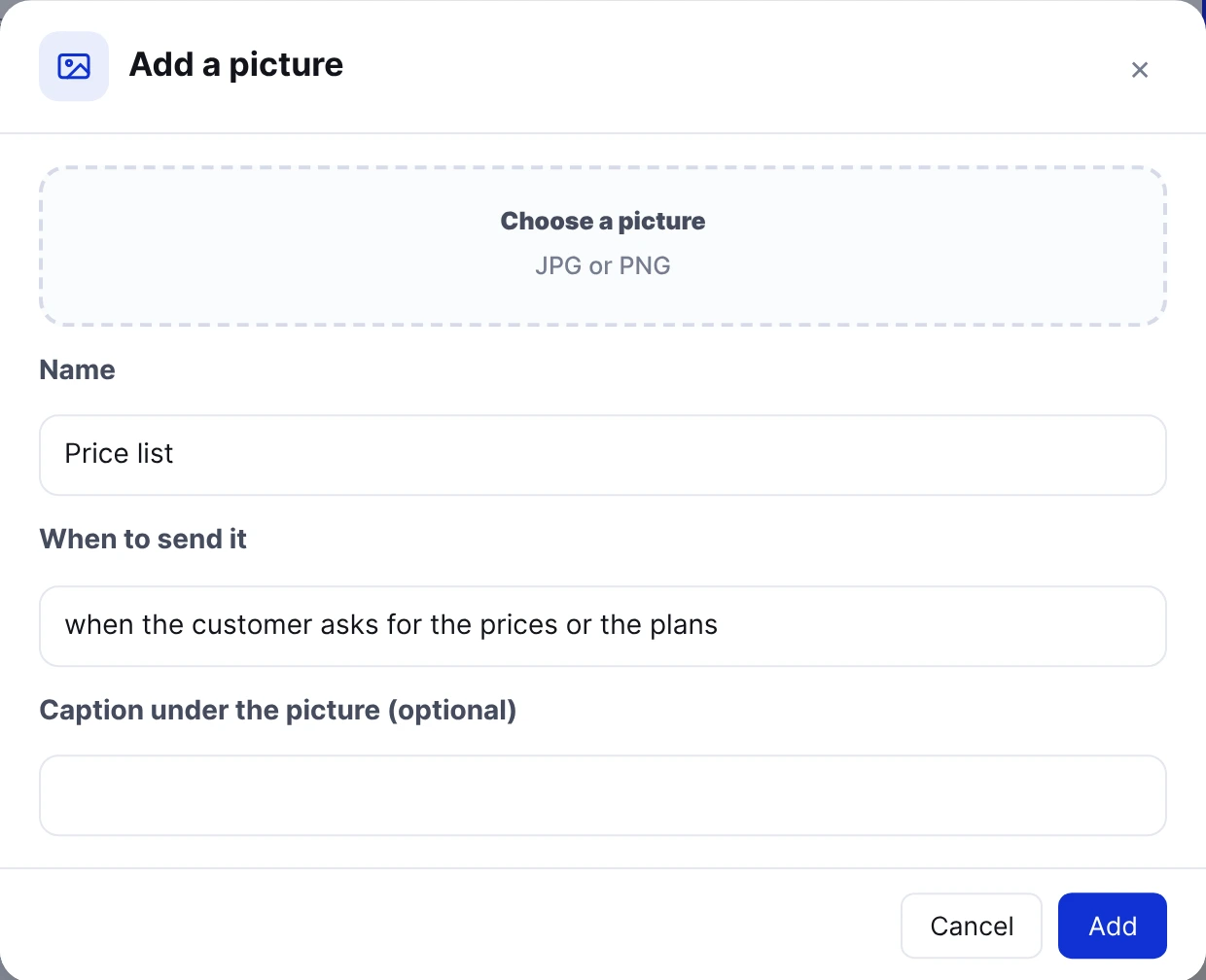
The assistant does not read what is inside a picture. If it should answer prices or items from your menu, put them in a file under Knowledge too.
#Try it before your customers do
Write in the chat beside the tabs as a customer would, or tap a suggestion. The answers come from your draft and go to no one. Under each answer the chat says where it came from: the file it read, the figures the calculator worked out, the entry the live bot would save on the Goal page, or that it would hand the chat to your team.
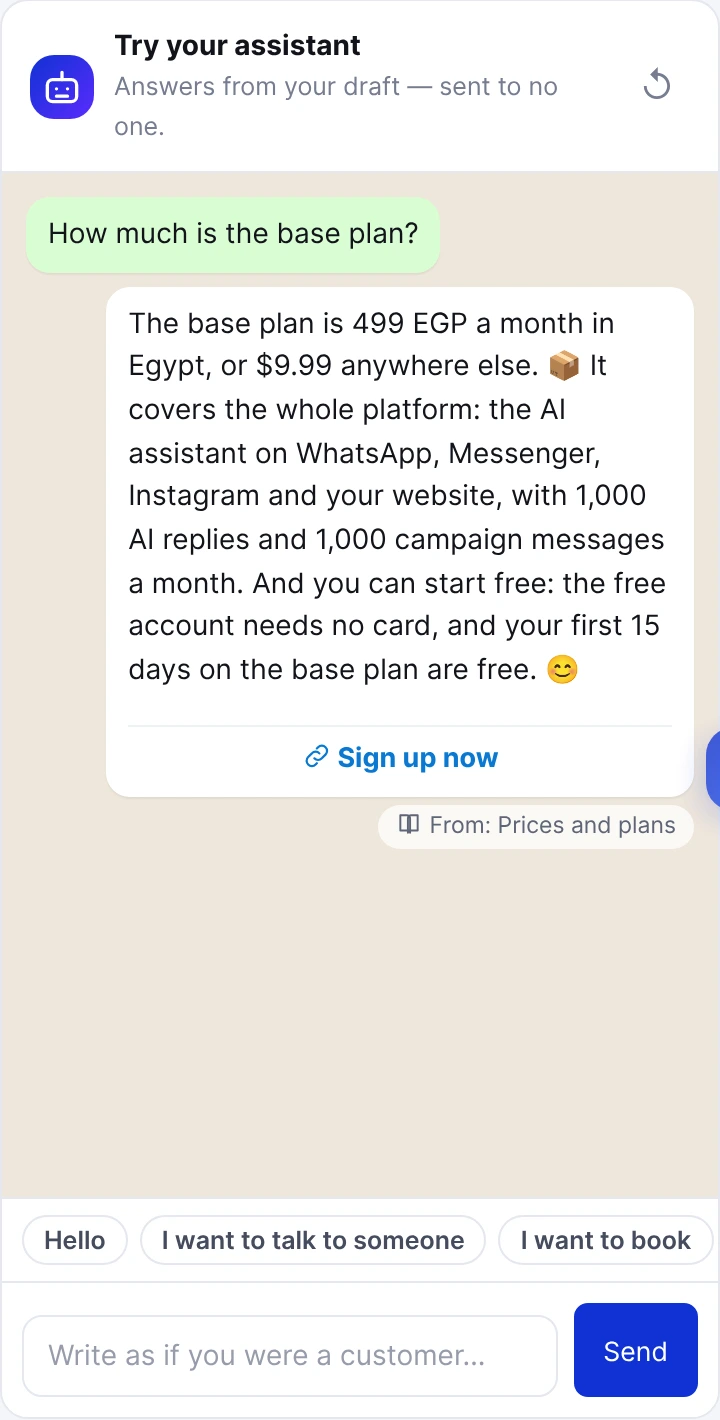
Ask the questions your customers really ask — the price, the address, «can I pay in instalments?» — and one that has nothing to do with your business. Fix the file or the skill when an answer is wrong, and ask again. You have 50 test messages a day; they do not count against your AI replies.
#Save and switch on
- Press Save and switch on. A summary shows the persona, the skills that are on, your files, and how many test messages you sent.
- Confirm. From the next customer message your assistant answers the new way, on every channel.
- Later changes are drafts again: the top shows «Draft — your changes are not applied yet» until you press Save. Discard my changes goes back to your last save.
While the advanced assistant is on, the AI Prompt page’s instructions are locked, because they are not used. Stop the advanced assistant (at the top of the page) or Back to these instructions (on the AI Prompt page) returns to them from the next message. The persona, skills and files stay saved for the day you switch it on again.
#Let the dashboard assistant do it
The ✦ assistant in the corner of your dashboard knows this page. Ask it «add a skill for bookings» or «add our new prices», or attach a PDF and ask it to save it in a folder. Every change it proposes waits as a card with Confirm and Cancel, and lands in the draft; saving it for your customers is a card of its own.
Will my customers notice the switch?
Does it cost more?
Can it make up a price?
How do I update a price list?
Can I go back to my old instructions?
Who can edit it?
Write to us and a real person answers — usually the same working day. [email protected]
Or message your account manager from the My Manager page in the dashboard.