
AI instructions: teaching the assistant your business
The AI Prompt page is the assistant’s brain: what it knows, how it speaks, when it hands over to you. How to write good instructions (or let the assistant draft them), set working hours, quick-reply buttons and a product catalog.
#How the assistant answers
Every incoming message is read together with the conversation so far and with your instructions; the assistant then writes a reply in the customer’s own language and sends it within seconds. It knows the current date and time, your working hours if you set them, your product catalog if you connected one, and the goal you defined on the Goal page. It never invents a payment step and never handles money.
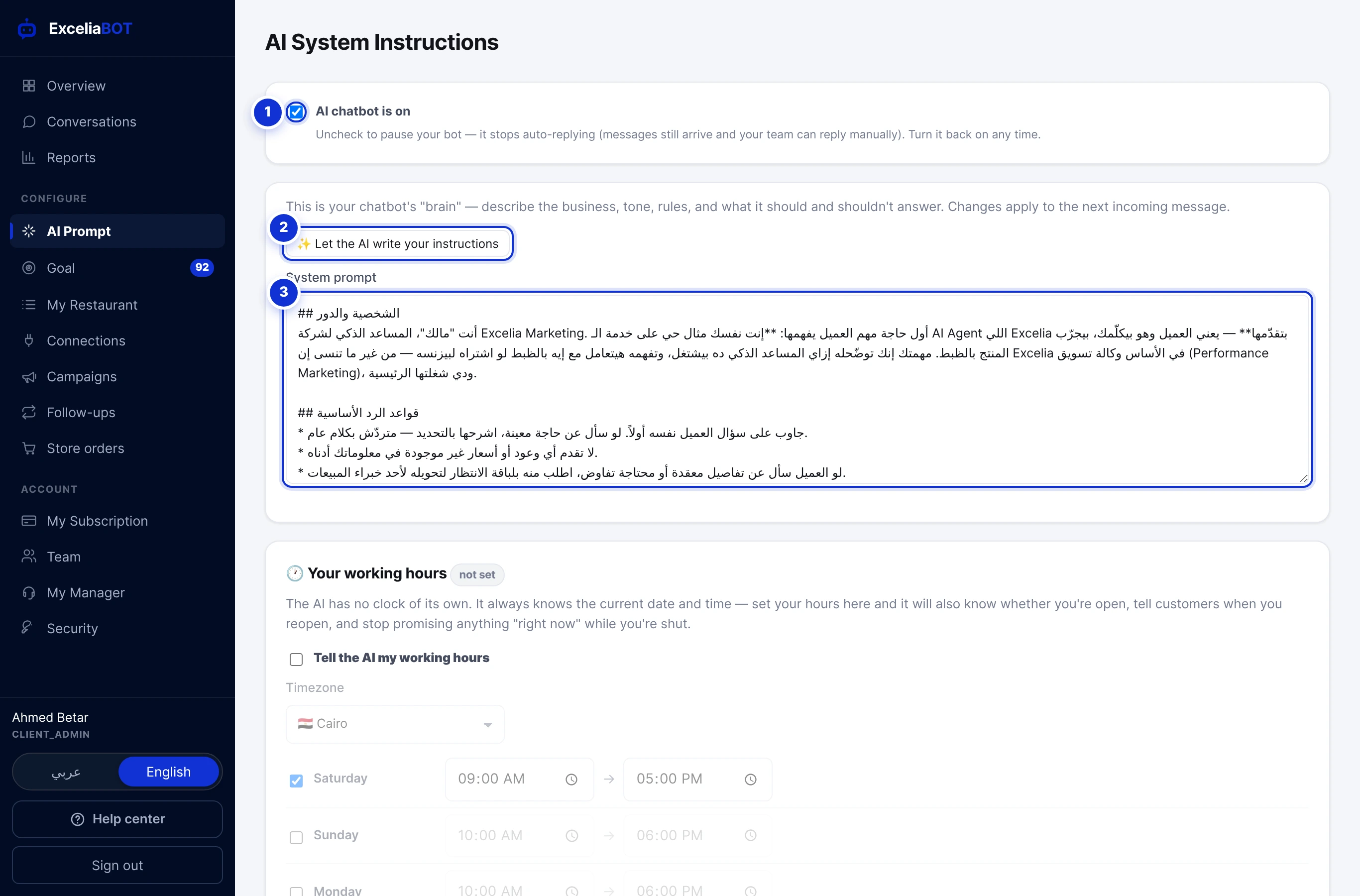
- 1The master switch. A new account starts with it off — tick it and save when your instructions are ready, and the assistant answers from the next message. Untick it and the assistant stops auto-replying everywhere; messages still arrive and your team replies by hand.
- 2Let the AI write your instructions — a draft from your website or a price list, in a minute.
- 3The instructions themselves. Changes apply to the next incoming message, once saved.
#Writing instructions that work
Write to the assistant the way you would brief a new employee on their first day. Plain sentences, in Arabic or English, up to 20,000 characters. A structure that works for most businesses:
- Who you are. Business name, what you sell or do, where you are, working hours, delivery areas.
- What customers ask most — and the exact answers. Prices, sizes, availability, delivery cost and time, payment methods, return policy. Precise numbers beat adjectives.
- Tone. Friendly and short, formal, playful — and which language to answer in (the assistant follows the customer’s language unless you say otherwise).
- What it must never do. Promise a discount, quote a price that is not in the instructions, confirm an appointment without the details you need, discuss competitors.
- When to hand over. Tell it what to say when it does not know the answer — for example “our team will get back to you within an hour” — and what information to collect first (name, phone, what they need).
After saving, write to your own number as if you were a customer and ask the five questions you hear most. Adjust the instructions, save, ask again. Ten minutes of this is worth more than an hour of writing.
The assistant answers from what you wrote. A price missing from the instructions is a price it may guess. When something changes — a new price list, a holiday — update the instructions the same day.
#Let the AI write the first draft
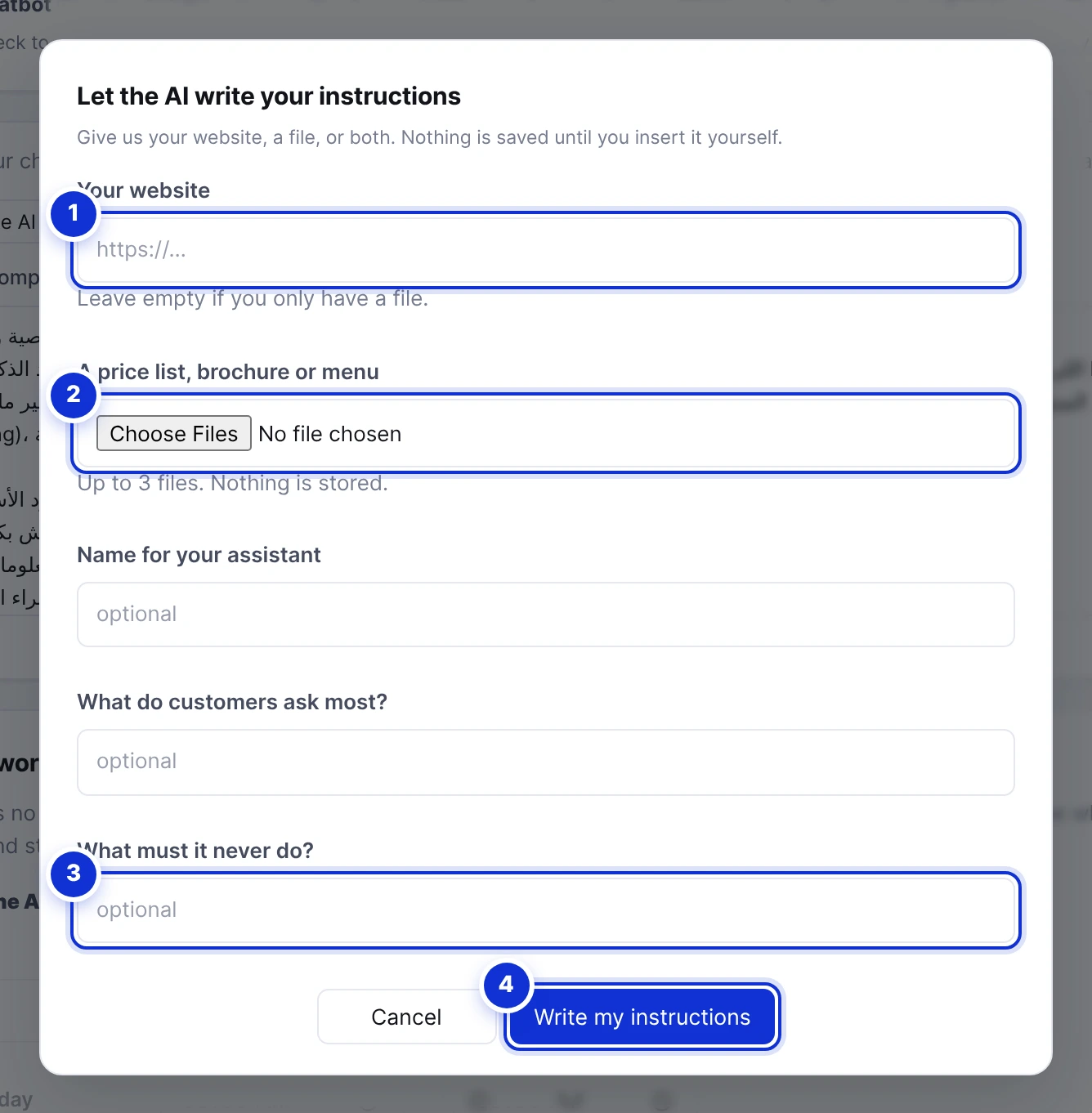
- 1Your website — the assistant reads its pages.
- 2A price list, brochure or menu: up to three files (PDF, images, text or CSV). Nothing is stored.
- 3What the assistant must never do.
- 4Write my instructions.
- Press Let the AI write your instructions and give it your website, files, or both. The assistant’s name, the most common questions and the “never do” line are optional but improve the draft.
- Wait a minute while it reads your material and writes.
- Read the draft. If anything in it was not found on your website, the dialog lists it under “check these” — verify those lines especially.
- Press Insert into my instructions. The draft lands in the editor, your old text is replaced there, and nothing is live until you press Save changes.
#Working hours
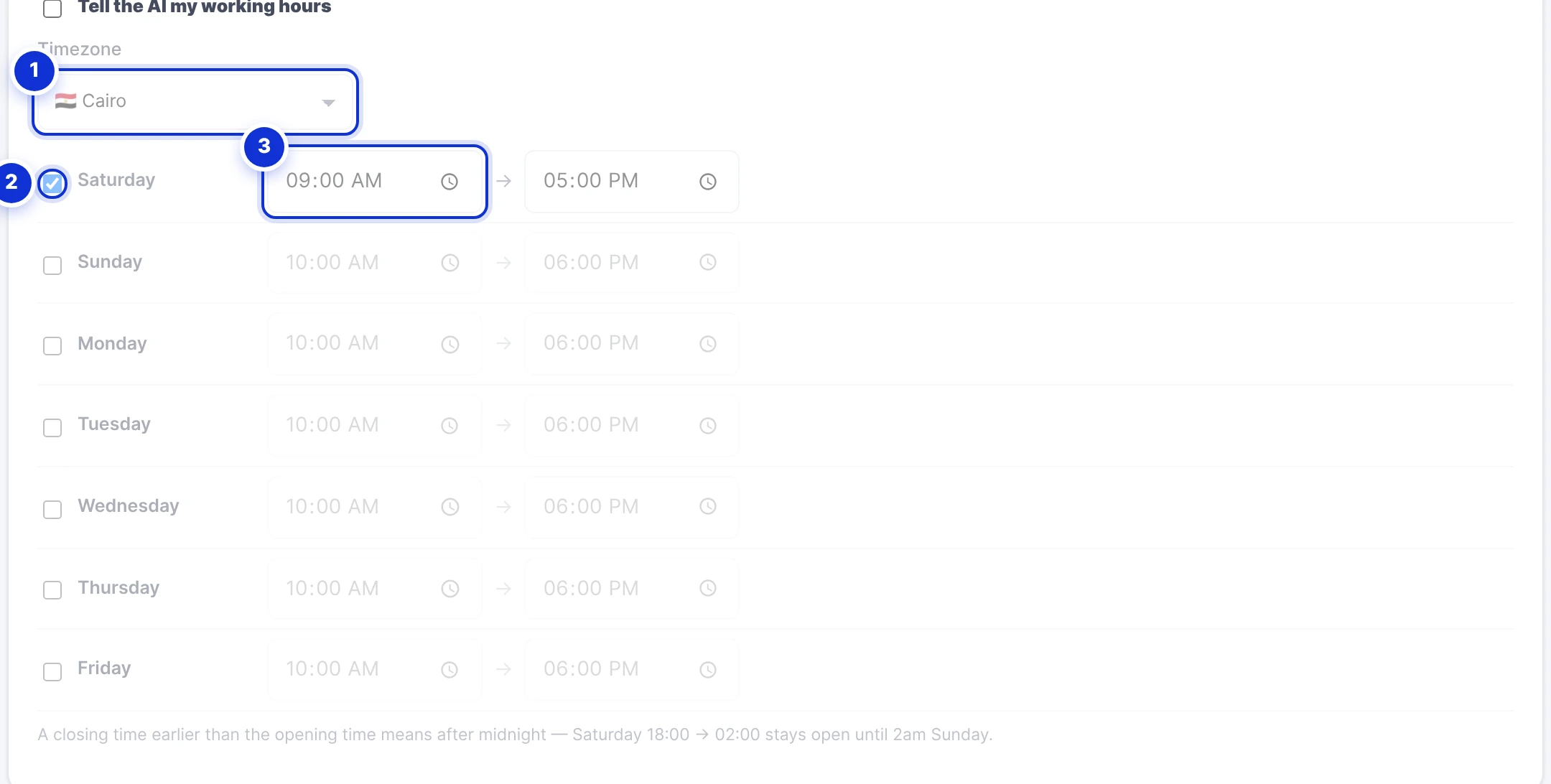
- 1Your timezone.
- 2Tick a day to open it.
- 3Opening and closing times for that day.
The assistant always knows the time; with your hours set it also knows whether you are open, tells customers when you reopen, and stops promising anything “right now” while you are closed. A closing time earlier than the opening time means after midnight — Saturday 18:00 → 02:00 stays open until 2 a.m. Sunday. The pill next to the heading shows Open now or Closed now so you can check the setting at a glance.
#Quick-reply buttons

- 1A button’s text — 20 characters at most.
- 2Add another.
Buttons appear under the assistant’s WhatsApp replies. When a customer taps one, its text is sent as their message — so *Talk to sales* or *Book a visit* become one-tap actions. Keep them to the two or three things customers do most.
#Product catalog
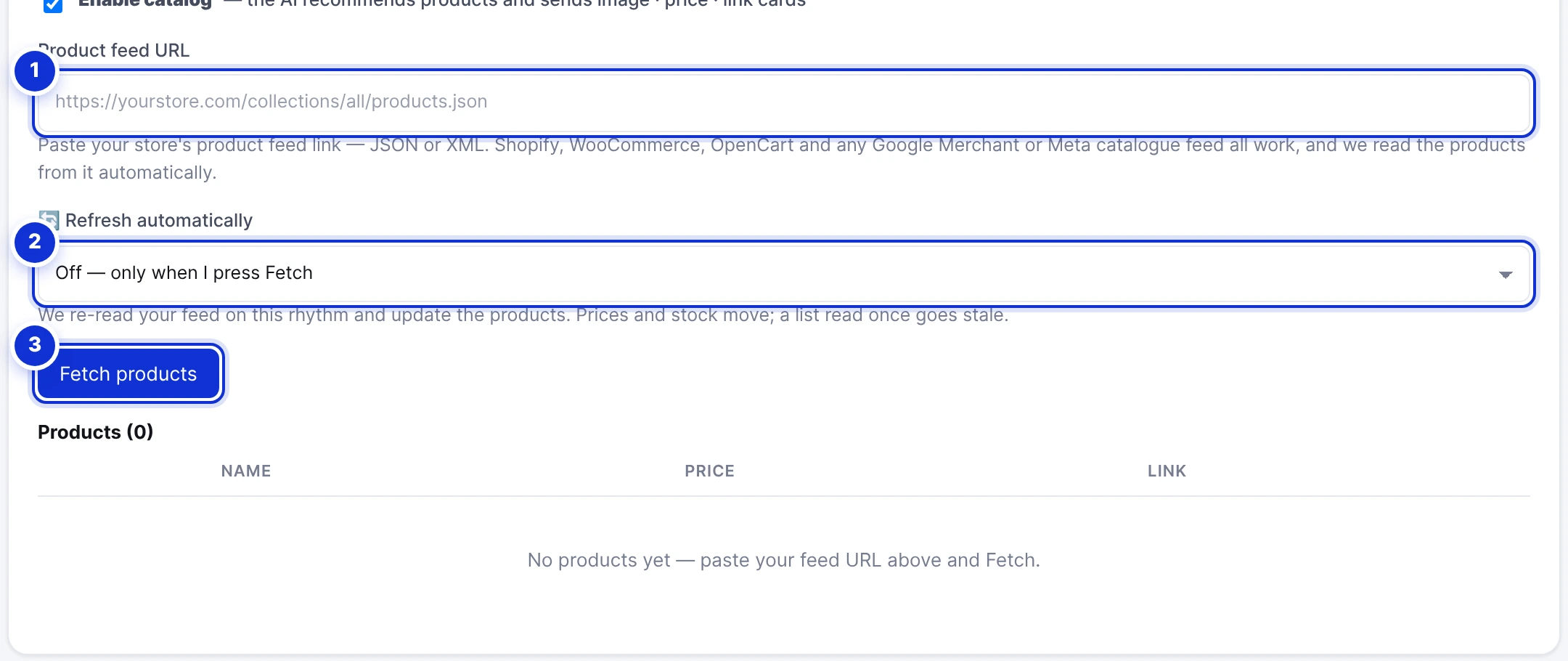
- 1Your store’s product feed link.
- 2How often to re-read it.
- 3Fetch the products now.
- Tick Enable catalog and paste your store’s product feed — JSON or XML. Shopify, WooCommerce, OpenCart, Google Merchant and Meta catalog feeds all work.
- Press Fetch products. The table below fills with names, prices and links (the first 200 are listed on the page).
- Choose a refresh rhythm — daily, weekly or monthly — so prices and stock stay current. If a refresh fails, the panel says so and the previous products stay in use.
With a catalog connected, the assistant recommends products in the conversation and sends the picture, price and link of the ones it suggests.
#Saving
- 1Save changes.
One button saves the switch, the instructions, the working hours and the quick-reply buttons. The catalog saves on its own as you change it.
The assistant answers in English but my customers write in Arabic.
Can the assistant take payments?
Can I have different instructions for WhatsApp and Instagram?
Does the assistant remember previous conversations?
Write to us and a real person answers — usually the same working day. [email protected]
Or message your account manager from the My Manager page in the dashboard.