
Audiences: who receives a campaign
Upload a list once and reuse it for every campaign, or build one from the customers who already wrote to you. Number formats, columns, duplicates, downloads and deletion.
#What an audience is
An audience is a saved list of recipients — phone numbers, with a name and any other columns you uploaded. You upload it once on the Audiences tab and pick it by name every time you send a campaign, instead of uploading the same spreadsheet again and again. A campaign can also use a one-off sheet without saving it (see Sending a campaign).
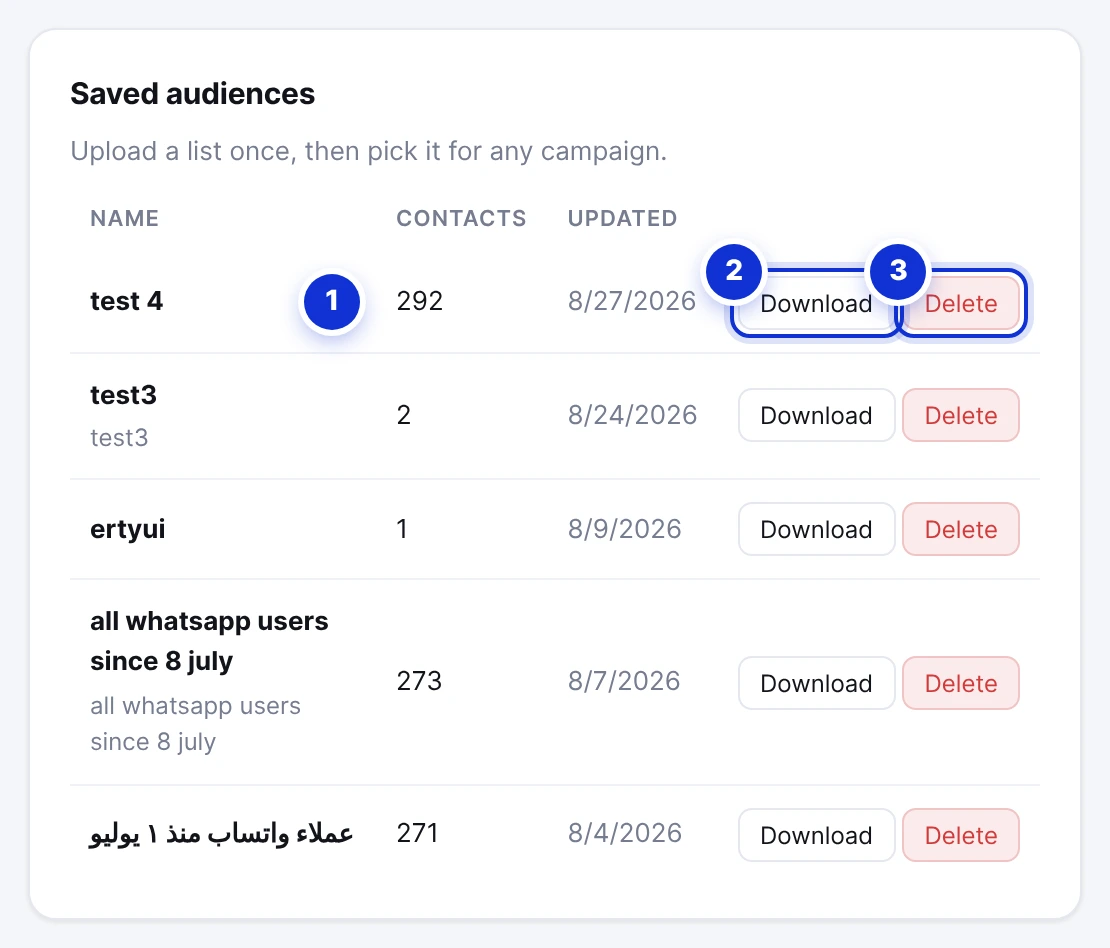
- 1How many contacts each list holds.
- 2Download the list as an Excel file — edit it and upload it again under the same name.
- 3Delete the list. Campaigns already sent to it keep their history.
#Uploading a spreadsheet
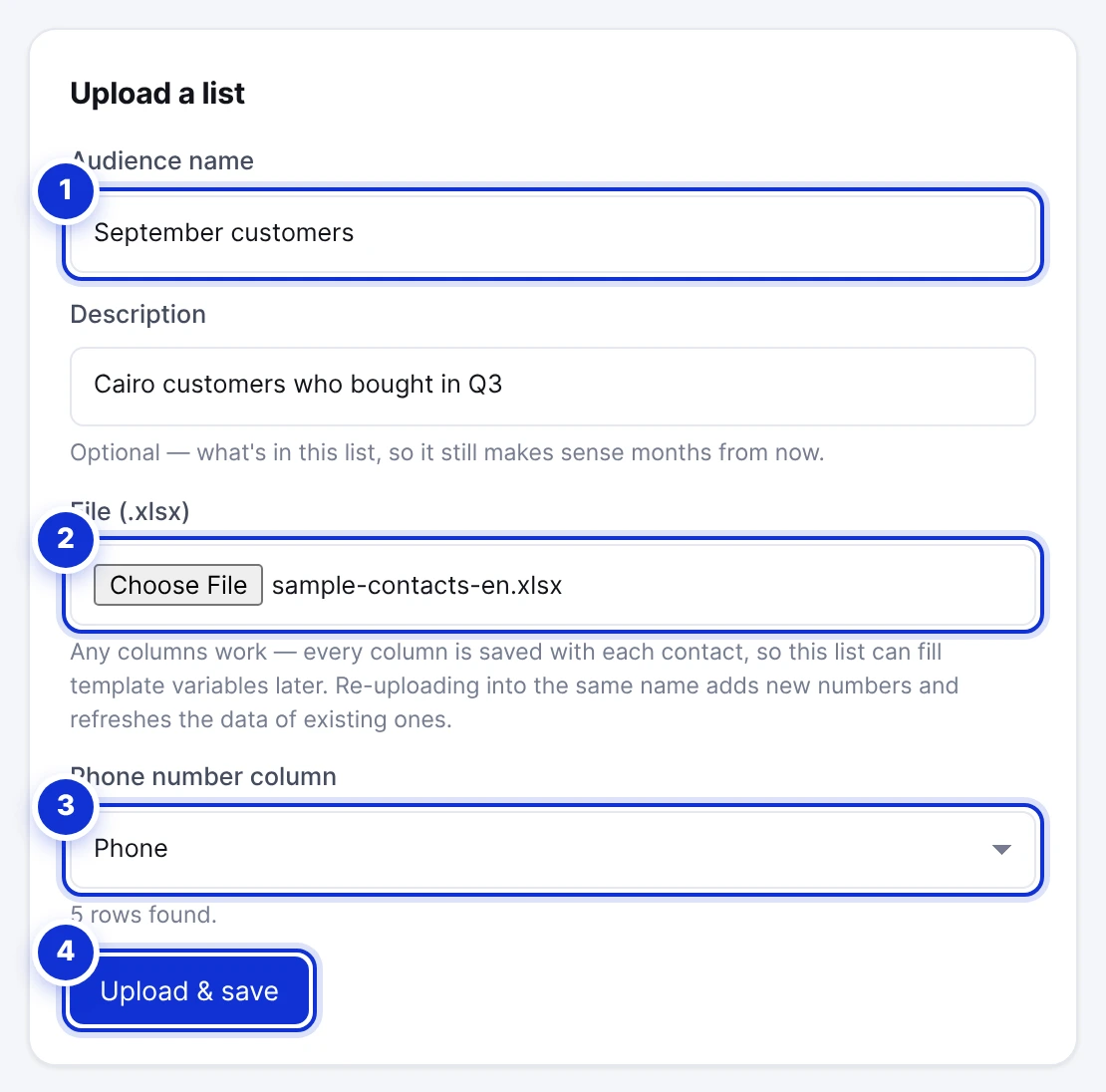
- 1A name you will recognise months from now.
- 2The .xlsx file.
- 3Which column holds the phone numbers — detected automatically from the values; correct it here if the guess is wrong.
- 4Upload & save.
- Prepare an .xlsx file with one row per contact. Any columns work; only a phone column is required. A column named
nameorالاسمis used as the customer’s name (it fills{{1}}in campaigns). - Open Campaigns → Audiences, give the list a name and a short description, and choose the file. The form reads it and shows how many rows it found.
- Check the phone column and press Upload & save. The result tells you how many contacts were saved and how many were skipped — invalid numbers or duplicates.
Re-uploading into the same name adds the new numbers and refreshes the data of the ones already there — so a monthly export from your shop keeps one audience current.
#Number format
Every number must carry its country code and nothing else — no spaces, brackets or dashes are needed, though they are tolerated:
| Written as | Result |
|---|---|
201001234567 | Accepted (Egypt: 20 + the 10-digit number). |
+201001234567 or 00201001234567 | Accepted — the prefix is normalised. |
966501234567 | Accepted (Saudi Arabia). |
01001234567 | Rejected — the local form without a country code. Add 20 in front. |
123, text, an email | Rejected — not a phone number. |
In Excel, a column of numbers starting with zero loses the zero and may show as 2.01E+11. Format the column as Text before pasting numbers, or keep the + in front — both are read correctly.
#Extra columns and mail merge
Every column is saved with each contact, so a list can fill template variables later: a template with {{1}} name and {{2}} last order can pick both from the audience’s columns at send time. Keep column headings short and consistent — they are what you will map the variables to.
#Auto-create from your own customers
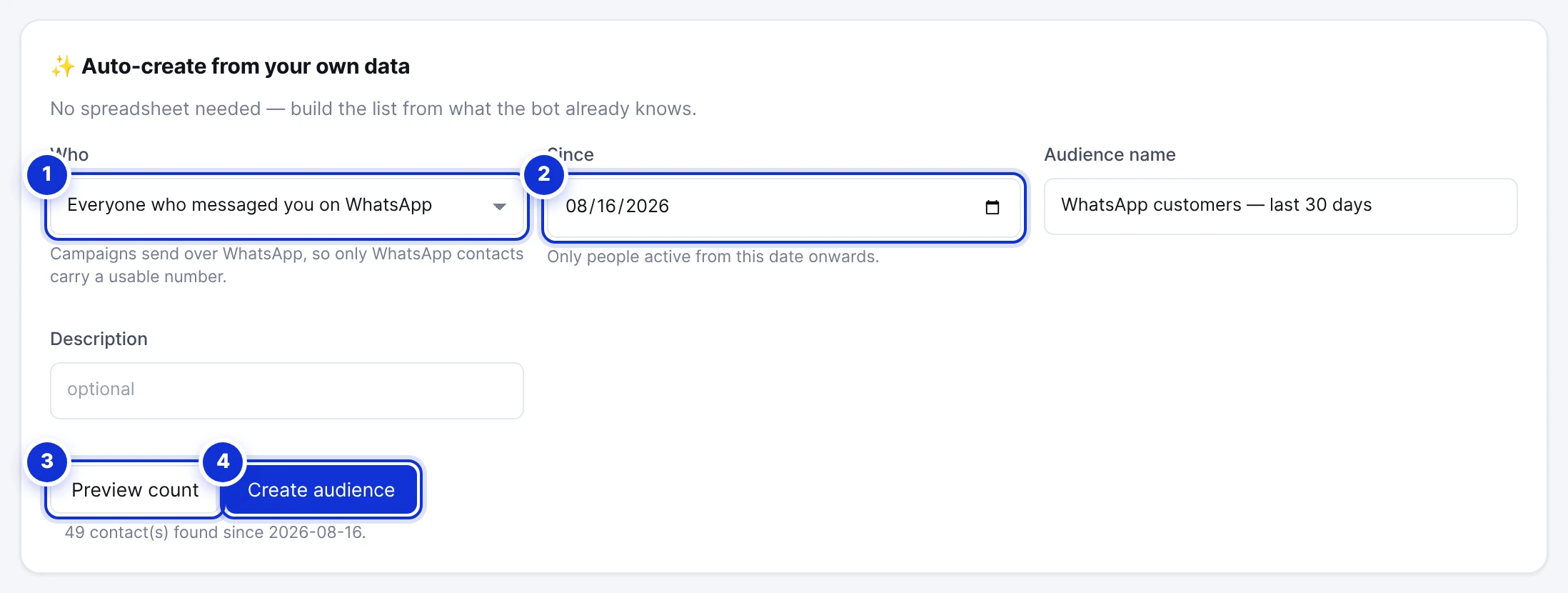
- 1Who: everyone who messaged you on WhatsApp, only customers who came from an ad, or leads who completed your goal.
- 2Since which date.
- 3Preview the count before creating.
- 4Create audience.
No spreadsheet needed — the bot already knows who wrote to you. Choose the source, a start date (30 days back by default), name the list and press Preview count to see how many people match. Create audience saves it like any uploaded list. Only WhatsApp contacts carry a usable number, so Messenger and Instagram customers are not included.
Customers who sent STOP are kept in the audience but skipped automatically when a campaign is prepared — you will see them counted as “opted out” at that point.
Can I add a single number without a file?
Does a customer appear twice if they are in two audiences?
Is there a size limit?
Where do these lists live?
Write to us and a real person answers — usually the same working day. [email protected]
Or message your account manager from the My Manager page in the dashboard.