
Sending a campaign
From an approved template and an audience to thousands of delivered messages: the limits that apply, mail merge from a spreadsheet, the preview, the consent step, and what happens while a campaign is sending.
#The two limits at the top

- 1Meta’s messaging limit — how many different customers your number may message first in 24 hours, shared across your Business Portfolio.
- 2Your monthly campaign quota — set by your plan, reset with your billing period.
- Meta’s messaging limit is a property of your WhatsApp number: 250, 1,000, 10,000 or more unique recipients per rolling 24 hours. Meta raises it as you send more and your quality rating stays green. Replies to customers who wrote to you are not counted.
- Your monthly quota is the number of campaign messages your plan includes. Automatic follow-ups and store-order messages draw from the same quota. When it runs out mid-campaign, the remaining recipients are marked failed with that reason.
#Preparing a campaign
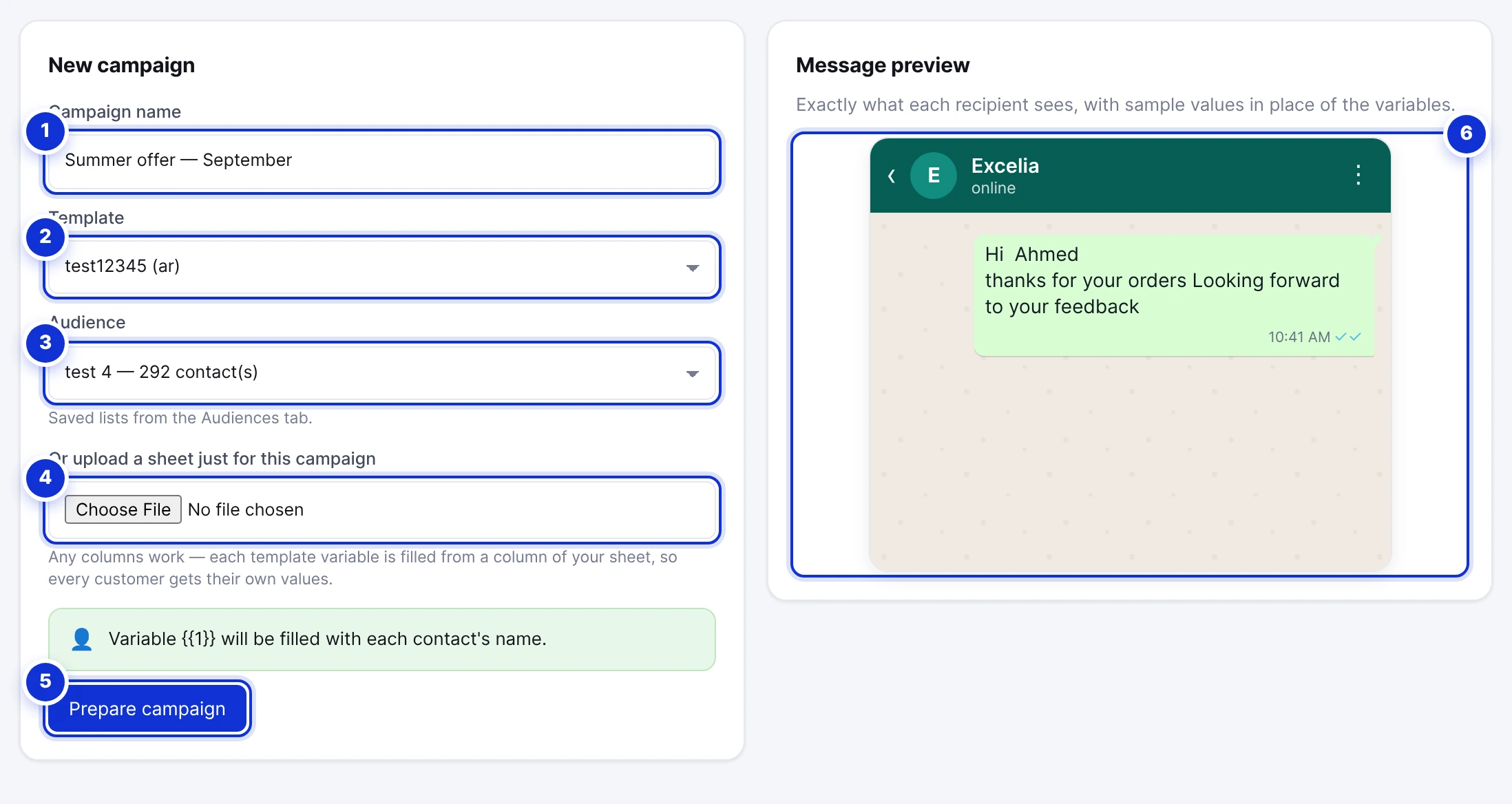
- 1A name — for your own history.
- 2The template: only approved ones are listed.
- 3A saved audience from the Audiences tab.
- 4Or a spreadsheet just for this campaign.
- 5Prepare campaign.
- 6The preview: exactly what each recipient sees, with sample values in the variables.
- Open Campaigns → Send Campaign. Name the campaign and pick a template.
- Choose the audience — or upload a sheet (see below). If the template has variables, a mapping card appears.
- Press Prepare campaign. The list is checked: invalid numbers, duplicates, rows missing a mapped value and customers who sent STOP are skipped, and the summary tells you how many of each.
- The Ready to send panel appears with the final recipient count and the message as the first recipient will see it.
- Tick the consent box, press Send now and confirm. The campaign starts within seconds; the History tab shows its progress live.
#Mail merge from a spreadsheet
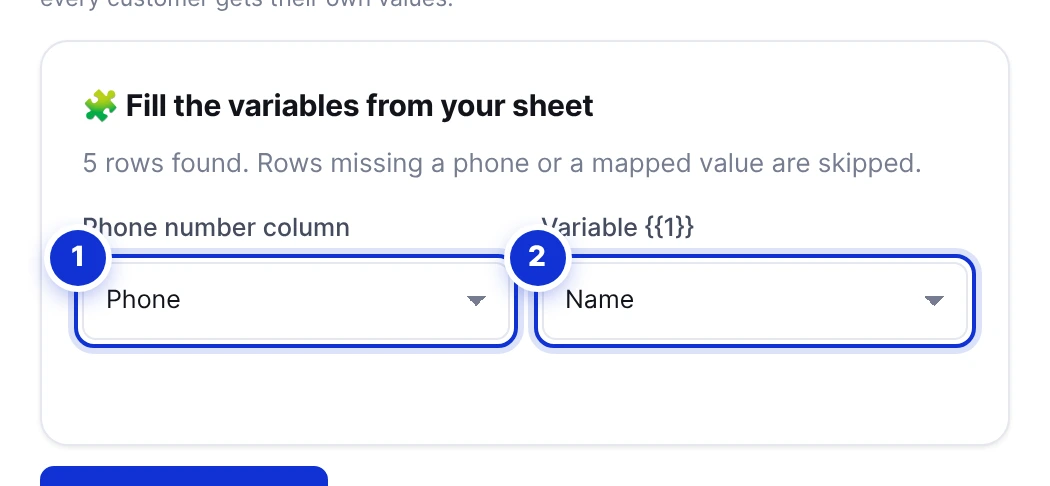
- 1The column holding the phone numbers (detected automatically).
- 2One picker per variable in the template — the first row’s real values fill the preview.
Upload an .xlsx file in the form and every template variable can be filled from a column — so each customer receives their own name, order number, appointment time or balance. The first row of the sheet fills the preview, so you see a real message before sending. Rows missing a phone number or a mapped value are skipped and counted. A saved audience that was uploaded with extra columns offers the same mapping card.
Dates in the sheet are sent as dd/mm/yyyy and numbers as plain figures, so “ends on 45870” never happens. Keep the sheet’s headings short: they become the column names in the campaign report.
#Before it goes out
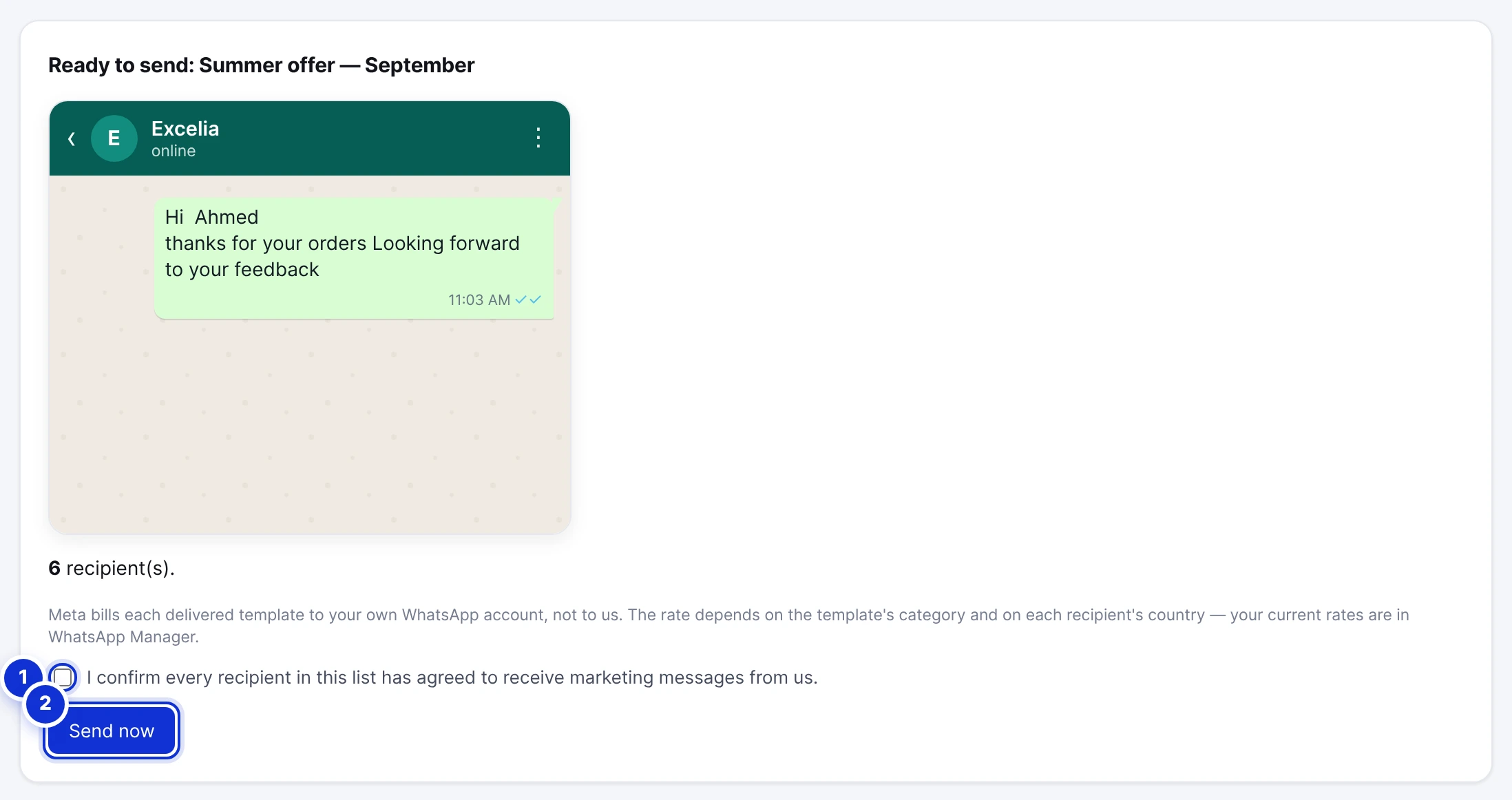
- 1The consent confirmation — every recipient agreed to receive marketing messages from you.
- 2Send now.
The panel names the recipient count and reminds you that Meta bills each delivered template to your own WhatsApp account, at a rate that depends on the template’s category and each recipient’s country. There is deliberately no total shown: it differs per country and is charged by Meta in your account’s currency.
Send marketing messages only to people who agreed to receive them. Unsolicited campaigns get blocked and reported, and blocks lower your number’s quality rating — which shrinks your messaging limit and can get the number restricted. The STOP line in your template and the opt-out keyword protect you here.
#While it sends
- Messages go out at a steady pace of about three per second, so a list of 1,000 takes roughly six minutes.
- The History tab updates every few seconds: sent, failed and total.
- Pause stops the send; recipients not yet reached stay pending and are not charged. To continue a paused campaign, contact your account manager.
- A campaign message is written into the inbox thread of every recipient who already has a conversation with you — never for strangers, so your inbox is not buried. When someone replies, their thread opens with your campaign message at the top.
Can I schedule a campaign for later?
Can I send to Messenger or Instagram contacts?
I prepared a campaign by mistake.
Why is the recipient count lower than my list?
Write to us and a real person answers — usually the same working day. [email protected]
Or message your account manager from the My Manager page in the dashboard.