
Subscription, team, security and reports
Your plan and what is left of it, invoices and the upgrade request; staff accounts for your team; two-factor authentication and notifications; your account manager; and the Reports page.
#My Subscription
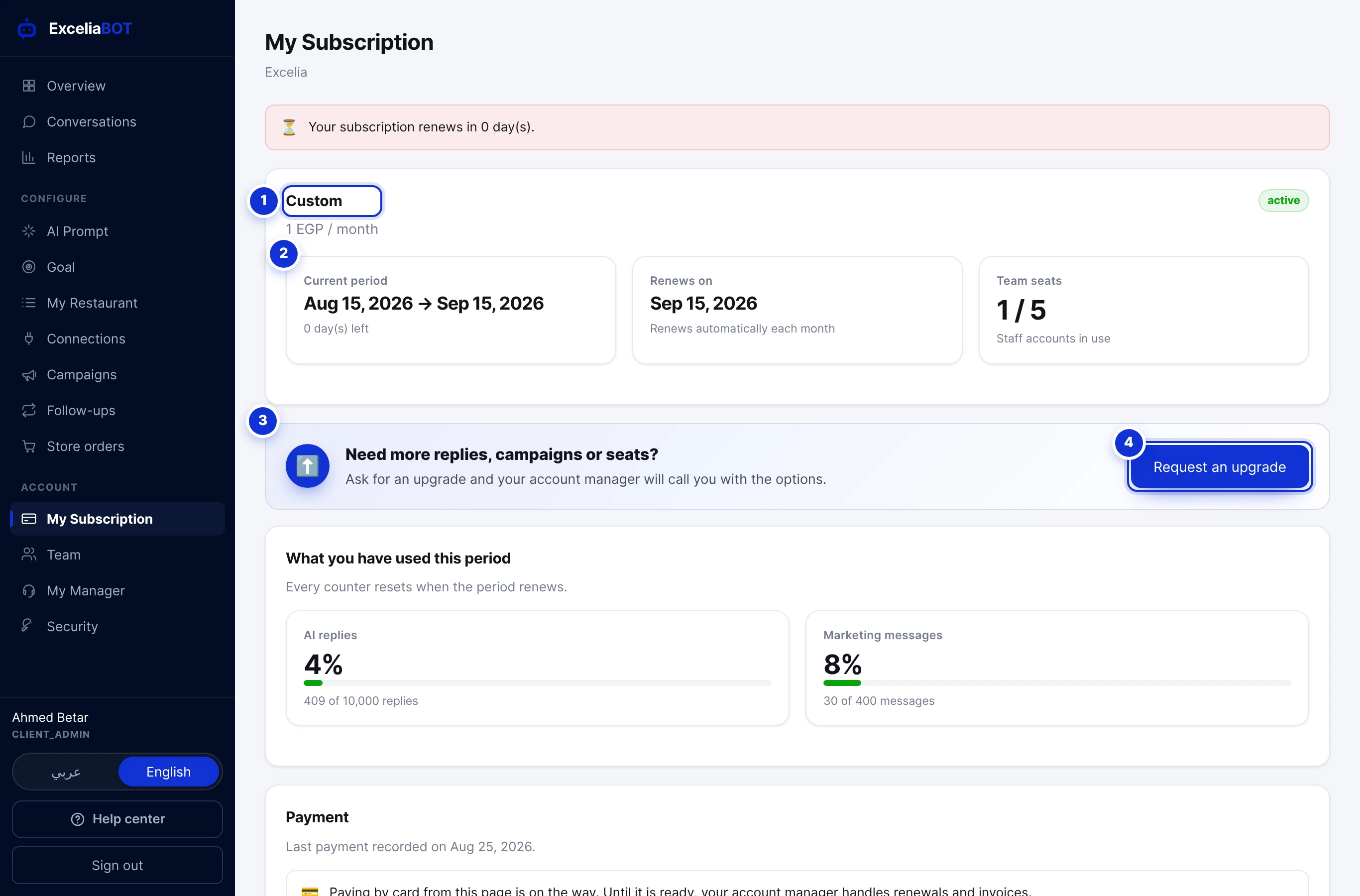
- 1Your plan, its price and its status.
- 2The current period, when it renews (or ends), and the team seats in use.
- 3The upgrade band — one press sends a request to your account manager.
- 4Request an upgrade.
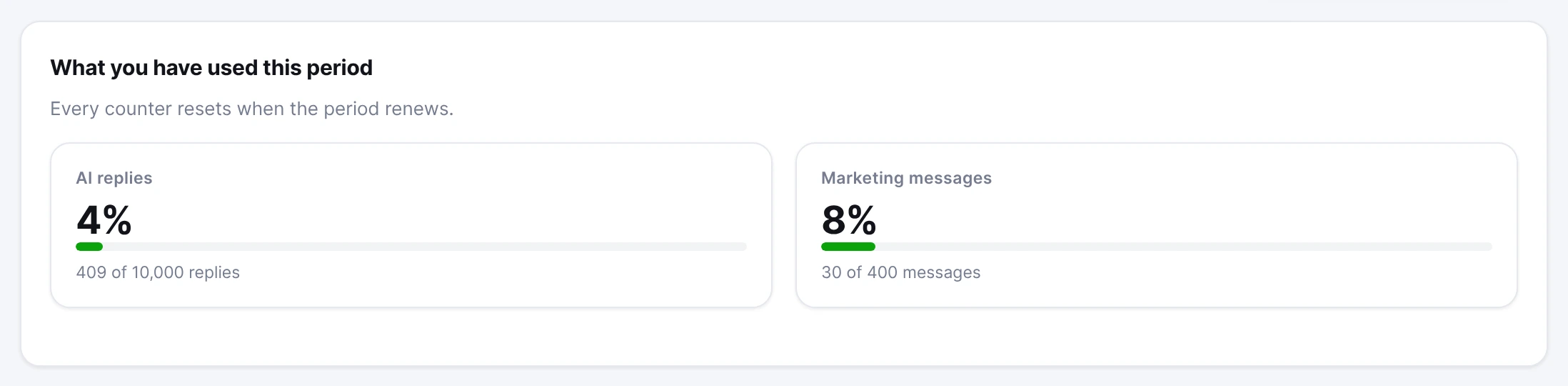
The page names your plan and price, the billing period with the number of days left, whether it renews automatically, and the staff seats in use. Below it, What you have used this period shows a meter for each allowance your plan includes — AI replies, conversations, marketing messages — all of which reset when the period renews.
Upgrading
Plans are not switched from the page: press Request an upgrade and your account manager calls you with the options — more replies, more campaign messages, more seats, or a feature such as Store orders. The same button appears on any page that tells you a feature is not in your package.
Payment and invoices
Your account manager handles renewals and invoices. Each invoice appears in the Invoices table with its period, amount and status; Download keeps a copy. While an invoice is due, a bar above every page reminds you until it is paid. Free plans have nothing to pay and the page says so.
#Team: staff accounts
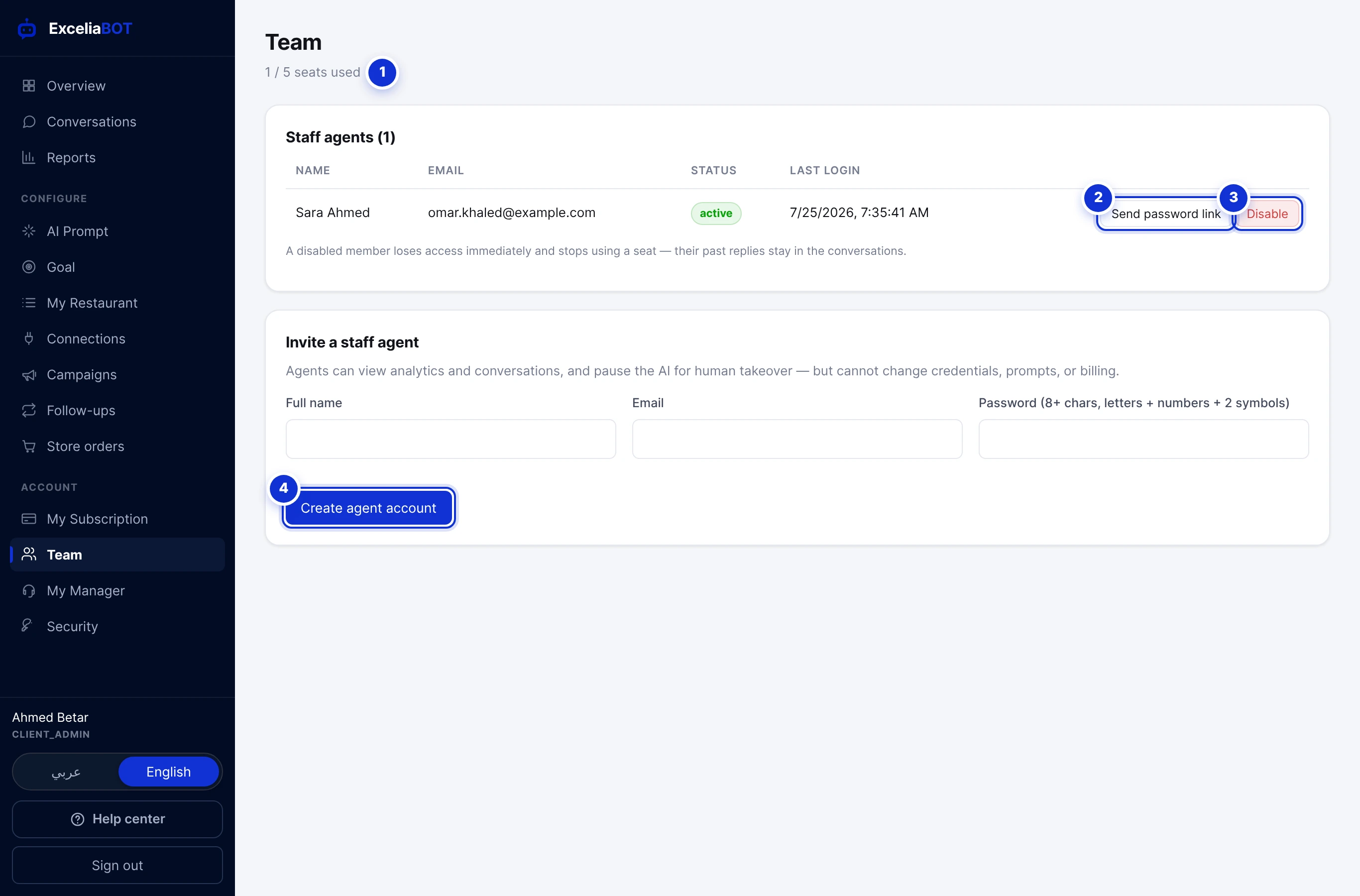
- 1Seats used of the seats your plan includes.
- 2Email a member a link to set a new password.
- 3Disable a member — they lose access immediately and free the seat; their past replies stay in the conversations.
- 4Create the account.
- Open Team and fill in the member’s name, email and a first password — at least 8 characters mixing letters, numbers and two symbols, for example
Ex@2026!#. - Press Create agent account and give them the address bot.exceliamarketing.com/app. They can change the password from their own Security page.
A staff agent can read and reply to conversations, pause the AI on a thread, and work the leads on the Goal page. They cannot change the AI instructions, connections, campaigns or billing. When someone leaves, Disable them — the seat is freed for the next person.
#Security
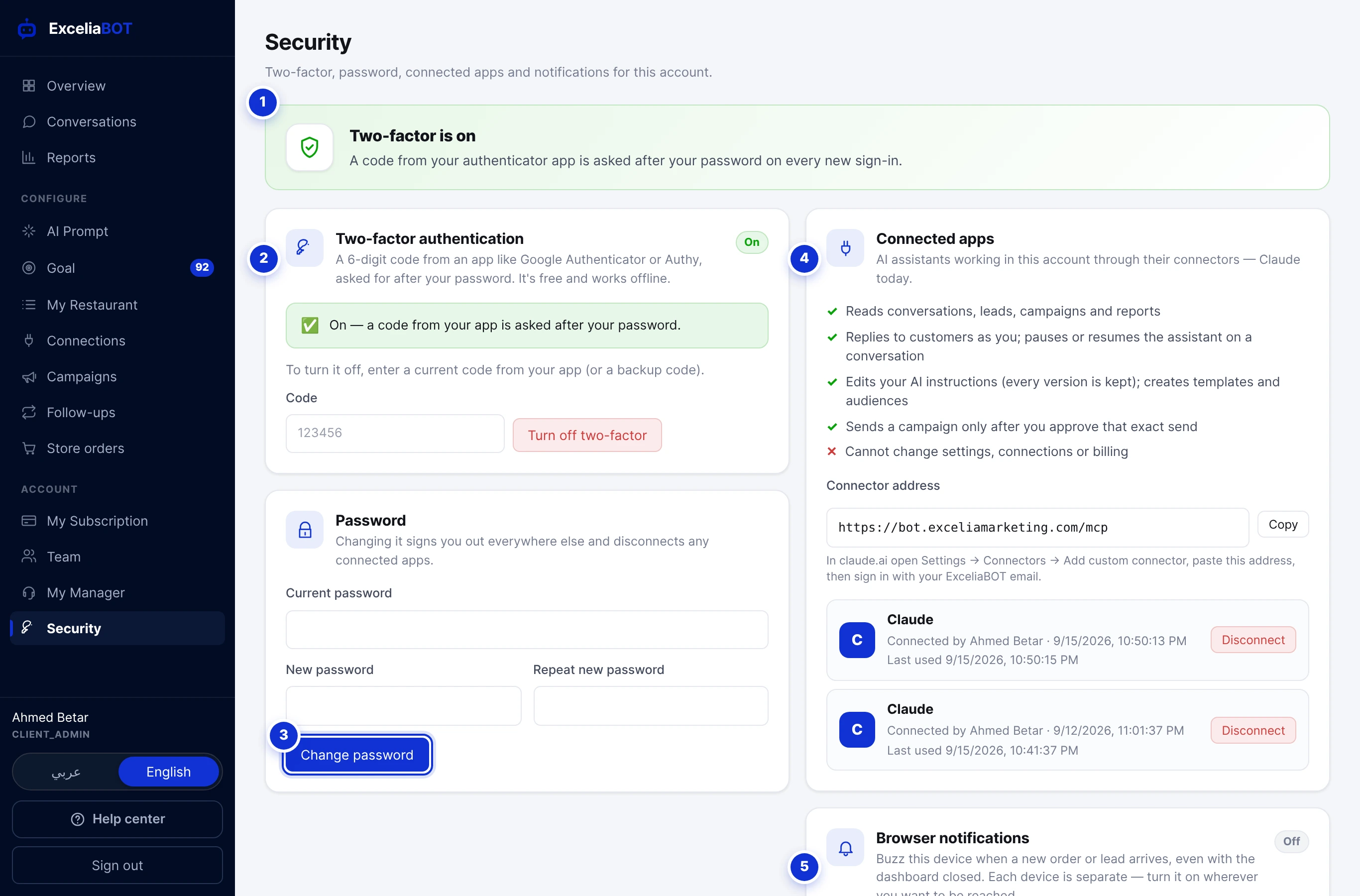
- 1Whether two-factor is on — and the button to set it up when it is not.
- 2Two-factor authentication.
- 3Change password — every other device is signed out and every connected app is disconnected.
- 4Connected apps: Claude, and the address to connect it.
- 5Browser notifications for this device.
Two-factor authentication
- Press Set up two-factor and scan the QR code with an authenticator app (Google Authenticator, Authy, Microsoft Authenticator…). No app? Type the key shown under the code instead.
- Enter the 6-digit code the app shows and press Confirm & turn on.
- Save the backup codes somewhere safe. Each works once if you lose your phone, and this is the only time they are shown.
From then on, every sign-in asks for the code after the password. To turn it off, enter a current code (or a backup code) and press Turn off two-factor.
Password
Changing your password signs you out of every other device and browser and disconnects every connected app — use it if you think someone else has your account. The 30-minute reset link from the sign-in screen works the same way.
Connected apps
AI assistants that work in your account through their connectors — Claude today. The card shows the address to paste into Claude, and every app connected: who connected it, when it was last used, and a Disconnect button. The Connect Claude article covers the whole thing.
Browser notifications
Turn them on and this device buzzes the moment a new order or a new lead arrives, even with the dashboard closed. Each device is separate: switch it on wherever you want to be reached — your phone, your laptop, the shop’s computer.
#My Manager
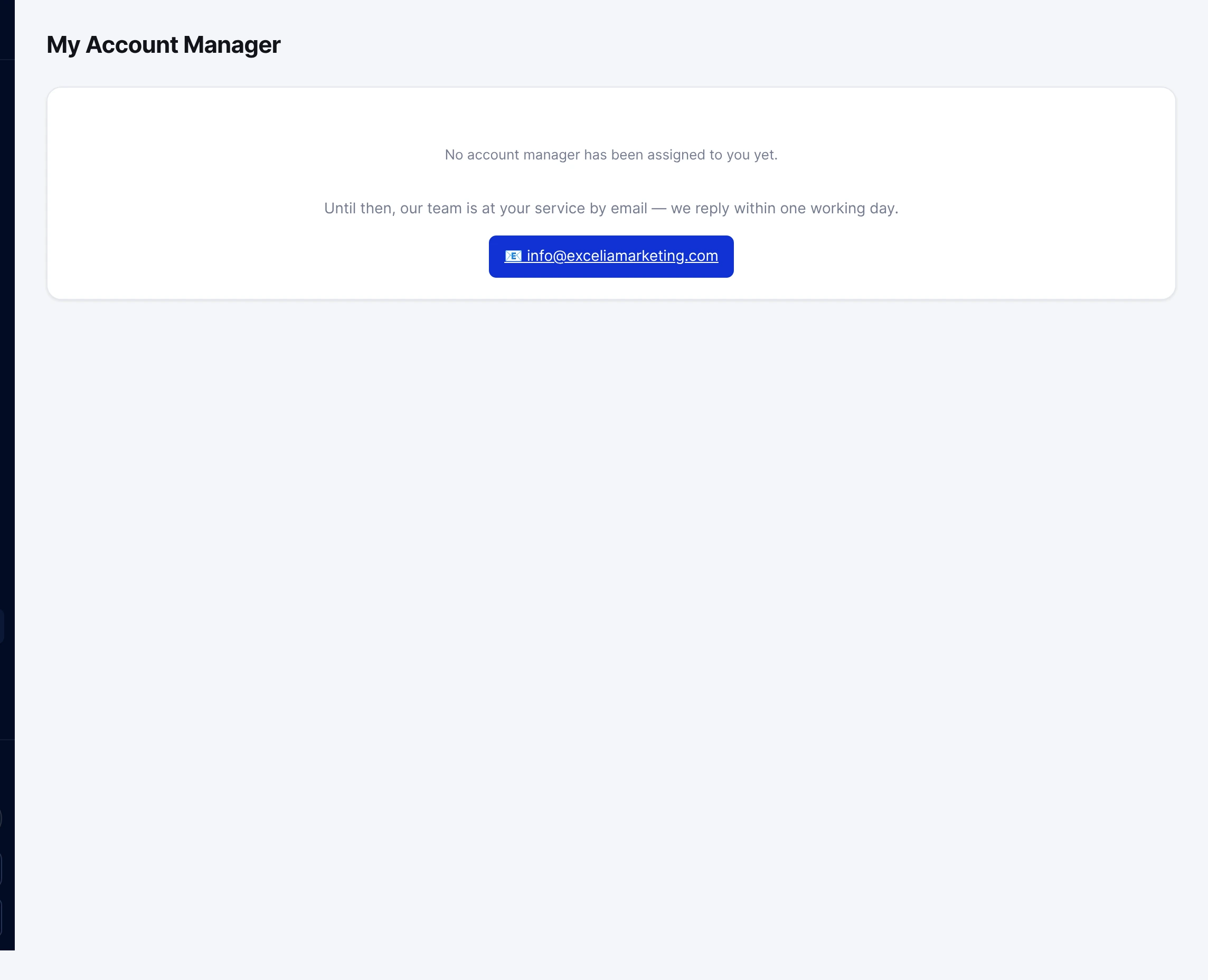
Your account manager’s name, phone and email, with buttons to WhatsApp, call or email them, and a message thread that stays in the dashboard. If no manager has been assigned yet, the page gives you [email protected] — we reply within one working day.
#Reports
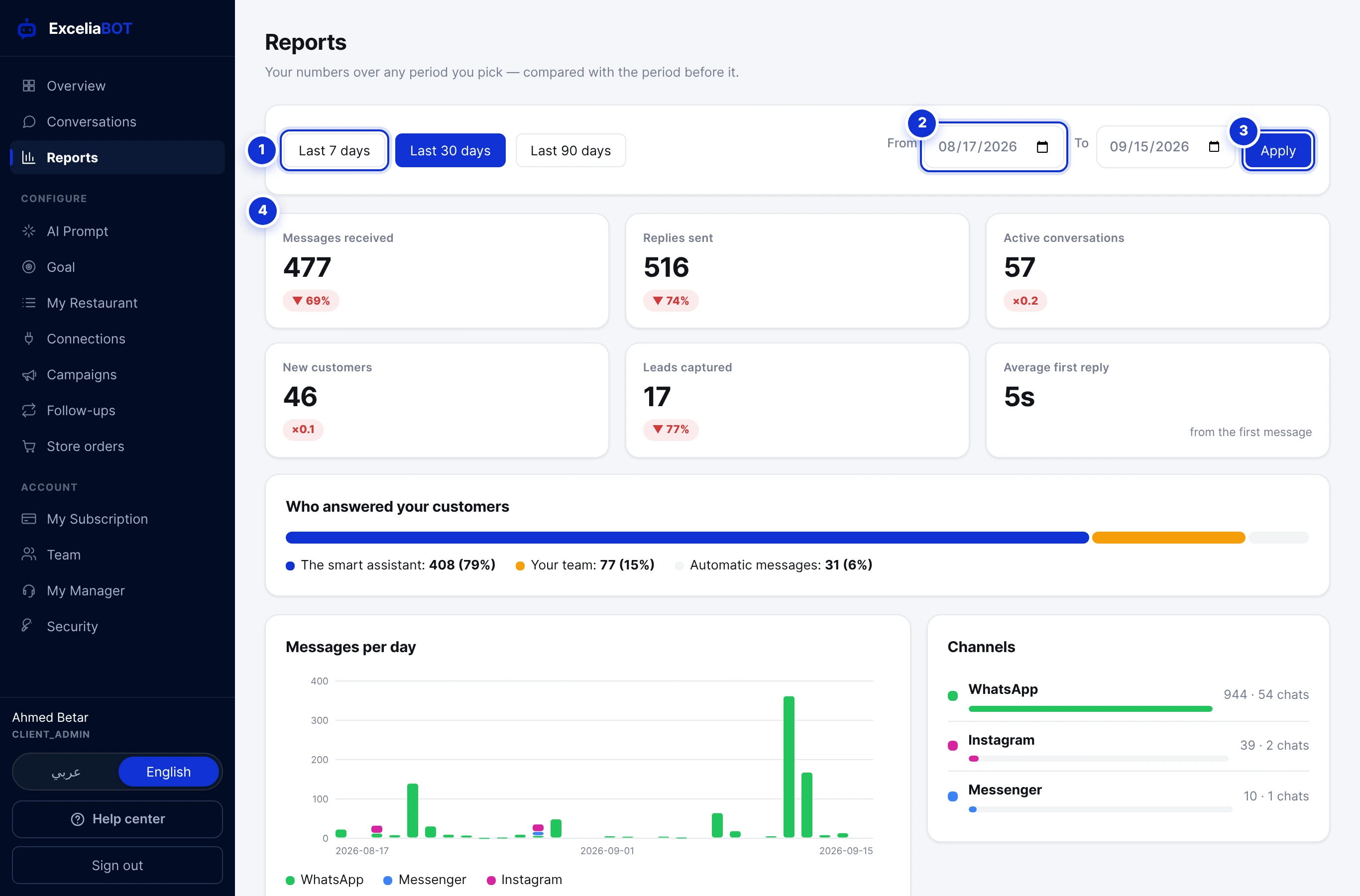
- 1Ready-made ranges.
- 2Or a custom range.
- 3Apply.
- 4The numbers for the range, each compared with the period just before it.
Pick a range and every number is shown against the equivalent period before it: messages received, replies sent, active conversations, new customers, leads captured, and your average first-reply time. Who answered your customers splits replies between the assistant, your team and automatic messages; Messages per day charts each channel; and the campaigns panel summarises what you sent in the range.
Where do I change the business name or phone?
Can an agent see the AI instructions?
I lost my phone with the authenticator app.
Write to us and a real person answers — usually the same working day. [email protected]
Or message your account manager from the My Manager page in the dashboard.