
Getting started: your account and the dashboard
How an account is created, how to sign in, what every part of the dashboard does, and how to read the Overview page.
#How your account is created
There are two doors into ExceliaBOT, and both lead to the same dashboard:
- From the website. Fill in the free-account form on bot.exceliamarketing.com/signup. On the Free plan the account is created immediately and an email titled “Your ExceliaBOT account is ready” arrives with a button to choose your password. If you picked a paid plan, the account still starts on Free and your account manager contacts you about the upgrade.
- Created for you. When our team creates the account, you receive the same email. The link inside is valid for 7 days and works once — after you set a password, it is spent.
The dashboard lives at bot.exceliamarketing.com/app. Bookmark it; the same address works on a phone.
#Signing in
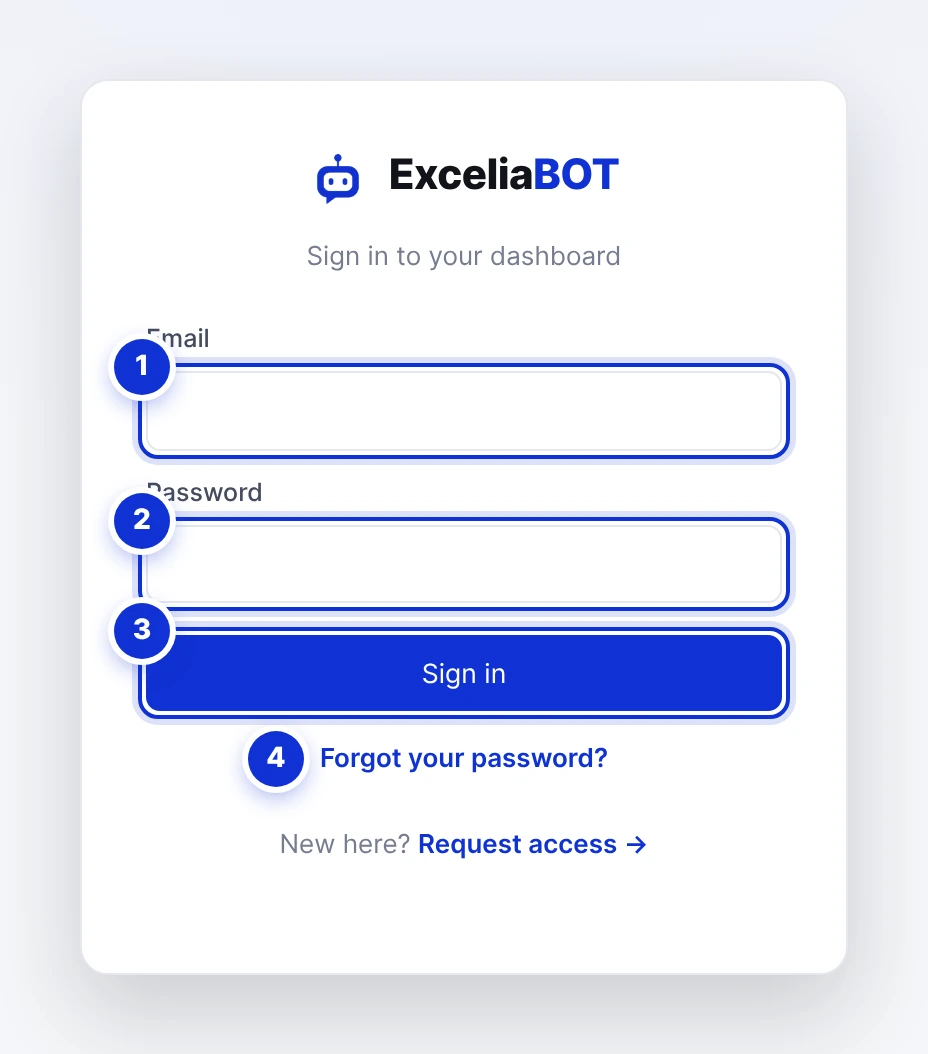
- 1The email your account was created with.
- 2Your password. Five wrong attempts lock the account for one hour — use the reset link instead of guessing.
- 3Sign in. If two-factor authentication is on, a screen for the 6-digit code follows.
- 4Forgot your password? A reset link is emailed to you; it is valid for 30 minutes.
A session lasts 12 hours. After that you are asked to sign in again — your data is untouched, only the session ended.
Turn on two-factor authentication from the Security page once you are in. It takes two minutes and protects every customer conversation in your account.
#Arabic or English
The switch at the bottom of the sidebar changes the whole dashboard between Arabic and English. The choice is remembered on the device you set it on, so your phone and your laptop can each have their own language.
#What each page is for
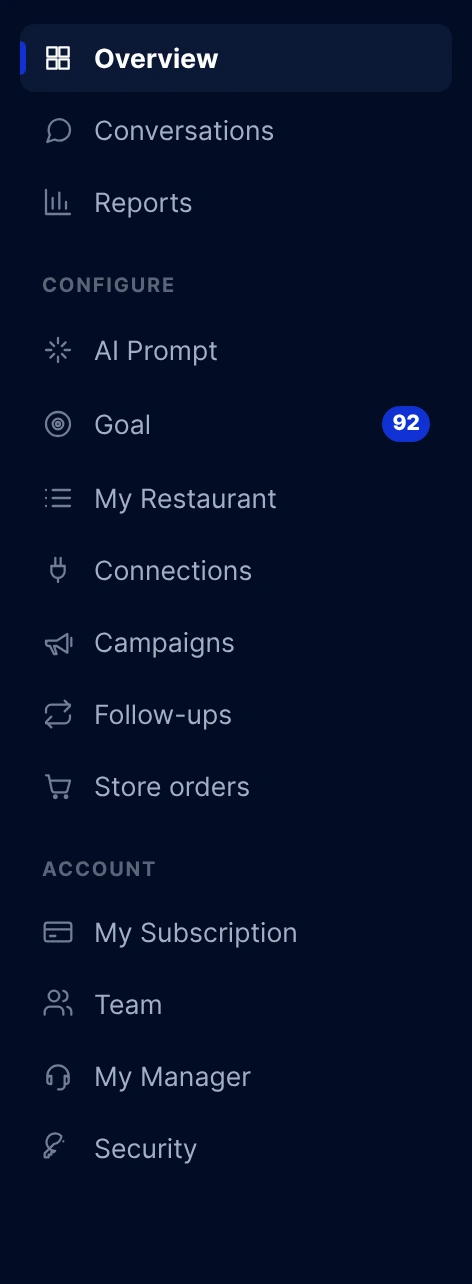
| Page | What you do there |
|---|---|
| Overview | Your numbers for the current billing cycle: customers reached, replies, leads, campaign messages, and how much of your allowance is used. |
| Conversations | The inbox — every WhatsApp, Messenger and Instagram chat, with the option to reply yourself or pause the AI. |
| Reports | Your activity over any date range, compared with the period before it. |
| AI Prompt | The instructions your assistant follows, working hours, quick-reply buttons and the product catalog. |
| Goal | What the assistant should achieve in a chat (a booking, an order…), the leads it captured, and Meta pixel conversions. |
| Connections | Linking your WhatsApp number, Facebook Page and Instagram account. |
| Campaigns | Templates, audiences, bulk sends, campaign history and the STOP keyword. |
| Follow-ups | Automatic follow-up messages for customers who went quiet. |
| Store orders | WhatsApp messages sent automatically for every step of an online-store order. |
| My Subscription | Your plan, billing period, usage meters, invoices and the upgrade request. |
| Team | Staff accounts (agents) who can work the inbox. |
| My Manager | Your account manager’s contact details and a message thread with them. |
| Security | Two-factor authentication, password change and browser notifications. |
Some pages appear only when the feature is part of your plan — for example My Restaurant on restaurant plans. Staff agents see a shorter list: Overview, Conversations, Goal (leads only), My Manager and Security.
#Reading the Overview page
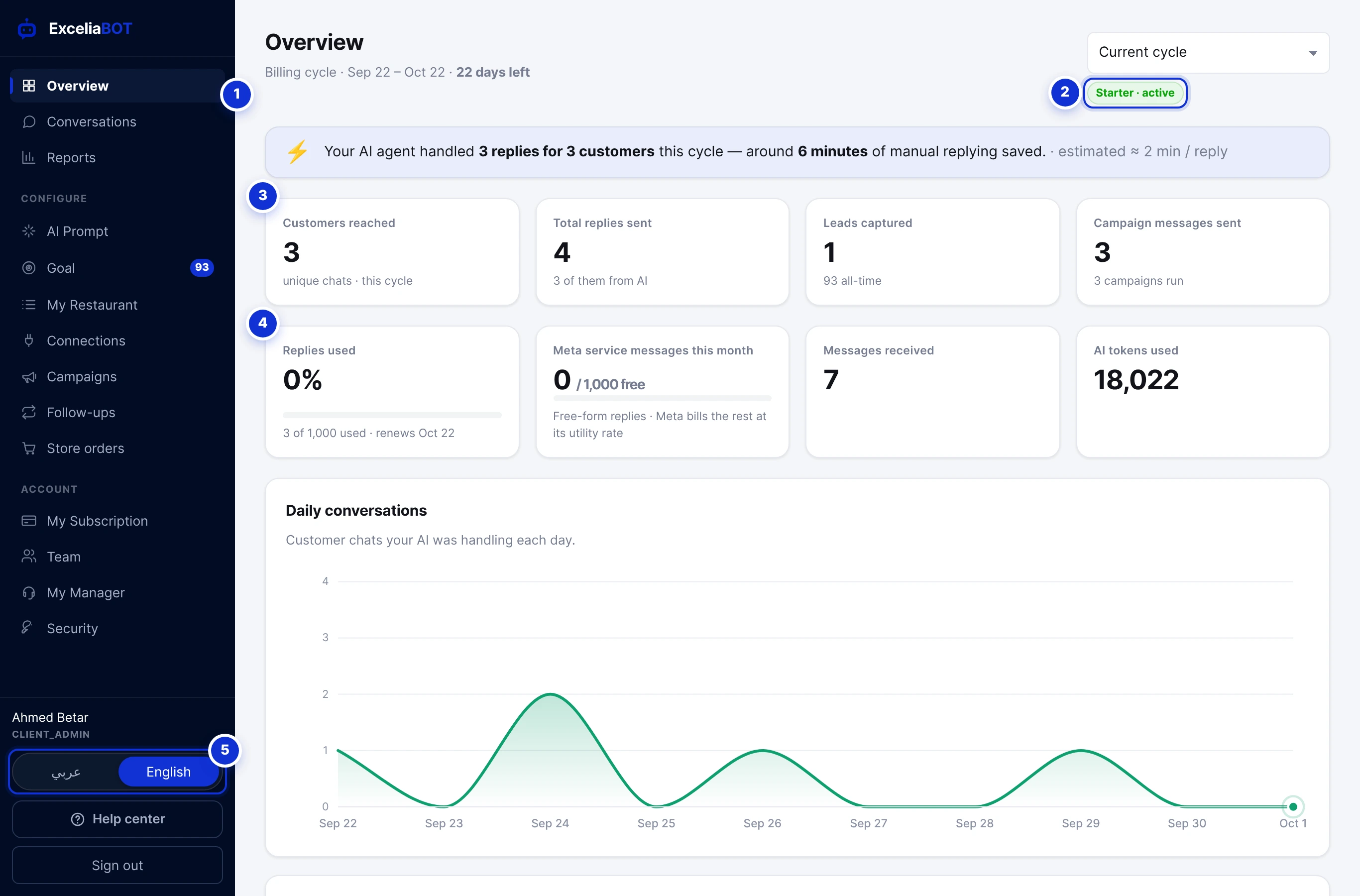
- 1The sidebar — every page of the dashboard.
- 2Your plan and its status. Beside it, the cycle selector lets you look back at previous cycles.
- 3The headline cards: customers reached, replies sent (and how many came from the AI), leads captured, campaign messages sent.
- 4The allowance meters: replies used and — when your plan has one — conversations used, plus messages received and AI tokens.
- 5The language switch.
The line under the title tells you the cycle dates and how many days are left. The highlighted sentence estimates the manual replying the assistant saved you, at roughly two minutes per reply.
Two charts follow: Daily conversations (the customer chats the assistant was handling each day) and Daily AI token usage — hover a bar for the exact figures.
When your replies for the period are used up, a red banner appears at the top of Overview: the assistant has stopped answering until the period renews or your plan grows. The Request an upgrade button beside it sends the request to your account manager.
#Alerts above every page
- Billing due. When an invoice is waiting, a bar appears above every page until it is paid — so nobody is surprised by a paused account.
- Connection health. If WhatsApp stops receiving or sending, a banner points you to the Connections page with the reason.
- The assistant is off. A new account starts with the AI assistant switched off, so nothing answers your customers before you have read the instructions. Once a channel is connected, the alerts box says so — with the button that turns it on. Close it and it does not come back; the switch stays on the AI Prompt page.
#On your phone
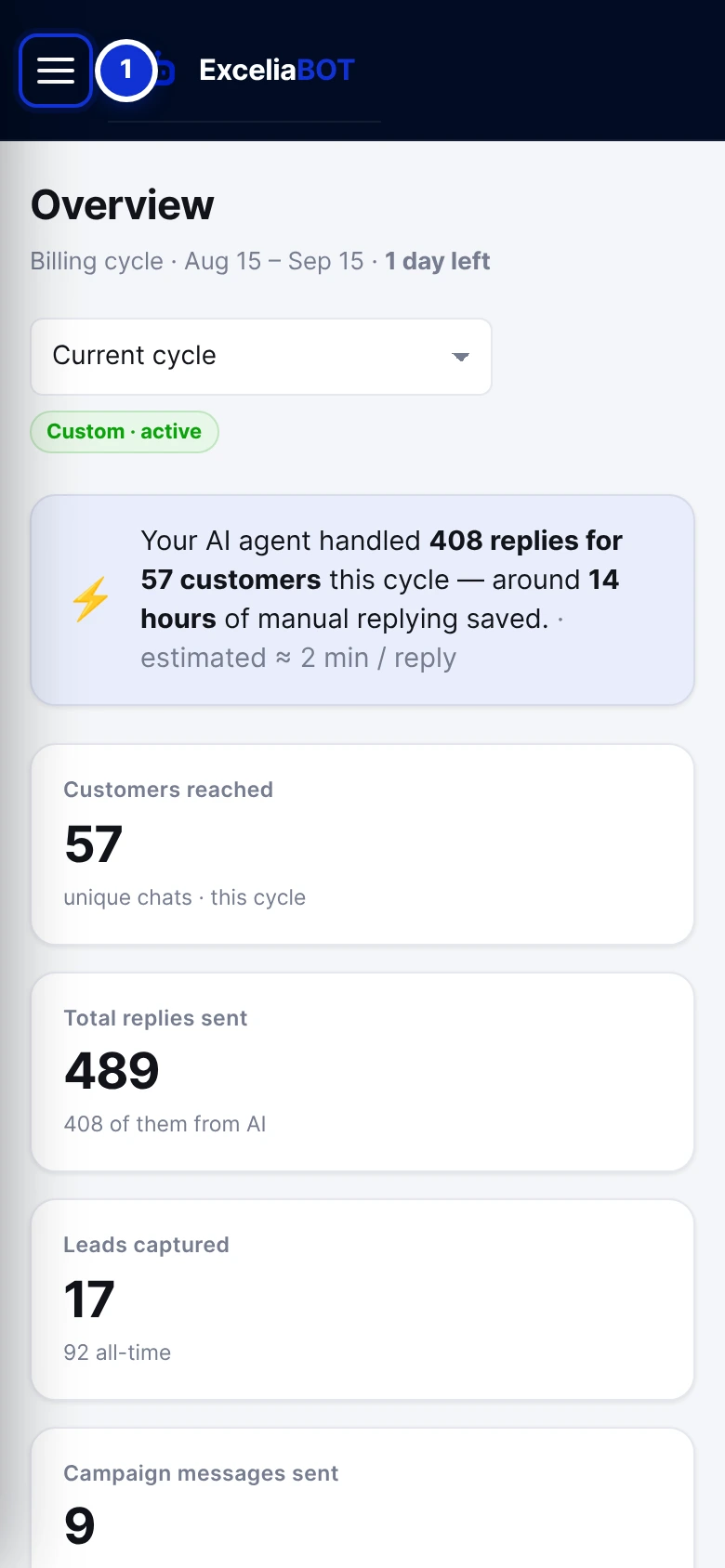
- 1The menu button.
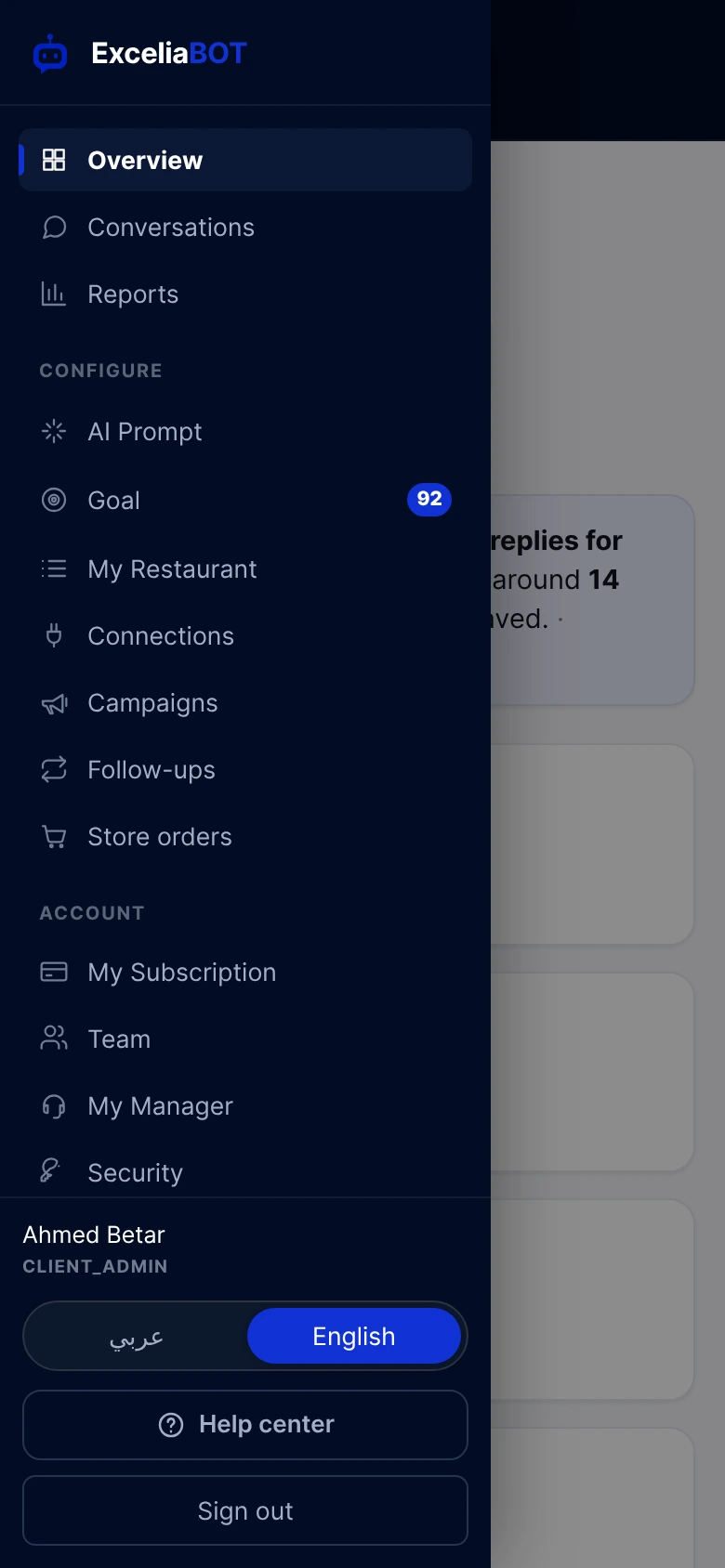
Everything works from the phone’s browser. In Conversations the thread takes over the screen and a back arrow returns you to the list. From your browser’s menu you can add the dashboard to your home screen so it opens like an app.
#The daily report email
Every night at 01:00 Cairo time, the owner receives a short email with the previous day’s numbers: messages, replies, leads, campaigns. Days with no activity are skipped. To stop the email, write to [email protected].
I did not receive the account email.
Can two people use the same login?
The dashboard shows in Arabic on my laptop but English on my phone.
Write to us and a real person answers — usually the same working day. [email protected]
Or message your account manager from the My Manager page in the dashboard.