
The Goal page: leads and Meta conversions
Give the assistant something to achieve in every conversation — a booking, an order, a callback — collect the customer’s details when it does, and report those conversions to your Meta pixel so your ads learn from real leads.
#What a goal does
Without a goal, the assistant answers questions. With one, it also steers the conversation: towards a booking, a quote request, an order — whatever you define — and when the customer agrees, it asks for the details you listed and saves them as a lead. Every lead lands on this page, with the conversation behind it one click away in the inbox.
#Defining the goal
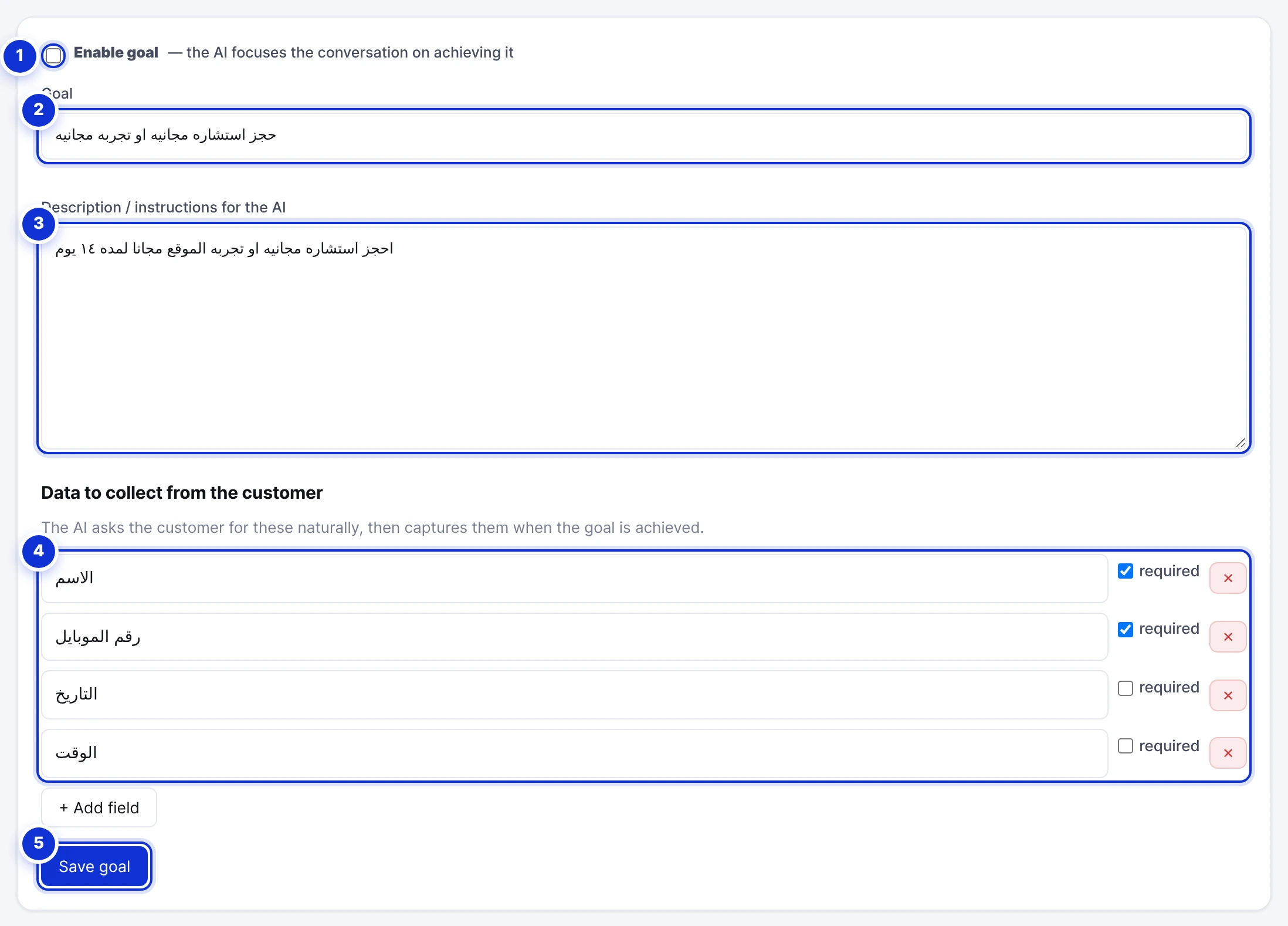
- 1Enable goal — the assistant starts working towards it on the next message.
- 2The goal in a few words: “book a free consultation”, “order a product”, “request a quote”.
- 3Instructions for the assistant: what counts as done, what to offer, what to avoid.
- 4The data to collect — each field has a label and a required tick.
- 5Save goal.
- Open Goal → Goal settings and tick Enable goal.
- Name the goal and describe it. Be concrete: “The goal is a booked consultation. Offer the two nearest available slots. A booking is complete when we have a name, a phone number and a preferred day.”
- Add the fields to collect — name, phone, preferred date, city, product… Tick required for the ones a lead is useless without. The assistant asks for them naturally, never as a form.
- Press Save goal. It is live on the next incoming message.
Two or three required fields convert far better than six. Ask for what you need to call the customer back; get the rest on the call.
#Working the leads
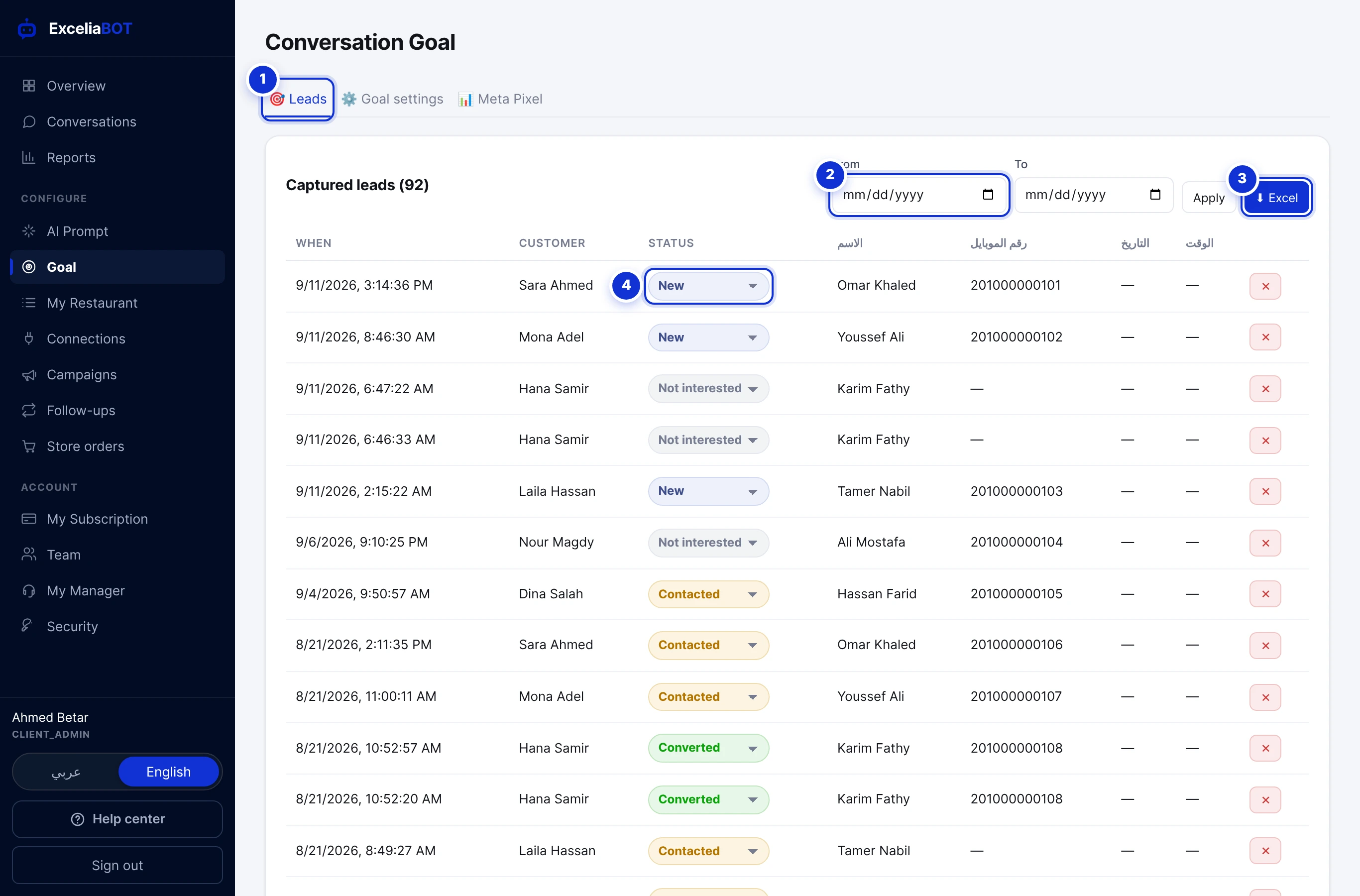
- 1The Leads tab — the screen your team lives in. Staff agents see this tab only.
- 2Filter by date range.
- 3Download the (filtered) list as an Excel-ready file.
- 4The lead’s status: New, Contacted, Converted, Not interested. Change it in place; it saves on its own.
Each row shows when the lead was captured, the customer, the status, and one column per field you defined. The number badge next to Goal in the sidebar counts new leads since you last opened the tab. Twenty leads show per page; the ✕ at the end of a row deletes a lead you do not want to keep.
#Reporting conversions to Meta
If you run click-to-WhatsApp ads, Meta only knows that someone opened a chat — not whether they became a lead. This tab closes that gap: every completed goal is reported to your own Meta pixel as a conversion through Meta’s Conversions API, so your campaigns can optimise for people who actually convert.
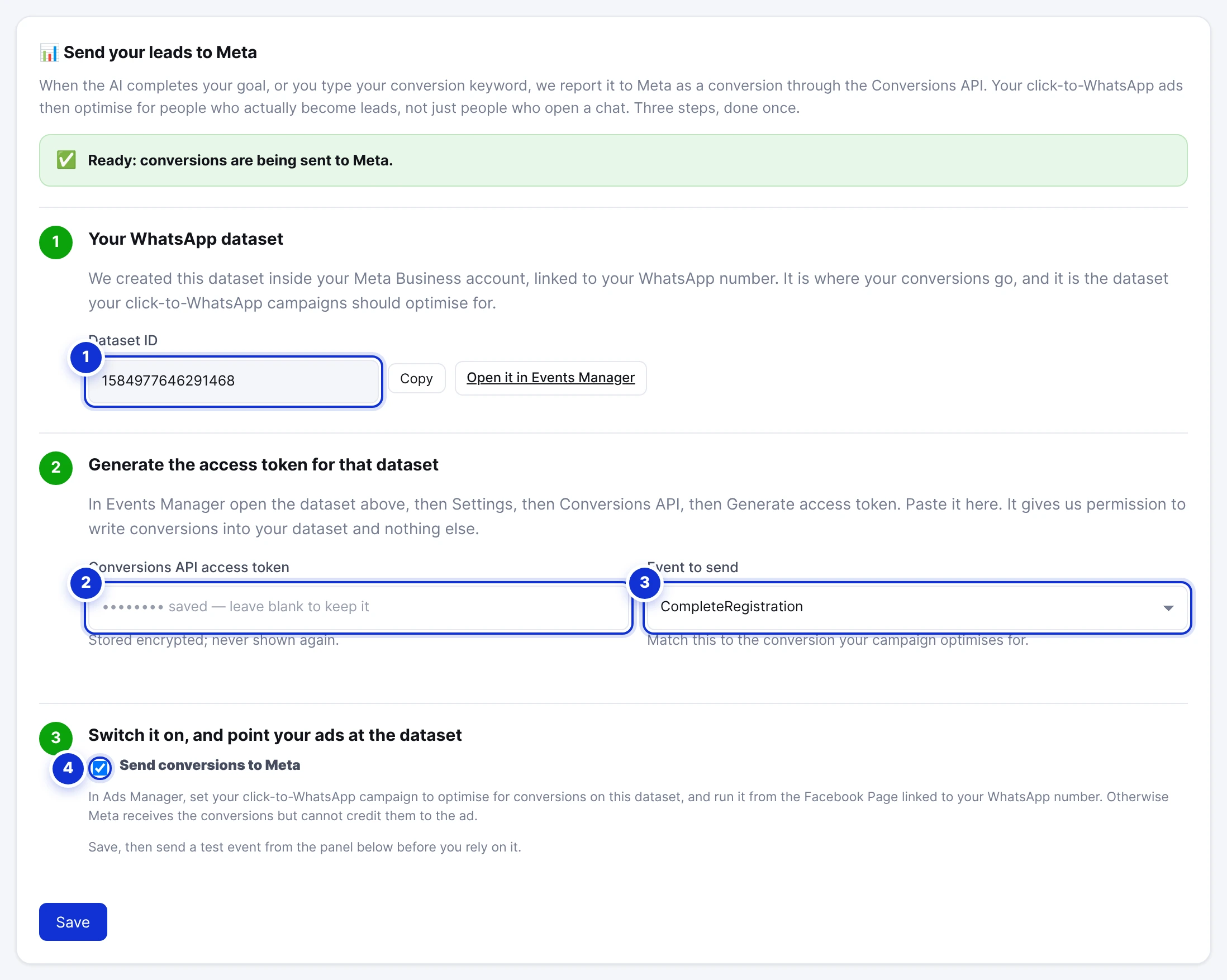
- 1Step 1 — your WhatsApp dataset. We create it inside your Meta Business account from your connected number; the ID is filled in, with Copy and a button that opens it in Events Manager.
- 2Step 2 — the Conversions API access token you generate for that dataset. Stored encrypted; never shown again.
- 3The event to send — match it to the conversion your campaign optimises for (Lead by default).
- 4Step 3 — Send conversions to Meta. Keep it off while you set up, then switch it on.
- Step 1 needs nothing from you once a WhatsApp number is connected: the dataset appears with its ID. Press Open it in Events Manager to see it in your Meta Business account.
- Step 2: in Events Manager open that dataset, then Settings → Conversions API → Generate access token. Paste the token here, choose the event, and press Save.
- Use Test it before you rely on it: copy the test code from Events Manager → Test Events, paste it, press Send test event, and watch it appear there within seconds.
- Step 3: tick Send conversions to Meta and save. From now on every completed goal is reported; the Last events sent table shows each one, with a tick when Meta matched it to an ad.
- In Ads Manager, set your click-to-WhatsApp campaign to optimise for conversions on this dataset, and run it from the Facebook Page linked to your WhatsApp number — otherwise Meta receives the conversions but cannot credit them to the ad.
WhatsApp-ads attribution needs no setup on your side: we link your WhatsApp Business Account to a dataset automatically when you enable this, so conversions from ad-click conversations are credited to the exact ad that paid for them. The Ad attribution card shows what share of your recent leads came through ads.
#Marking a conversion yourself
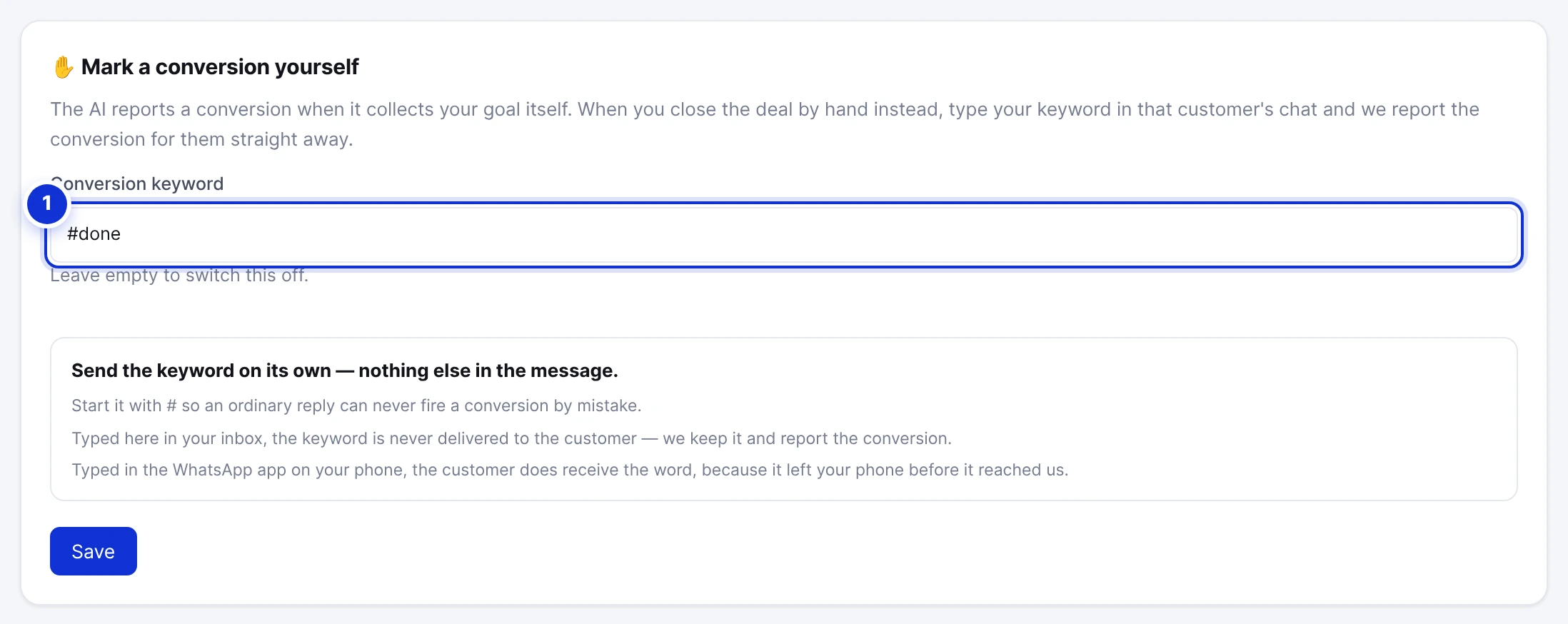
- 1Your keyword — start it with # so an ordinary reply can never fire a conversion by mistake.
The assistant reports a conversion when it completes the goal. When *you* close the deal — on a call, in the shop — type the keyword alone in that customer’s chat from the dashboard and press Send. Nothing reaches the customer; the conversion is reported for them at once. Leave the field empty to switch this off.
Can staff agents change the goal?
Does a lead cost anything?
The assistant asks for the phone number on WhatsApp — isn’t that redundant?
I changed the fields — what happens to old leads?
Write to us and a real person answers — usually the same working day. [email protected]
Or message your account manager from the My Manager page in the dashboard.