If you sell cash on delivery, no order leaves the warehouse before it is confirmed. Someone on your team calls the customer, asks whether they still want it, checks the address, and goes back to the store dashboard to change the status. As the store grows, those calls become a job of their own. Plenty of stores in Egypt hire people just to confirm orders, outsource it to an order confirmation service, and hand their agents a written script for the call.
On Easy Orders, a WhatsApp message can do the first round of that work. It reaches the customer seconds after they order, with their name, their items and the total, and two buttons underneath: Confirm the order and Cancel the order. The customer taps, and the order's status changes in Easy Orders without anyone opening the dashboard. Your team is left with the customers who did not answer.
We connected ExceliaBOT to Easy Orders this month. This post covers what the connection does, how to write the confirmation message, and what we saw in the first 44 orders.
In short
- A two-button confirmation message reaches the customer seconds after the order. Of the first 44 orders, 31 customers answered on their own, and half of the answers came in under two minutes.
- Confirm the order makes the order confirmed in Easy Orders; Cancel the order cancels it before it is prepared. Nobody changes the status by hand.
- Your team calls only the customers who did not answer: 13 calls instead of 44.
- Connecting takes one button in ExceliaBOT and one approval in Easy Orders. No webhook, no code.
- The message is a Utility template that Meta approves. In Egypt it costs $0.0036 per delivered message, plus VAT.
Why stores call every customer
Cash on delivery is how most people in Egypt pay for what they buy online, and it comes with a problem every store owner knows: an order that ships and is refused at the door. You pay the courier both ways, the product is out of stock for days, and the courier comes back with a parcel instead of cash. So the confirmation call works as a filter before shipping. A customer who changed their mind, a duplicate order placed by mistake, a phone number with a digit missing, someone who was only trying the checkout: all of them are caught before the parcel leaves.
The filter has a cost of its own. Every call is minutes of someone's time. A customer who does not pick up is called again, and again. Orders pile up at night and over the weekend, when nobody is working. And an order that waits a day for its call cools down: the customer who was excited at checkout is less excited when the phone rings the next afternoon.
A WhatsApp message does not replace the call. It goes first. It arrives while the customer still remembers what they ordered, and they can answer with one tap, without talking to anyone.
What the confirmation message does
As soon as an order is created in Easy Orders, the customer gets a message from your own WhatsApp Business number, under your business name:
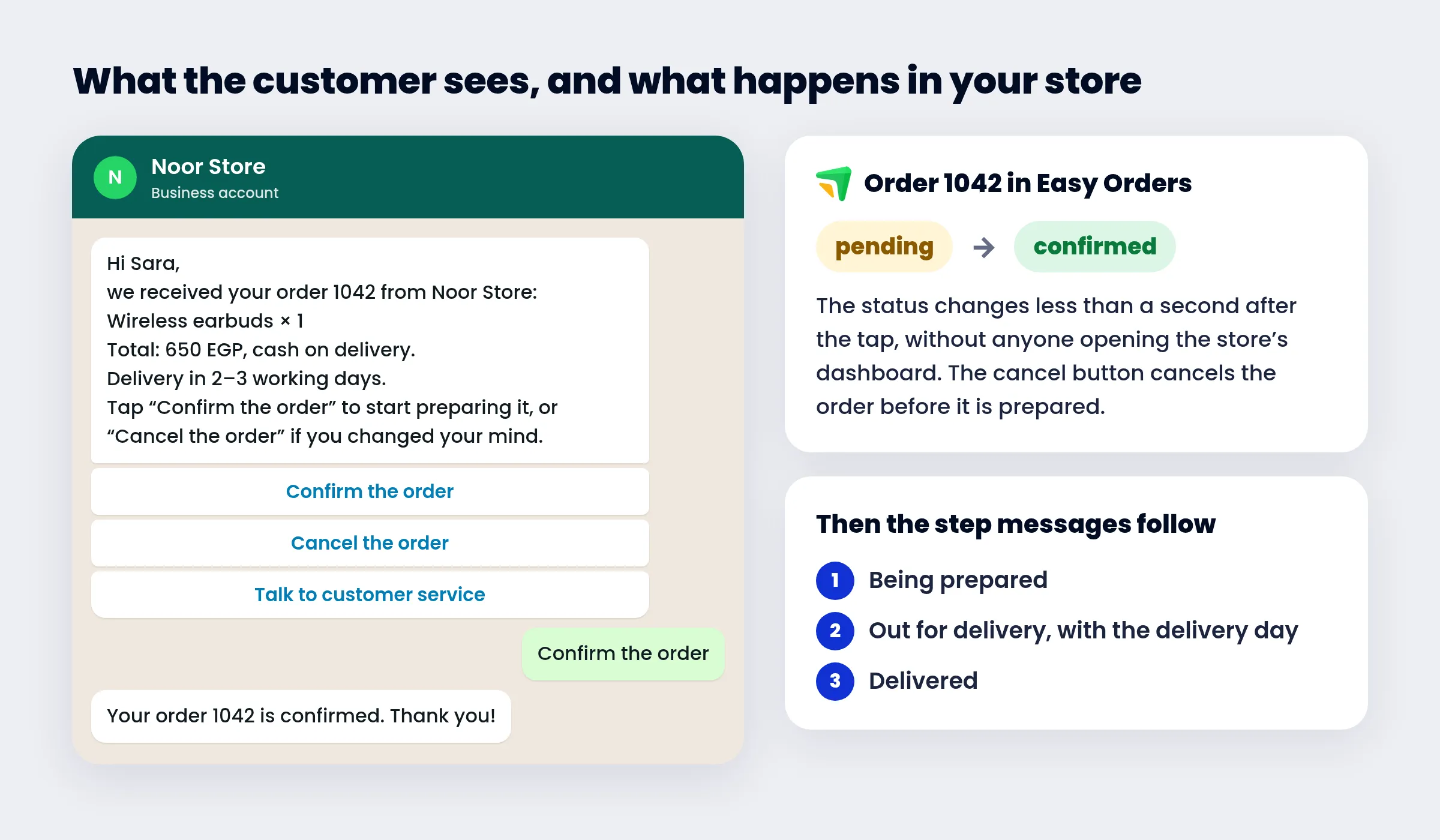
The message is a template you write and Meta approves. Its variables are filled from the order itself: the customer's name, the order number, the total, the payment method, the items in words and your store's name. Under it sit quick-reply buttons, and you decide what each one does: confirm or cancel. A third button, if you add one, opens a conversation with customer service.
When the customer taps:
- Confirm the order makes a new order confirmed in Easy Orders, and the customer reads “Your order 1042 is confirmed. Thank you!”. In our tests the status changed in the store less than a second after the tap.
- Cancel the order cancels it in Easy Orders before it is prepared, and the customer reads that it has been cancelled.
- An order that is already out for delivery or delivered is not changed by the button. The cancellation is recorded for your team, and the customer reads that the store will get back to them. The same goes for an order that was paid online.
Every later status comes back to us from the store, so the next message follows if you set one: being prepared, then out for delivery with the delivery day, then delivered. And if the customer types a question instead of tapping, say “can I change the colour?”, it lands in your inbox, where the AI assistant answers from your instructions and products, or someone on your team takes over.
Real numbers: the first 44 orders
An Egyptian Easy Orders store selling home products cash on delivery ran the two-button confirmation from 16 to 19 October 2026. We left out test orders. For most of those days, the store's team still changed the status in Easy Orders by hand after the customer tapped; from 19 October it changes by itself. That does not affect the answer rate, because the customer sees the same message either way.
| What the customer did | Orders | Share |
|---|---|---|
| Tapped Confirm the order | 26 | 59% |
| Tapped Cancel the order | 5 | 11% |
| Did not answer | 13 | 30% |
| Total | 44 | 100% |
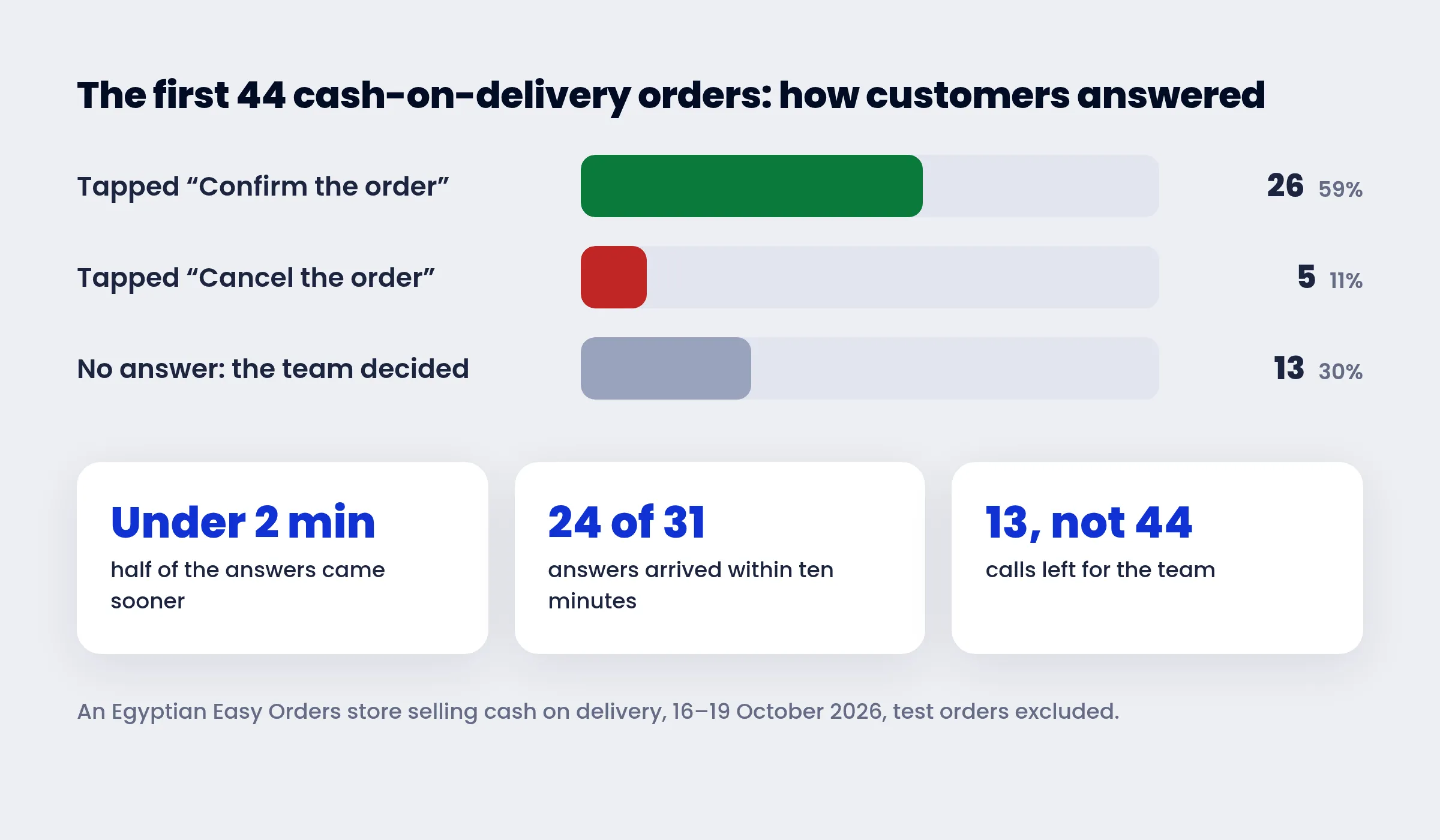
Four things stand out:
- Answers are fast. Half of them came in under two minutes, 24 of the 31 within ten minutes, and 28 within the hour. Customers answer while the order is still on their mind.
- An early cancellation is pure savings. All five orders cancelled with the button were cancelled before shipping. Five parcels that never went out only to come back.
- The silent ones are your team's work. The store's team settled the 13 orders whose customers did not answer: 6 shipped and 7 were cancelled. Those were the calls left to make, 13 instead of 44.
- A confirmation is not a guarantee. Six customers tapped Confirm the order and their orders were cancelled later anyway. The message cuts the work, not your team's judgement.
This is a small sample from one store in its first days, so read it as a direction rather than a rule. The direction is clear, though: most customers answered with a tap before anyone needed to call them.
How to connect Easy Orders to ExceliaBOT
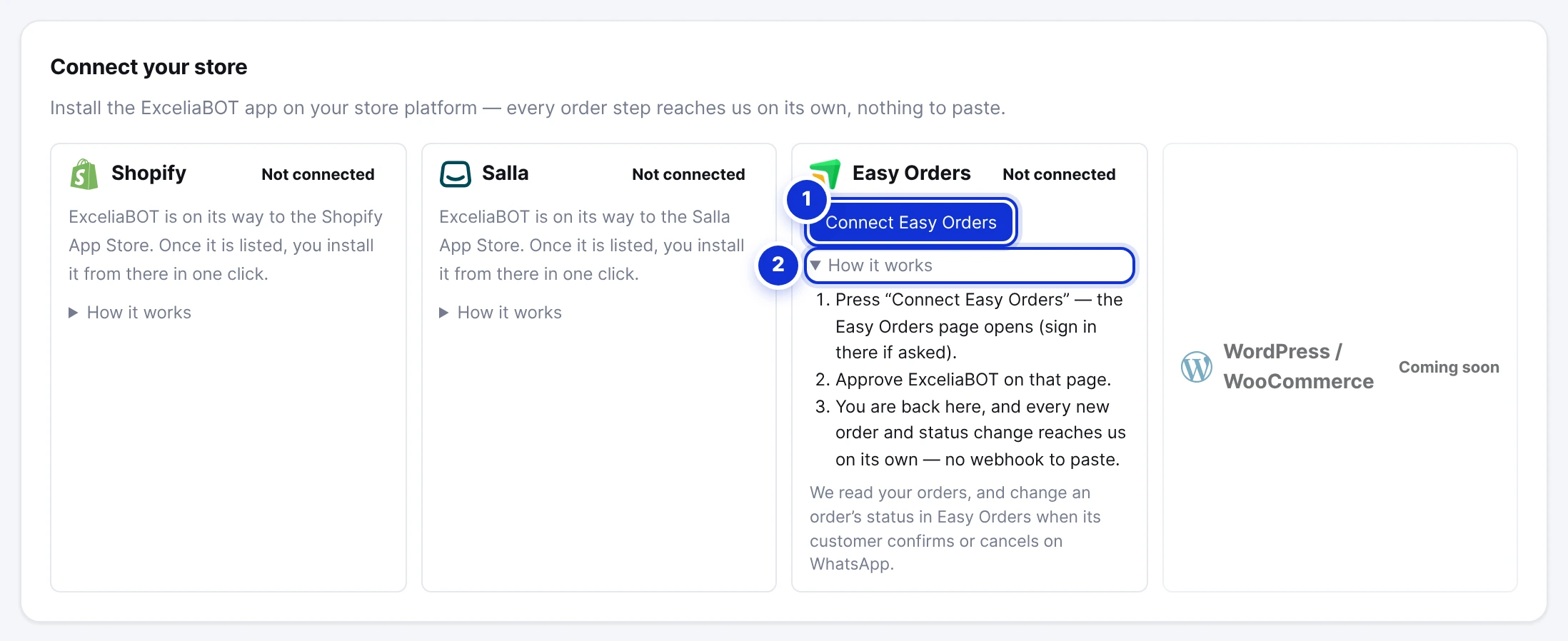
Easy Orders has no app store, so the connection starts from ExceliaBOT. There is no webhook to paste and no code to write:
- In ExceliaBOT, open Store orders, then the Setup tab, and press Connect Easy Orders.
- An Easy Orders page opens, showing ExceliaBOT and what it asks for: reading orders, updating an order's status and reading products. Approve it.
- You are back in ExceliaBOT and the tile says Connected. From that moment, every new order and every status change reaches us.
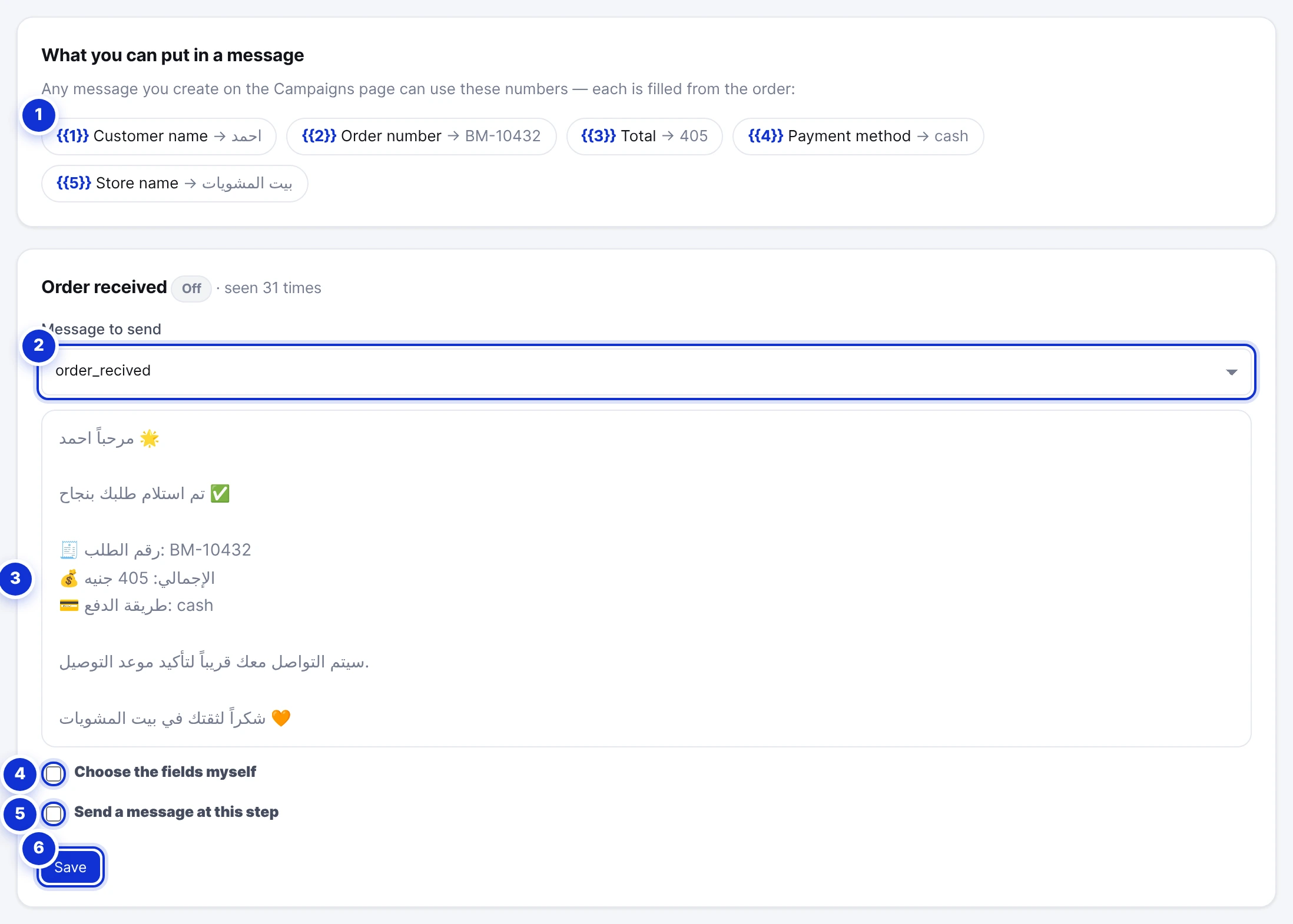
- Write the confirmation template on the Campaigns page, in the Utility category, with Confirm the order and Cancel the order buttons.
- On the Order messages tab, pick the template for the Order received step, set the first button to confirm and the second to cancel, and switch the step on.
- Place a new order in your own store with your own WhatsApp number, and tap Confirm the order when the message arrives.
Three notes from the first connections:
- If you run more than one Easy Orders store, switch to the right store in your Easy Orders account before you press Connect. The approval connects whichever store is open at that moment.
- Test with a new order. We do not know orders placed before you connected, and when their status changes Easy Orders sends only the new status, without the customer's number, so no message goes out for them.
- If your store already posts orders to a webhook, delete that webhook in Easy Orders once the connection works, so the same update does not arrive twice.
If you want the assistant to know your products too, the same tab has Use products from the connected store: it reads your products, prices and pictures, recommends them to customers who ask, and sends a card with the picture, price and link. The full walkthrough is in the help center article Connect your Easy Orders store.
An order confirmation template you can copy
Here is a WhatsApp order confirmation message to start from. Write it on the Campaigns page and choose the Utility category:
Hi {{1}},
we received your order {{2}} from {{6}}:
{{5}}
Total: {{3}} EGP, payment: {{4}}.
Delivery in 2–3 working days.
Tap “Confirm the order” to start preparing it, or “Cancel the order” if you changed your mind.
Buttons: Confirm the order, Cancel the order, Talk to customer service.
| Variable | Filled with |
|---|---|
{{1}} | The customer's name |
{{2}} | The order number, as the customer knows it |
{{3}} | The total |
{{4}} | The payment method in words, such as “cash on delivery” |
{{5}} | The items in words, name and quantity |
{{6}} | Your store's name |
Three tips to get it approved quickly:
- Choose Utility. The message is about an order the customer placed. Promotional wording such as “discount” or “today's offer” makes Meta reclassify the template as Marketing, which costs far more.
- Write the way your customers talk. Meta approves Egyptian Arabic as readily as standard Arabic or English, and a message that sounds like your store gets read faster.
- Keep the order details in. A customer who sees the product and the total decides in seconds, and never has to ask “which order?”.
What it costs
- The confirmation message is a Utility template. Meta charges each delivered one at the Utility rate of the customer's country, $0.0036 in Egypt, plus VAT. It is billed to your own WhatsApp Business account directly, and we add no margin.
- The reply the customer gets after tapping is a service message. Since 1 October 2026 every business number gets 1,000 free service messages a month, and the Utility rate applies after that. We covered the change in our post on WhatsApp's new pricing.
- In ExceliaBOT, order messages count against the campaign messages in your monthly plan, as for any store. The connection itself costs nothing extra.
For scale: 44 confirmation messages in Egypt cost less than a quarter of a dollar, which is less than a single parcel coming back from the door.
What the connection does not do
- It does not message orders placed before you connected. When their status changes, Easy Orders sends only the new status, without the customer's number.
- It does not cancel an order that is out for delivery or paid online. It records the cancel request for your team, and the decision is yours in Easy Orders.
- It connects one Easy Orders store per account.
- It does not replace your judgement. Two orders from one number within a minute, an incomplete address, an unusually large order: the message brings them up early, and your team still decides.
Frequently asked questions
Do I need code or a webhook to connect Easy Orders to WhatsApp?
No. It takes one button in ExceliaBOT and one approval in Easy Orders. From then on, every new order and every status change reaches us on its own.
Does it replace an order confirmation service completely?
No. It cuts the calls down to the customers who did not answer. In the first 44 orders, 13 calls were left.
What if the customer types a question instead of tapping a button?
The question lands in your inbox, where the AI assistant answers from your instructions and products, or someone on your team takes over. The buttons stay in the message if the customer wants to tap later.
Can I also send a message when the order ships and arrives?
Yes. Every step has its own card and message: being prepared, out for delivery, delivered, and any other status your store uses.
Does the message come from my store?
Yes. It comes from your own WhatsApp Business number, under your business name, not from ours.
Does it work with Shopify and Salla?
Yes, through the ExceliaBOT app on each platform: the same message and buttons, with the confirmation written back to the store.
Sources: Easy Orders documentation on the authorized app link and webhooks; Meta's documentation on WhatsApp pricing; the ExceliaBOT help center article Connect your Easy Orders store; the numbers come from the orders of an Egyptian Easy Orders store using ExceliaBOT, 16–19 October 2026, test orders excluded.